
Guide to Survey and Survey Template features
Collect structured information from your organizations: build a survey template once, send it to as many organizations as you like, let them fill it in, and compare the answers.
| Step | What you do | Where |
|---|---|---|
| 1 | Build a survey template with sections and questions | Management → Survey templates |
| 2 | Publish a version of the template | Management → Survey templates |
| 3 | Send it to one or more organizations | Management → Survey templates |
| 4 | Organizations fill in and submit the survey | Link in the invitation email |
| 5 | Follow up, export and compare the answers | Management → Surveys |
| Optional | Have the figures filled in from your ERP | See chapter 8 |
Good to know
- Building templates and sending surveys needs owner or reseller access on the organization.
- Filling in a survey needs write access (or owner/reseller) on the organization that received it.
- Users with read access can look at a survey, but not change it.
1. Where to find it
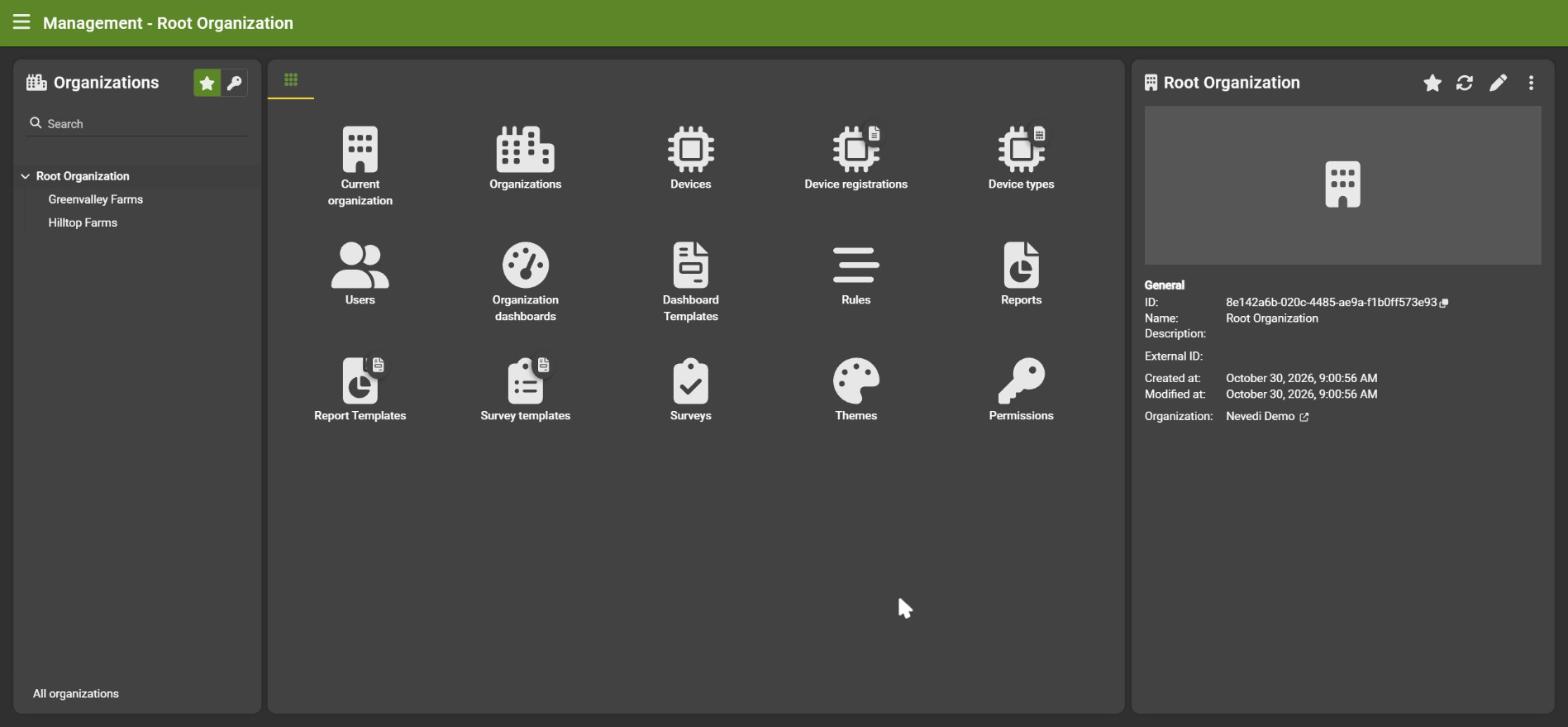
Open Management and pick an organization. The tiles Survey templates and Surveys are the two entry points of this feature.
Tip: switch the organization list to favourites only (the star above the list) to keep the list short.
2. Survey templates
A template is the blueprint of a survey: a title, instructions, sections and questions. A template can have several versions, so you can improve it over time without touching surveys that were already sent.
2.1 Create a template
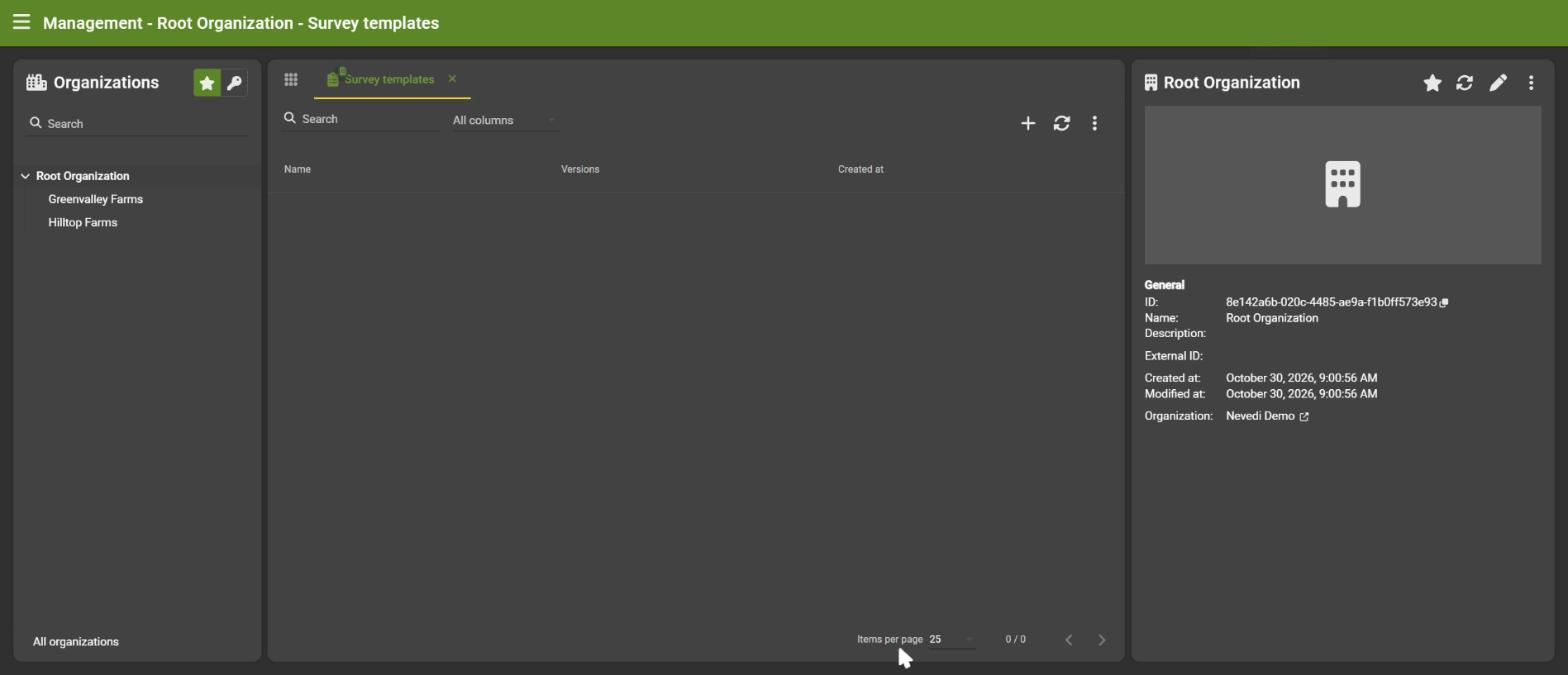
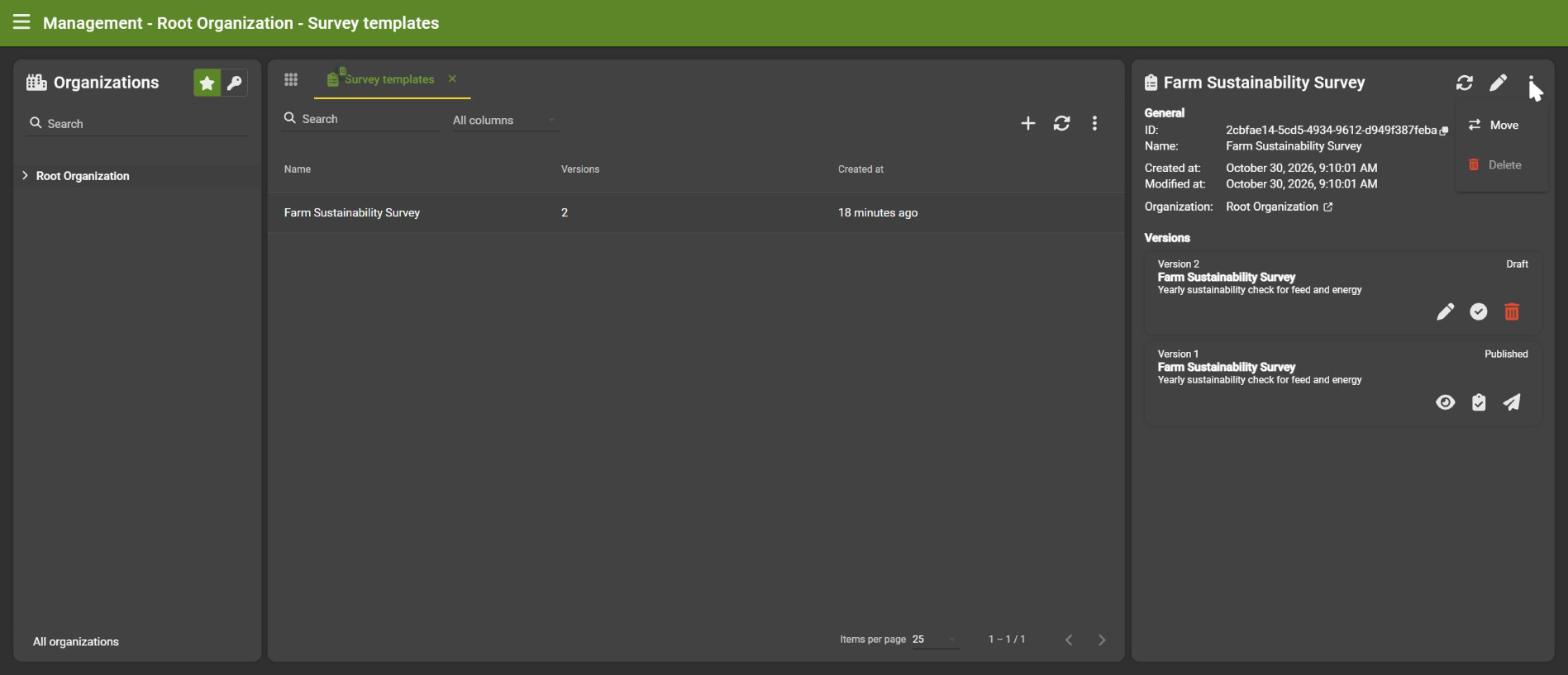
- Open Survey templates. The list shows your templates and how many versions each has.
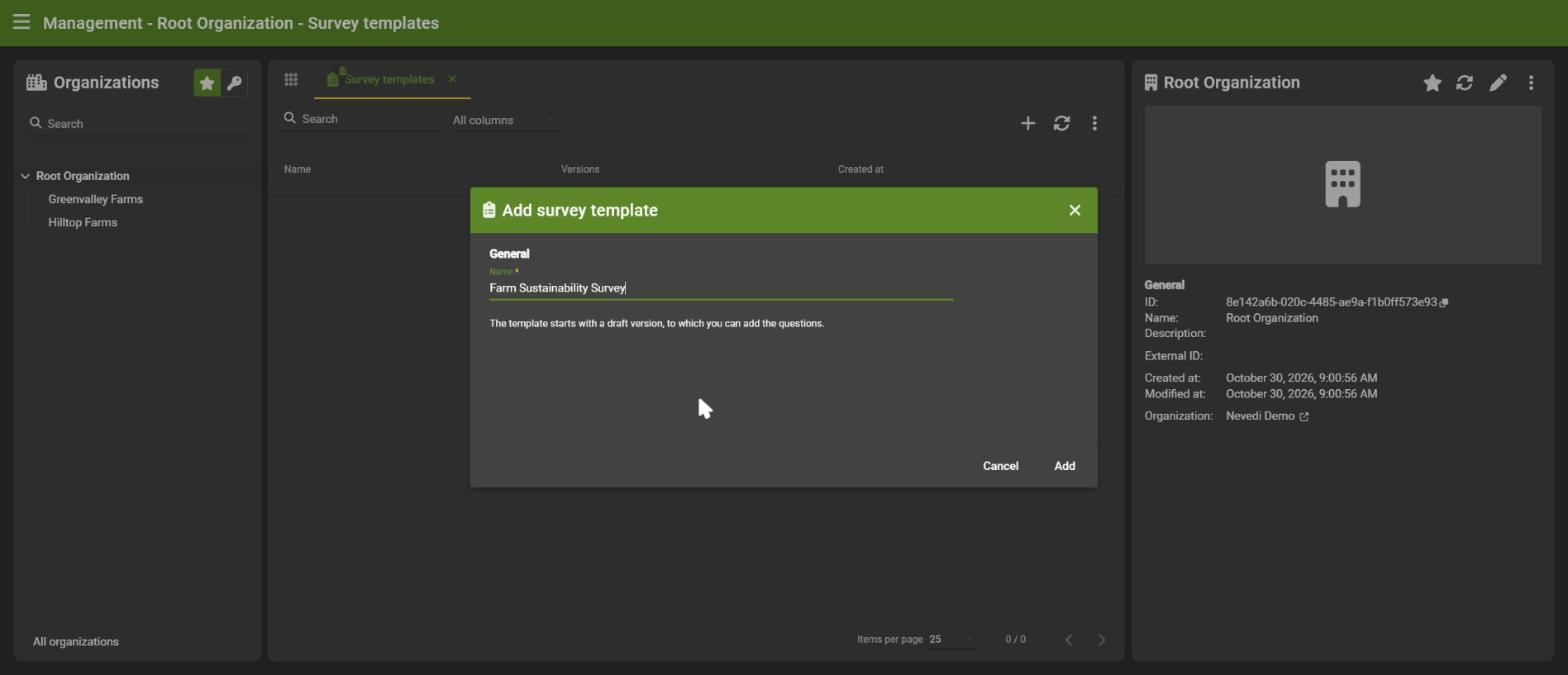
- Click +, give the template a name and click Add.
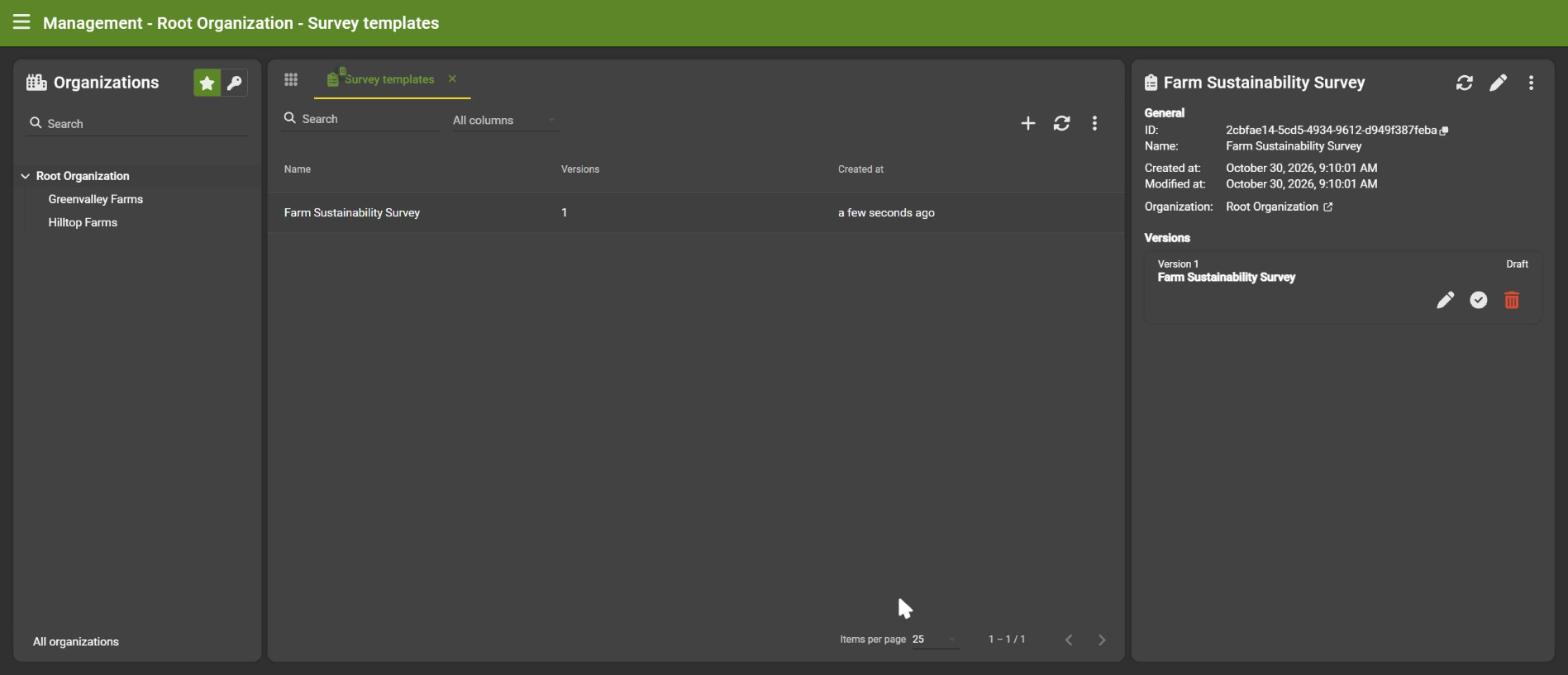
The new template starts with an empty draft version 1, ready to be filled with questions. Select the template to see its details and versions on the right.
2.2 Versions
Every template has versions with a status:
| Status | Meaning | What you can do |
|---|---|---|
| Draft | Work in progress | Edit, preview, publish or delete |
| Published | Final and ready to send | View, send, see the surveys sent from it |
- Only one draft can exist at a time.
- A published version never changes. This keeps every survey that was sent from it consistent.
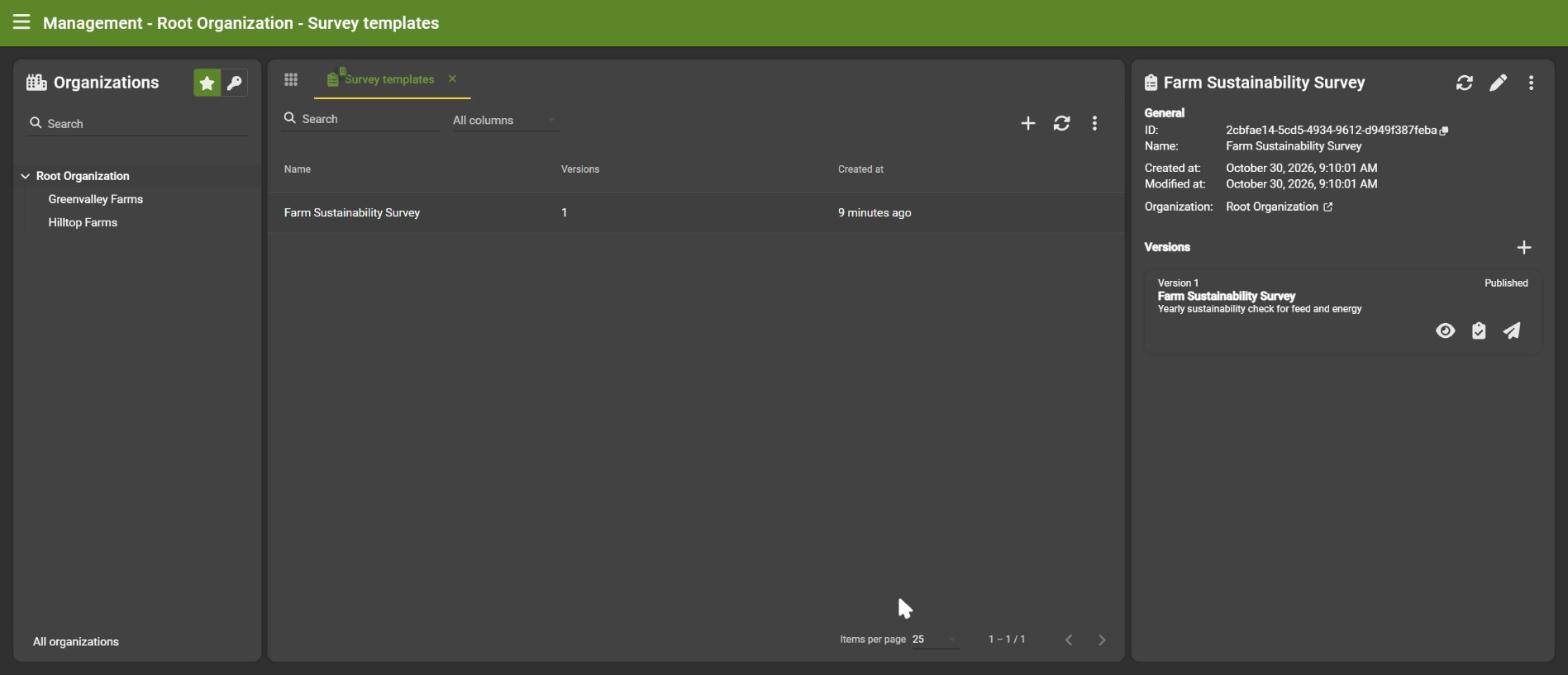
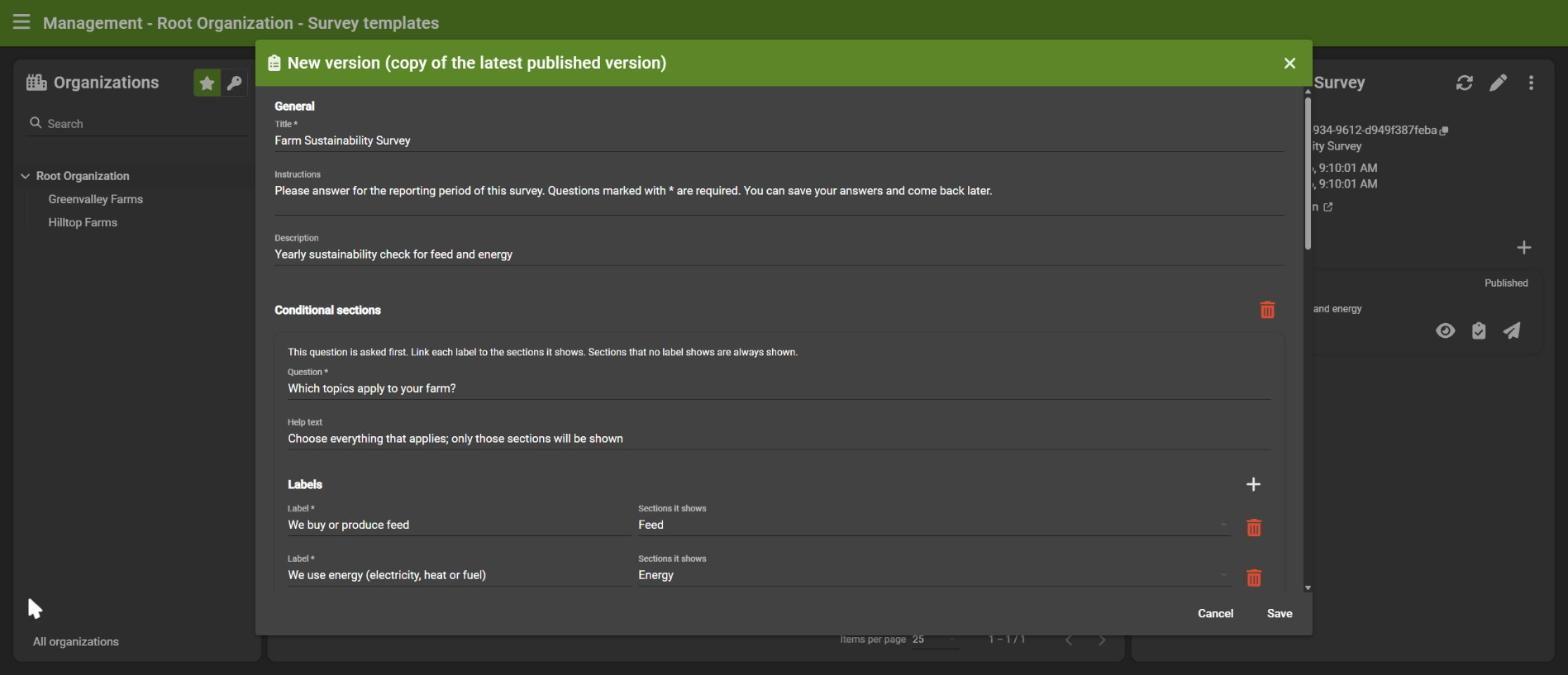
- To change a published version, click + next to Versions. The new draft is a copy of the latest published version, so you only change what is needed.
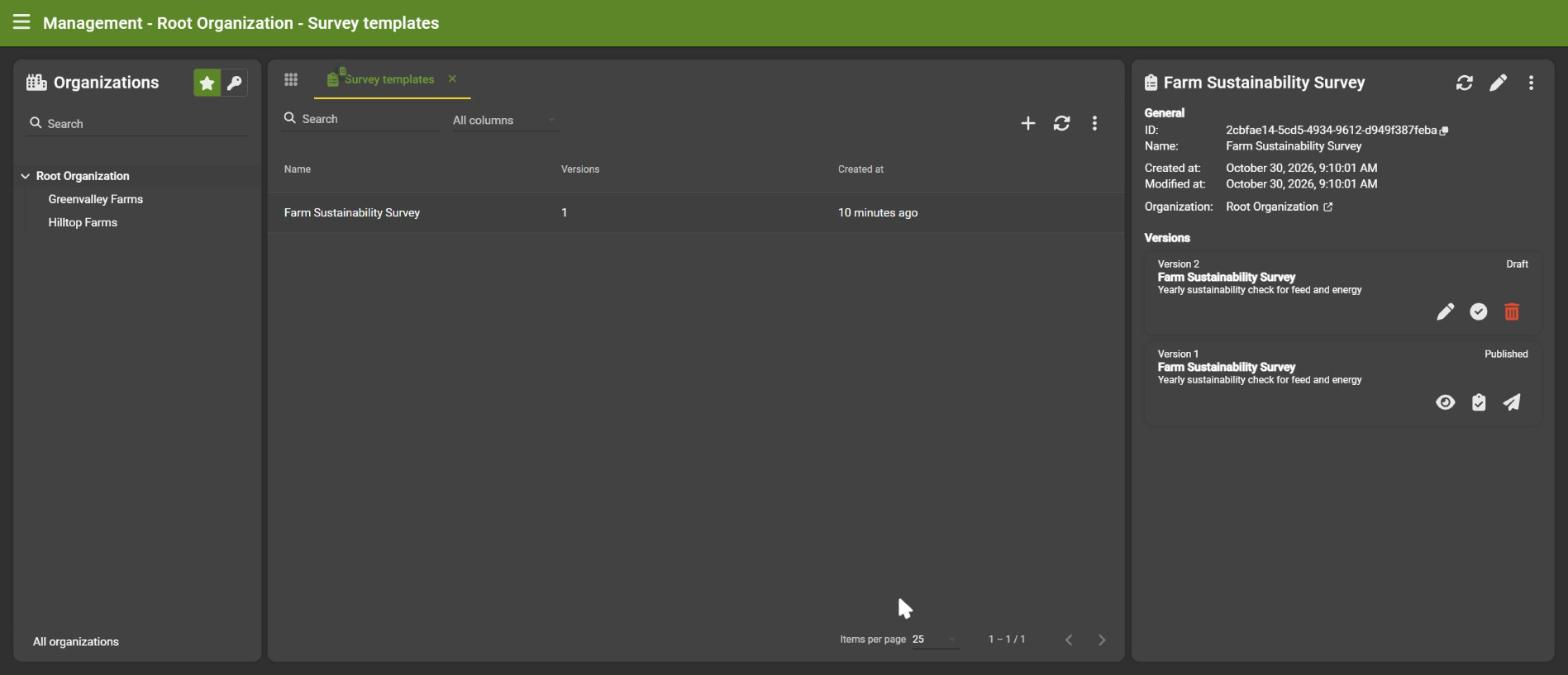
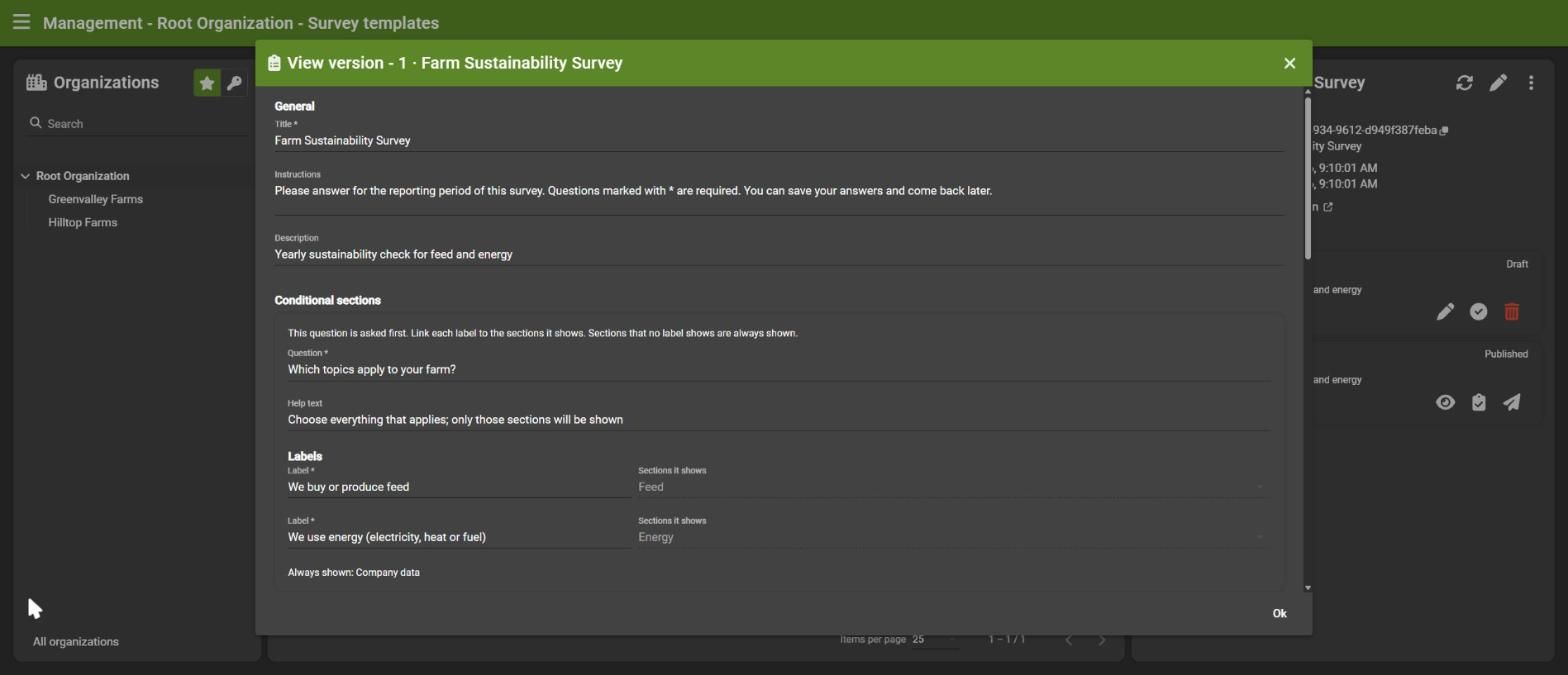
A published version can be opened read-only with the eye icon.
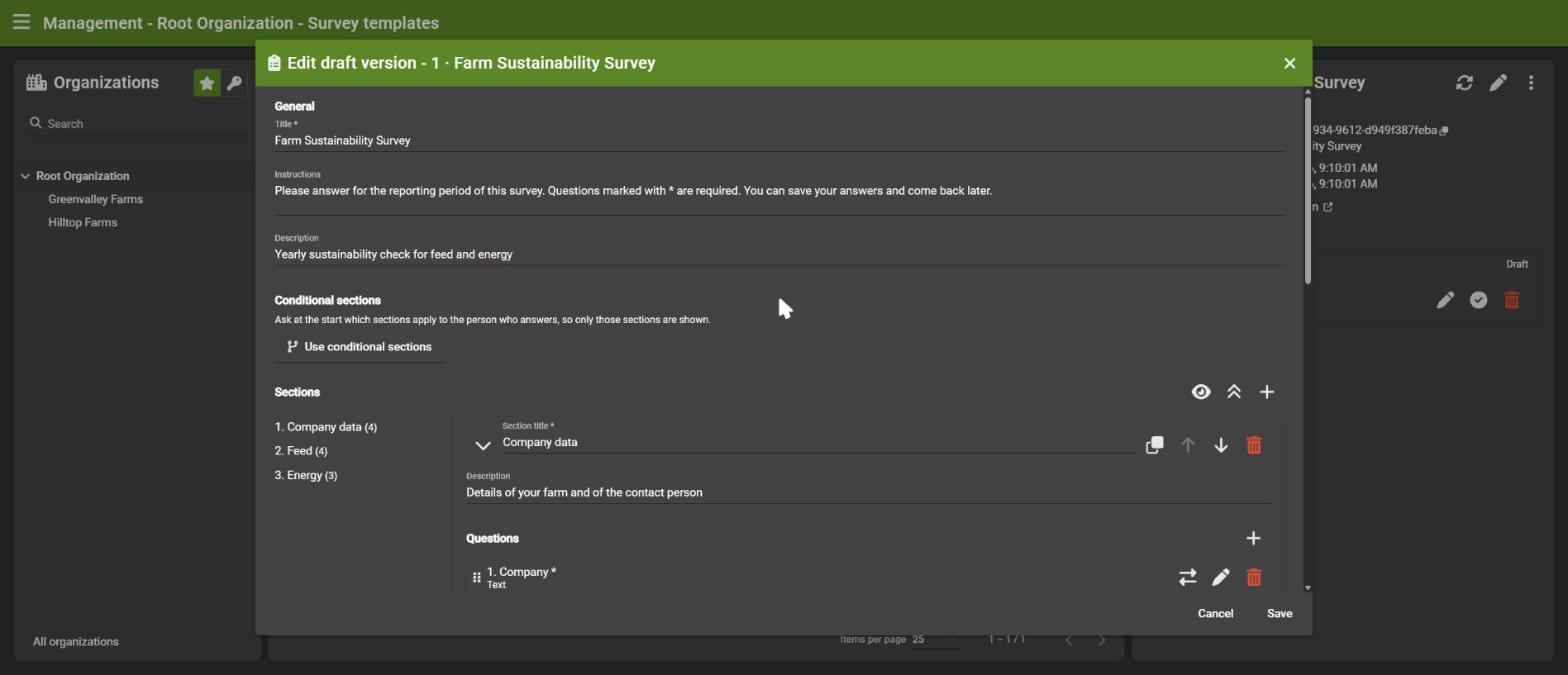
2.3 Edit a version
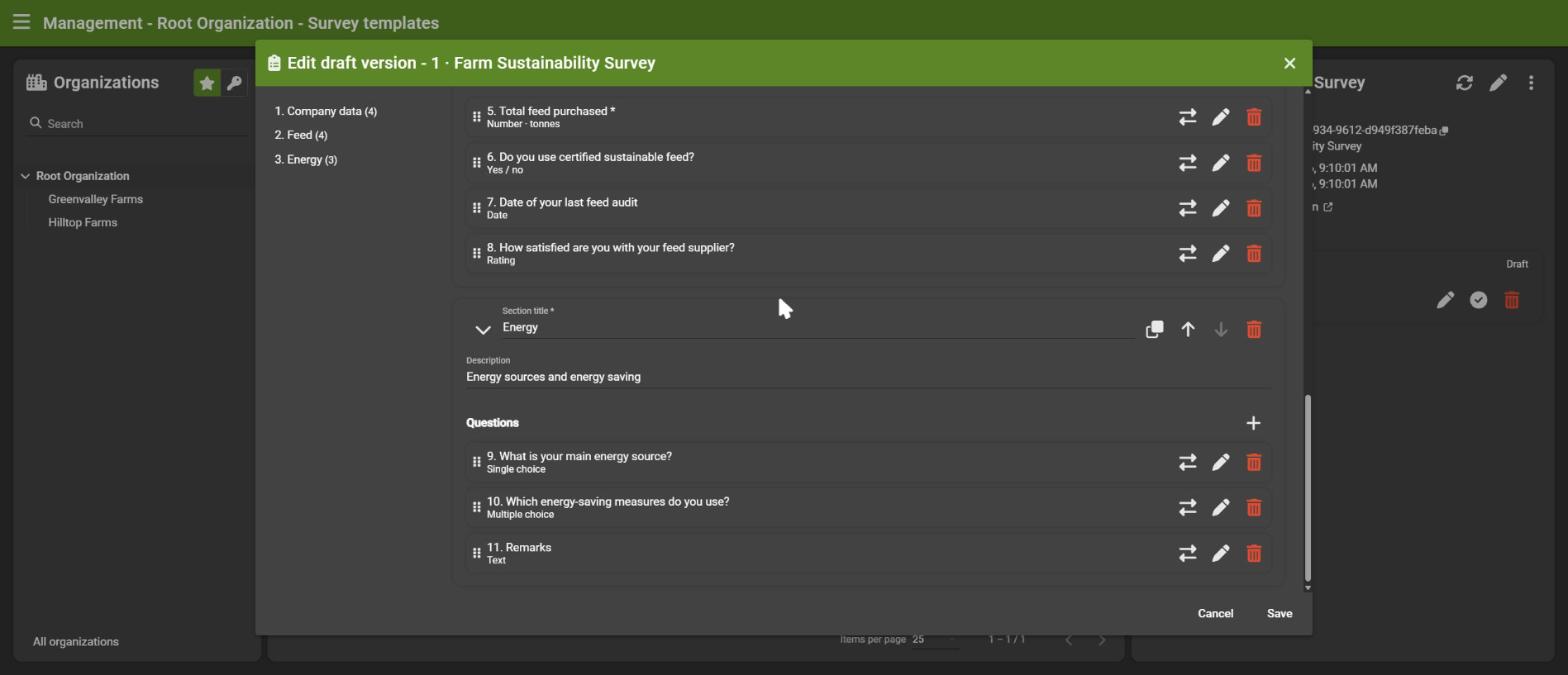
Click the pencil of a draft version. The editor has four parts:
- General: title, instructions (shown at the top of the survey) and a description.
- Conditional sections: optional, see 2.9.
- Sections: groups of questions.
- Questions inside every section.
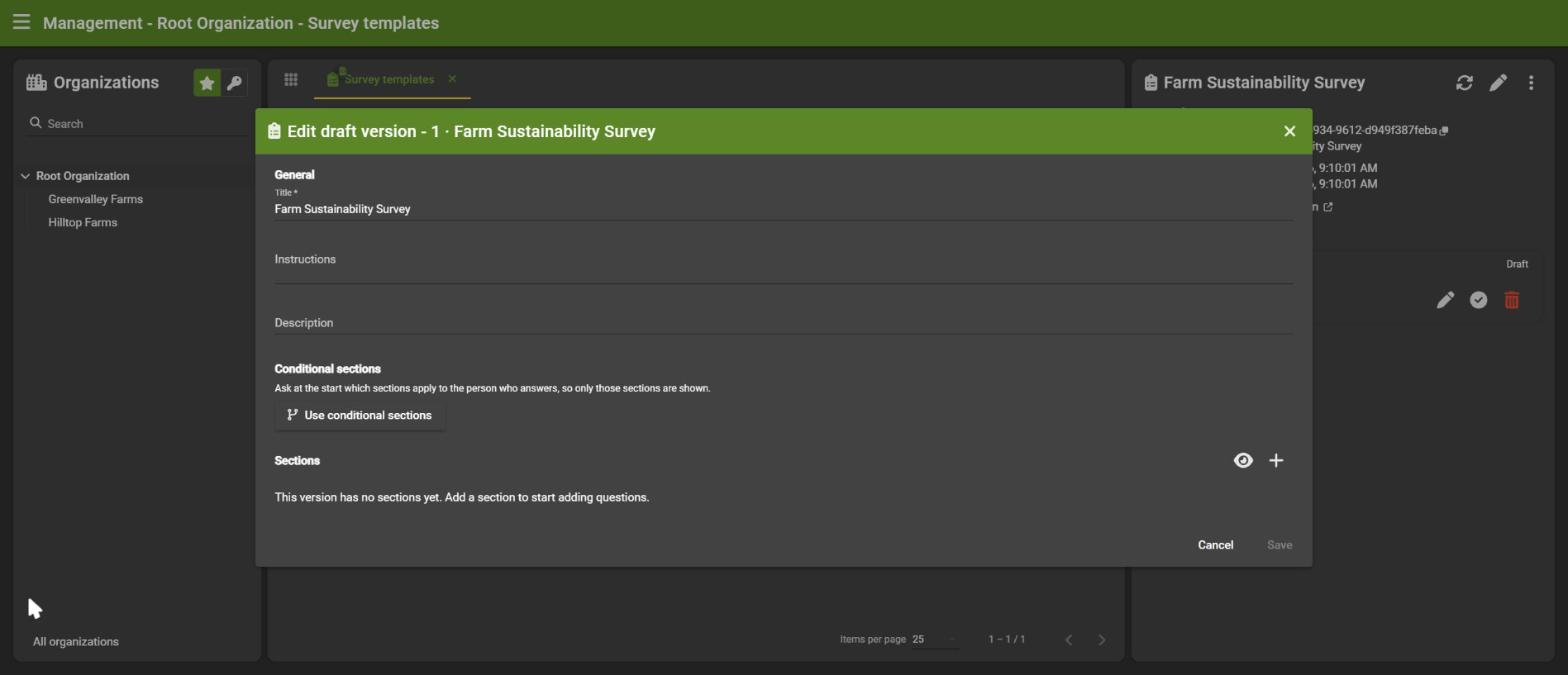
Nothing is saved until you click Save. Cancelling leaves the version as it was.
2.4 Sections
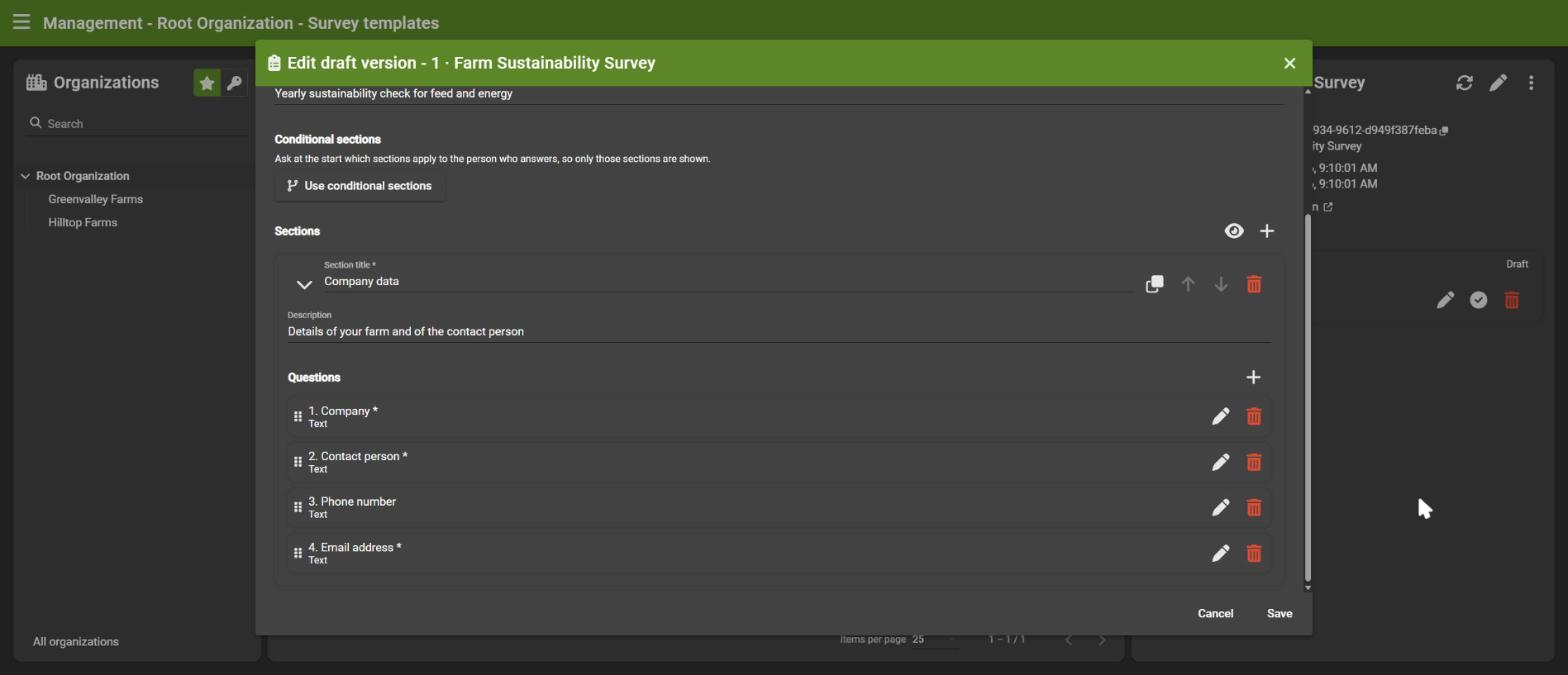
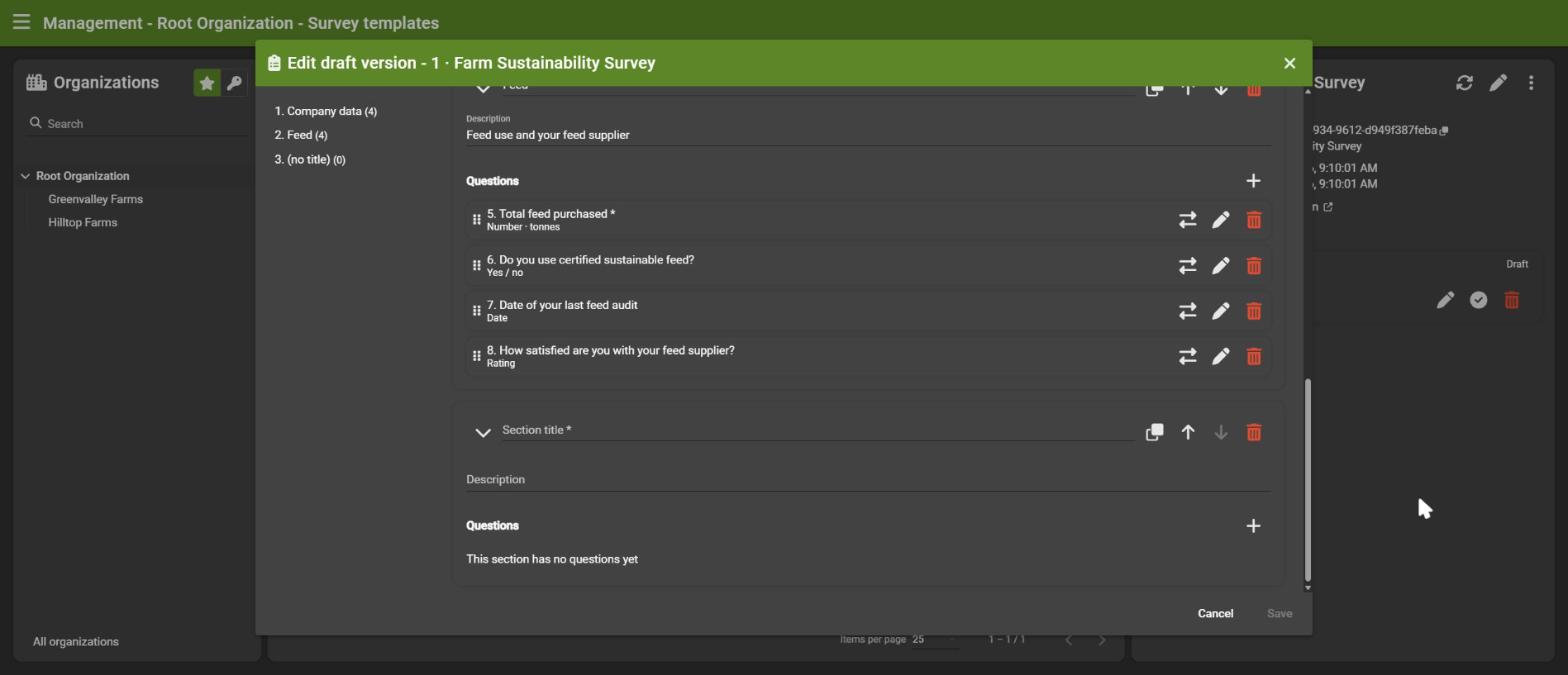
Sections group questions under a title, like chapters. In the editor you can:
- add, rename and describe sections,
- duplicate, move up/down or delete a section,
- collapse sections (single or all) for a clear overview,
- jump to a section with the navigation on the left.
Questions are numbered over the whole survey.
2.5 Questions
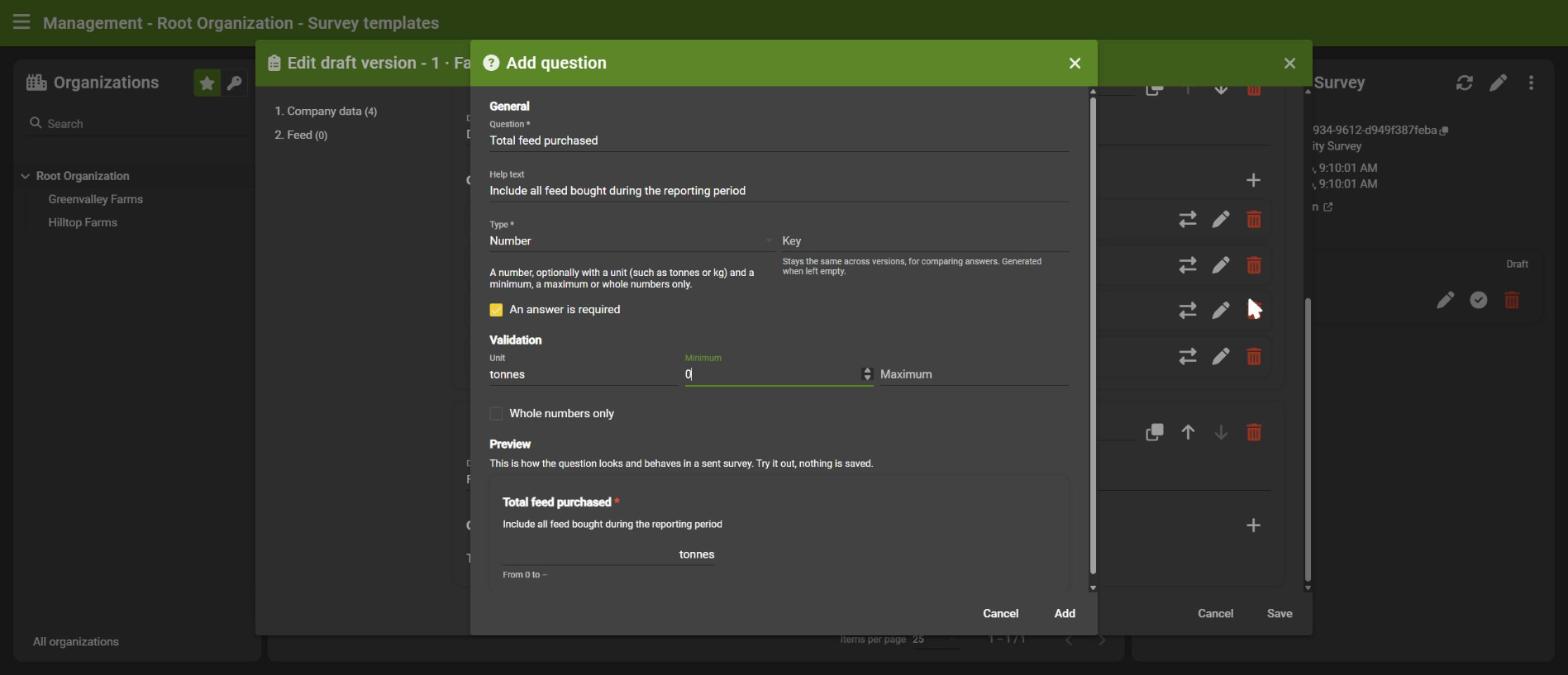
Click + in a section to add a question. In the question dialog you set:
| Setting | Description |
|---|---|
| Question | The text people see |
| Help text | Optional explanation below the question |
| Type | What kind of answer is expected (see 2.6) |
| Key | Optional short name. It stays the same across versions, so answers can be compared over time. Left empty, it is generated. |
| An answer is required | The survey cannot be submitted without it |
You can drag questions to reorder them, move them to another section, edit or delete them.
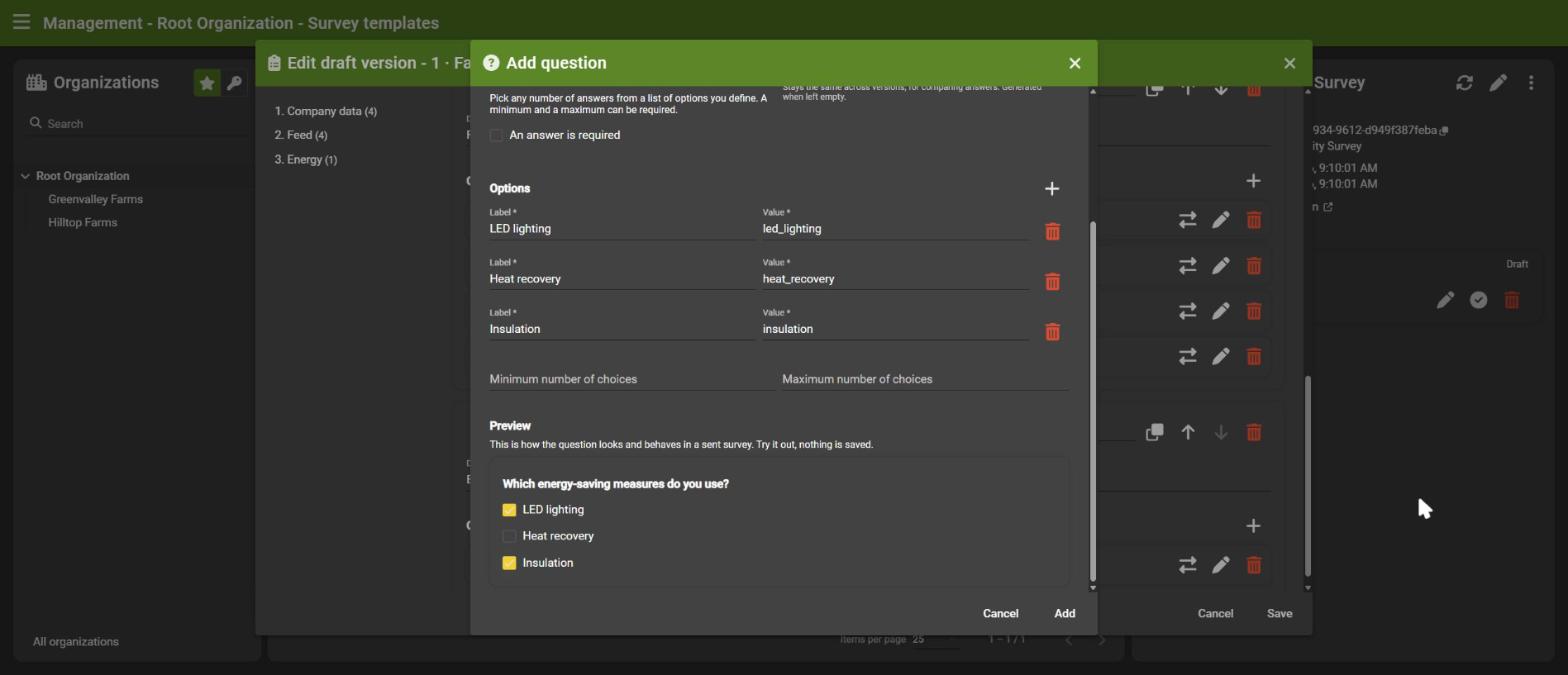
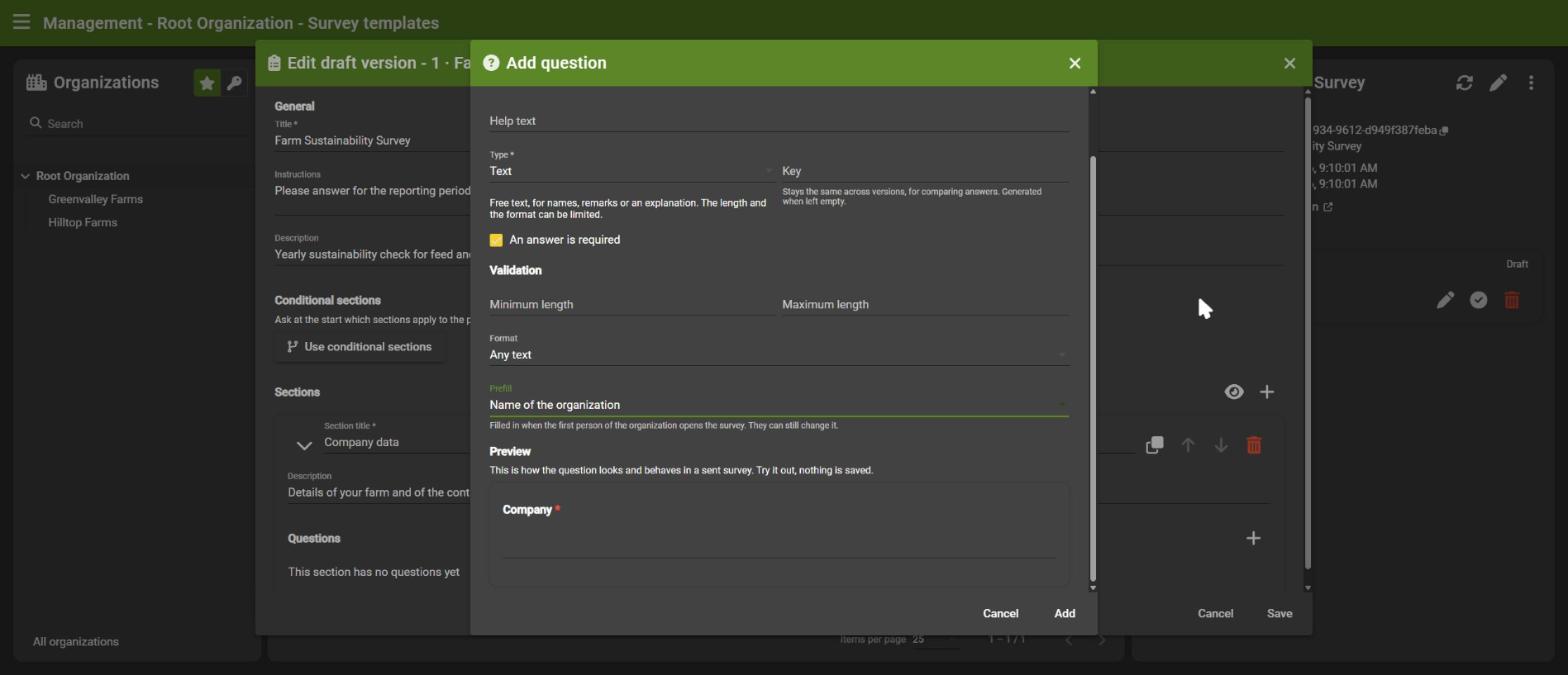
Live preview. At the bottom of the dialog you see the question exactly as the person answering will see it, and you can try it out. Nothing is saved.
2.6 Question types
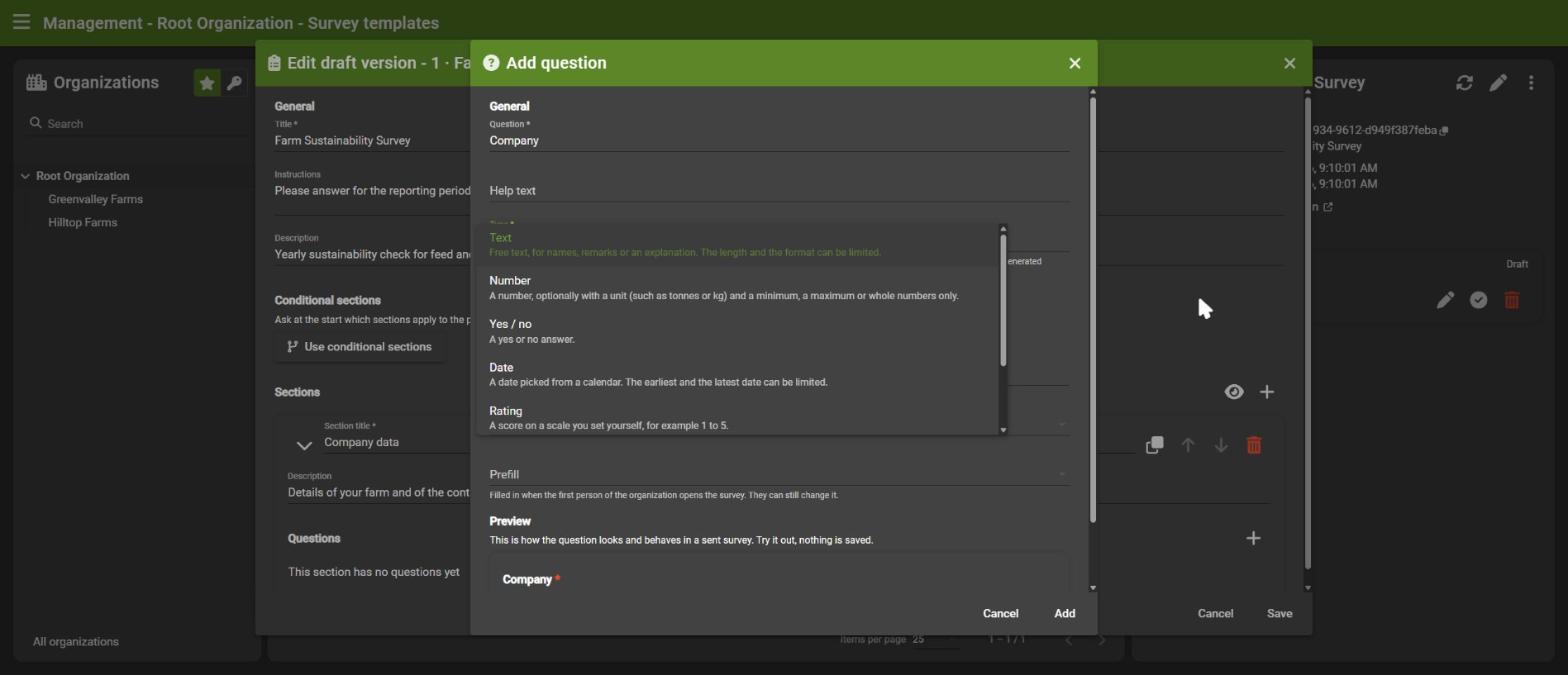
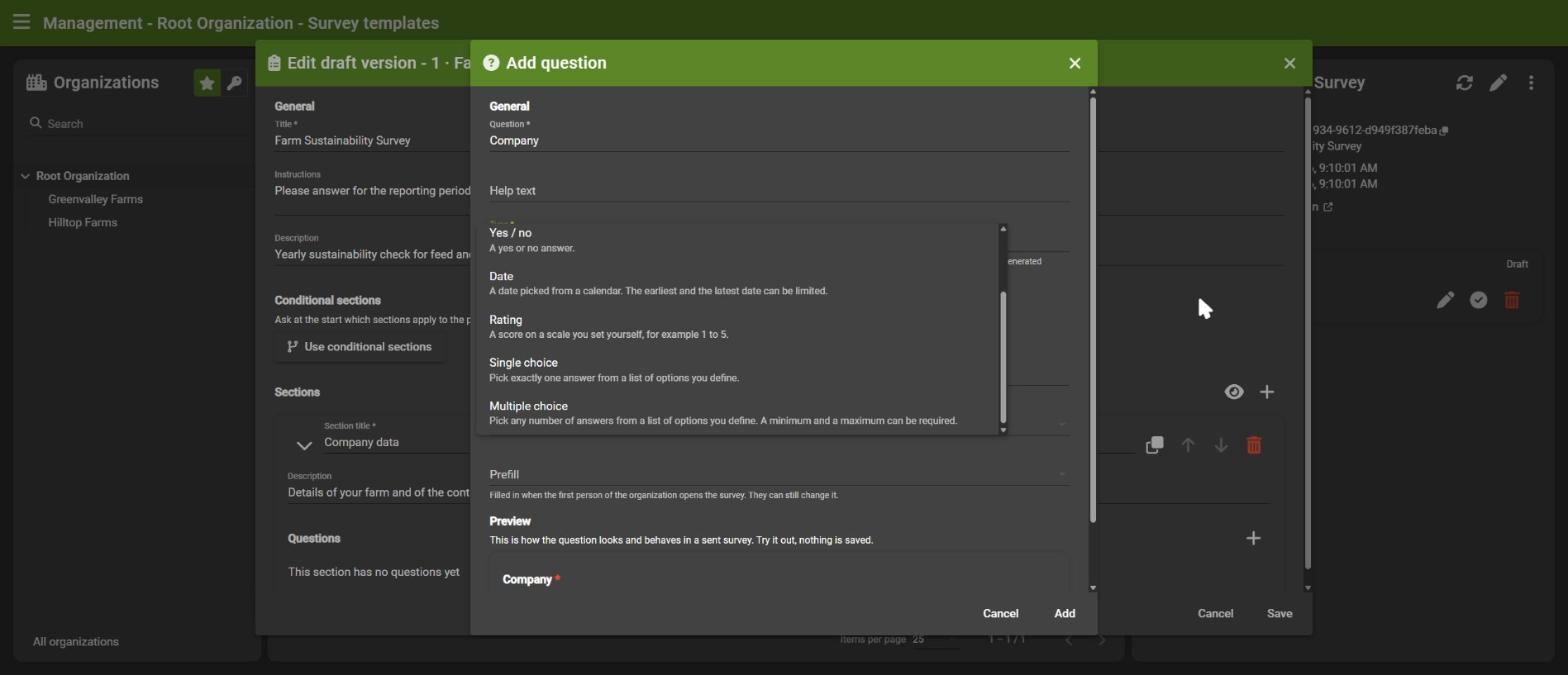
Each type has a short description in the dropdown.
| Type | Answer | Settings |
|---|---|---|
| Text | Free text | Minimum and maximum length, format, prefill |
| Number | A number | Unit (for example tonnes), minimum, maximum, whole numbers only |
| Yes / no | Yes or no | none |
| Date | A date from a calendar | Earliest and latest date |
| Rating | A score on a scale you define (for example 1 to 5) | Minimum and maximum |
| Single choice | One option | The list of options |
| Multiple choice | Any number of options | The list of options, minimum and maximum number of choices |
For choice questions you enter the options as label (shown) and value (stored). The value is filled in automatically from the label.
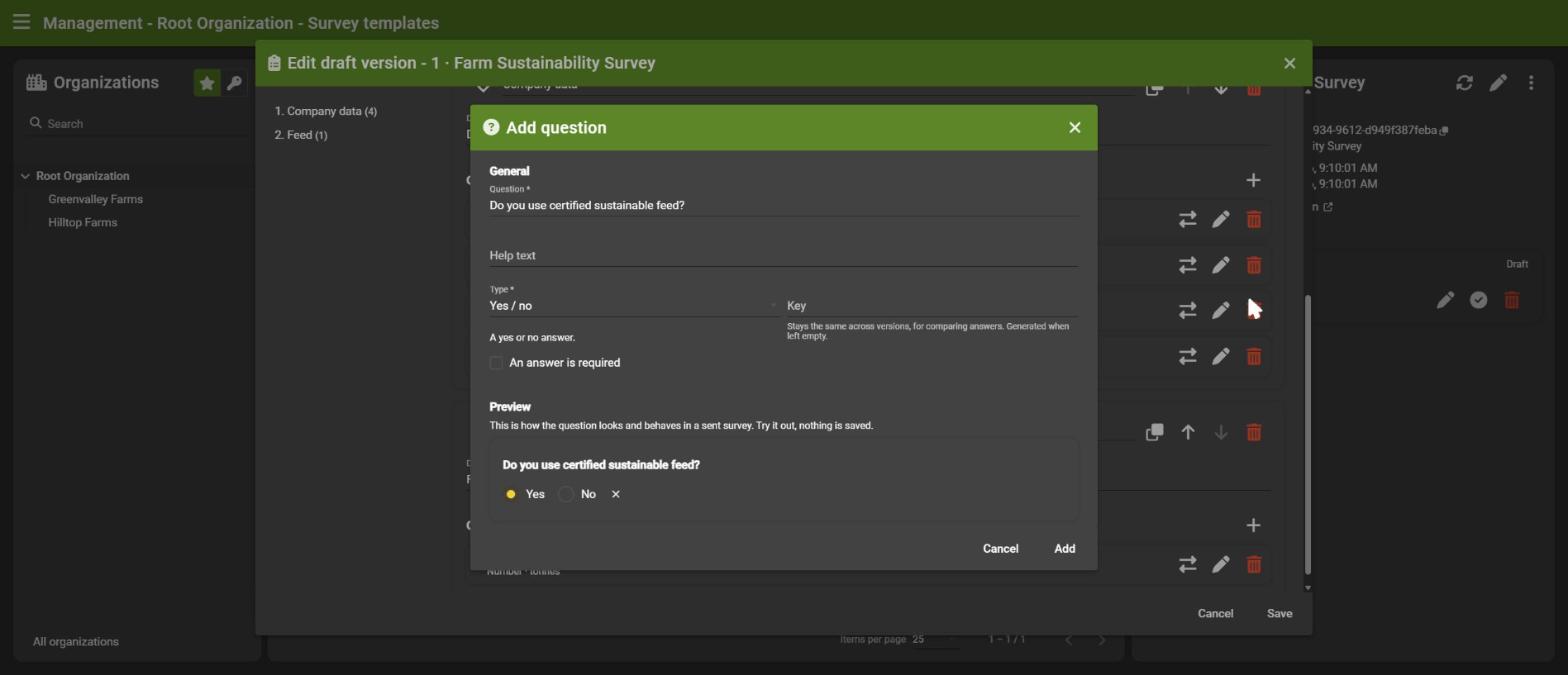
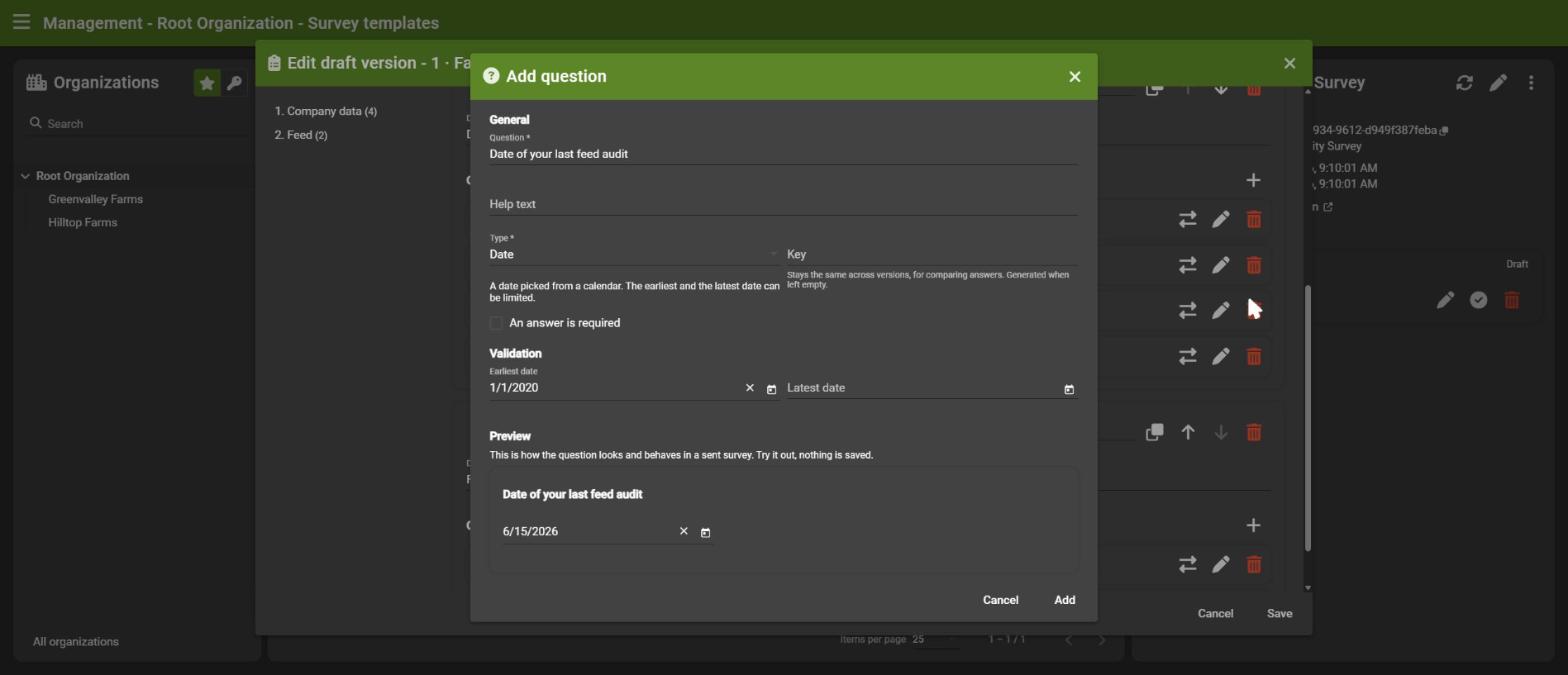
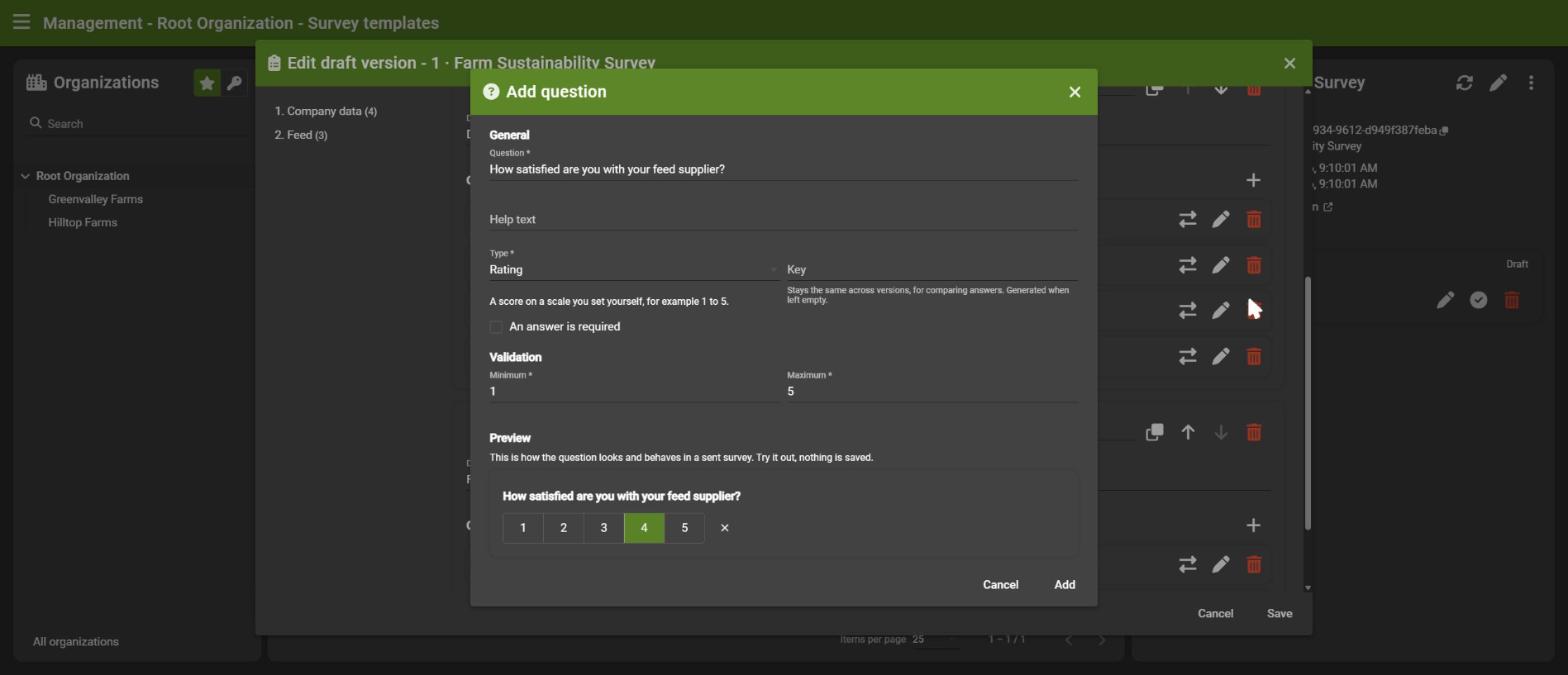
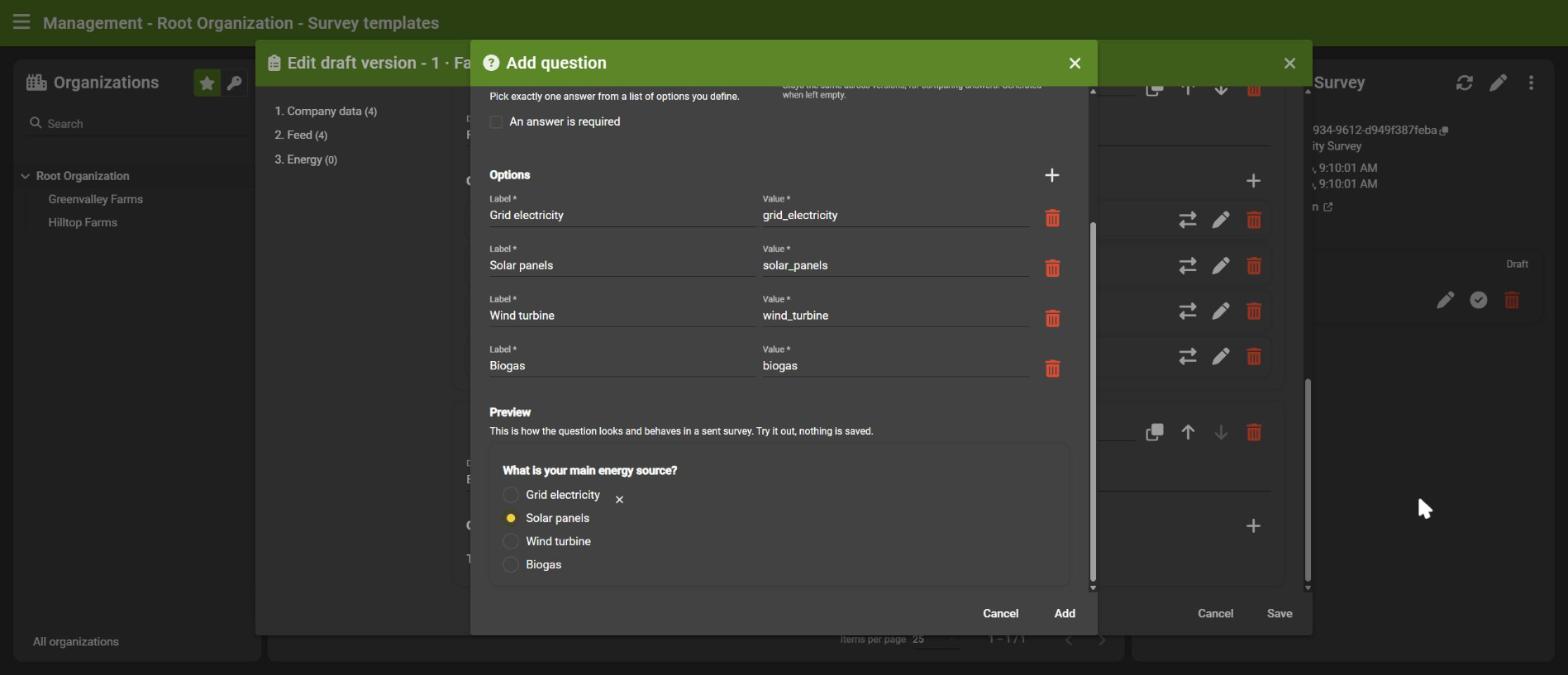
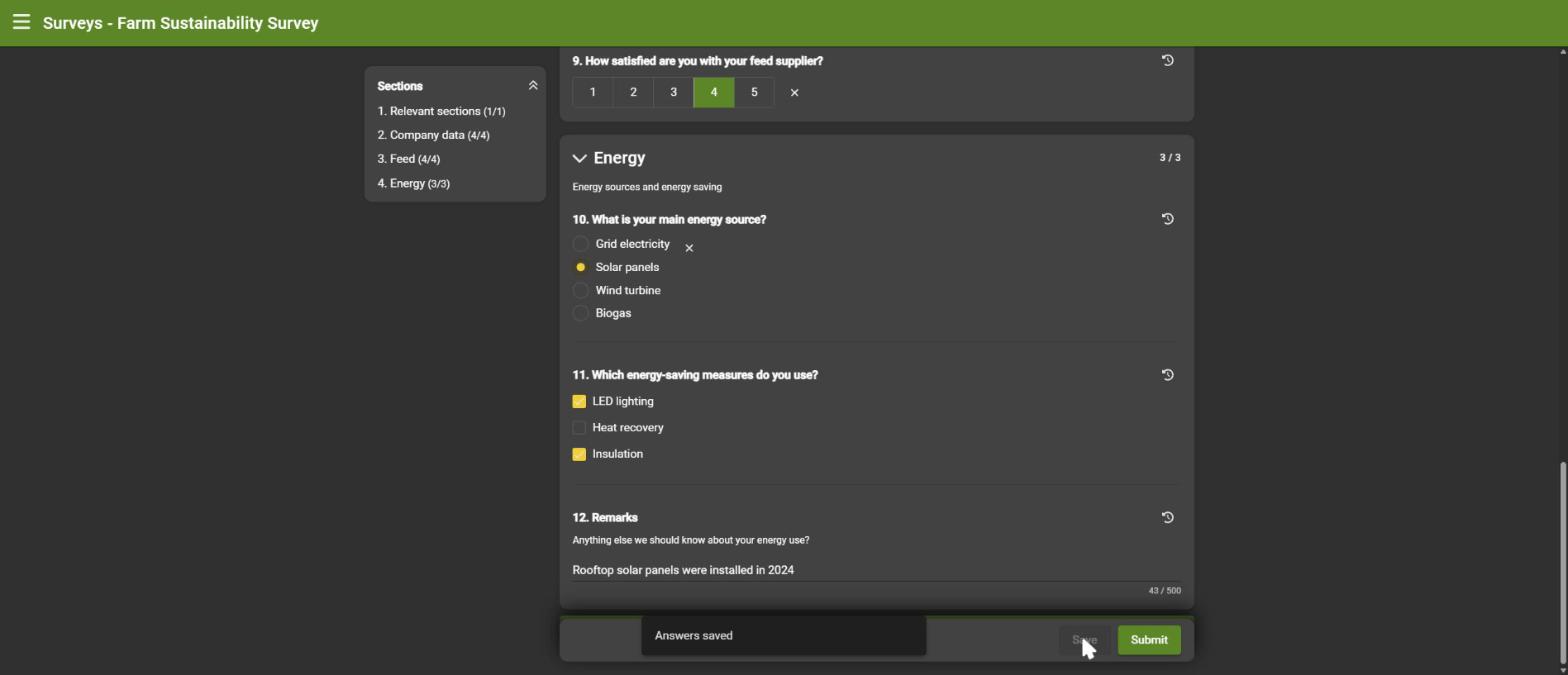
Clearing an answer. Optional yes/no, rating, single-choice and date answers have a small ✕ to clear them again, so a choice is never "stuck".
2.7 Text formats
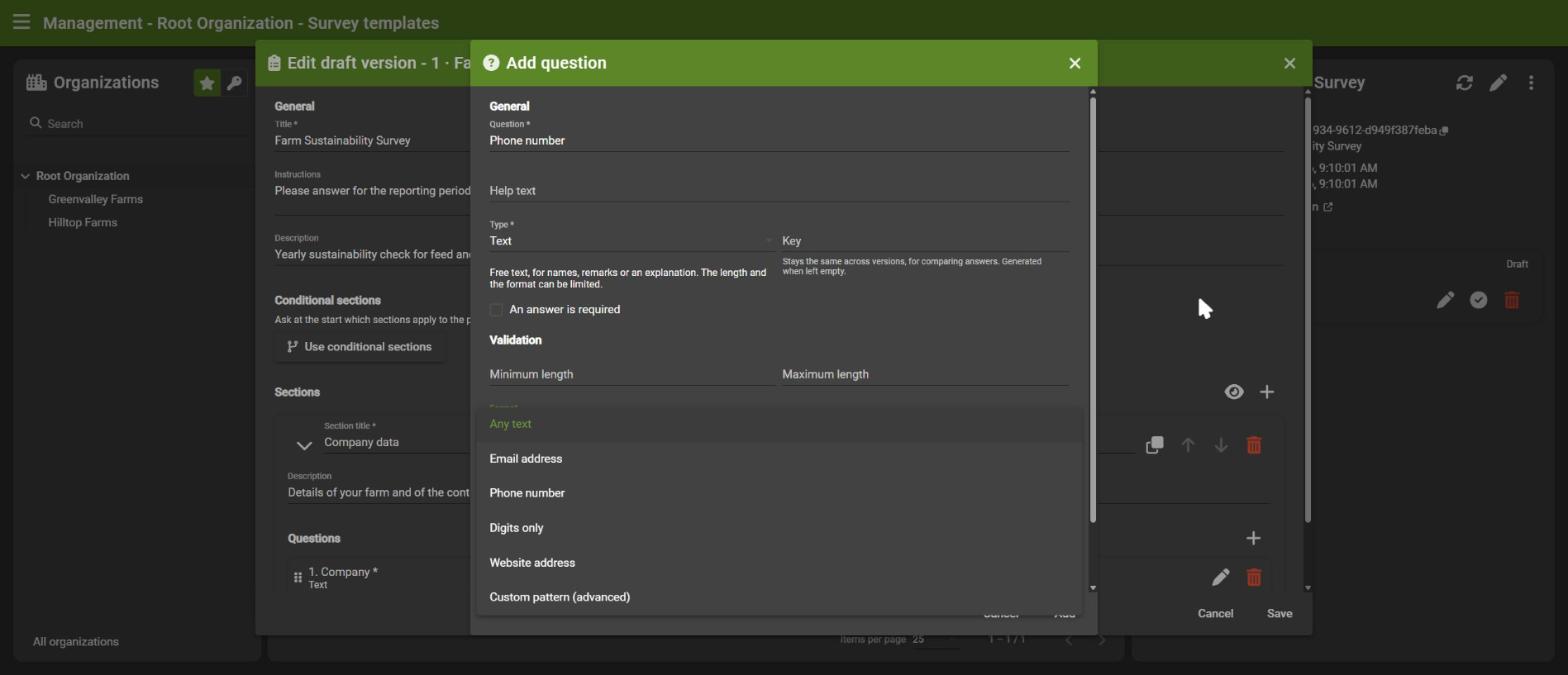
Text questions can be limited to a format, without knowing anything about regular expressions:
| Format | Accepts |
|---|---|
| Any text | Everything |
| Email address | name@company.com |
| Phone number | Digits, spaces, brackets and dashes, optionally starting with + |
| Digits only | Only the digits 0 to 9 |
| Website address | An address starting with http:// or https:// |
| Custom pattern (advanced) | Your own regular expression, for experts |
2.8 Prefill from the account
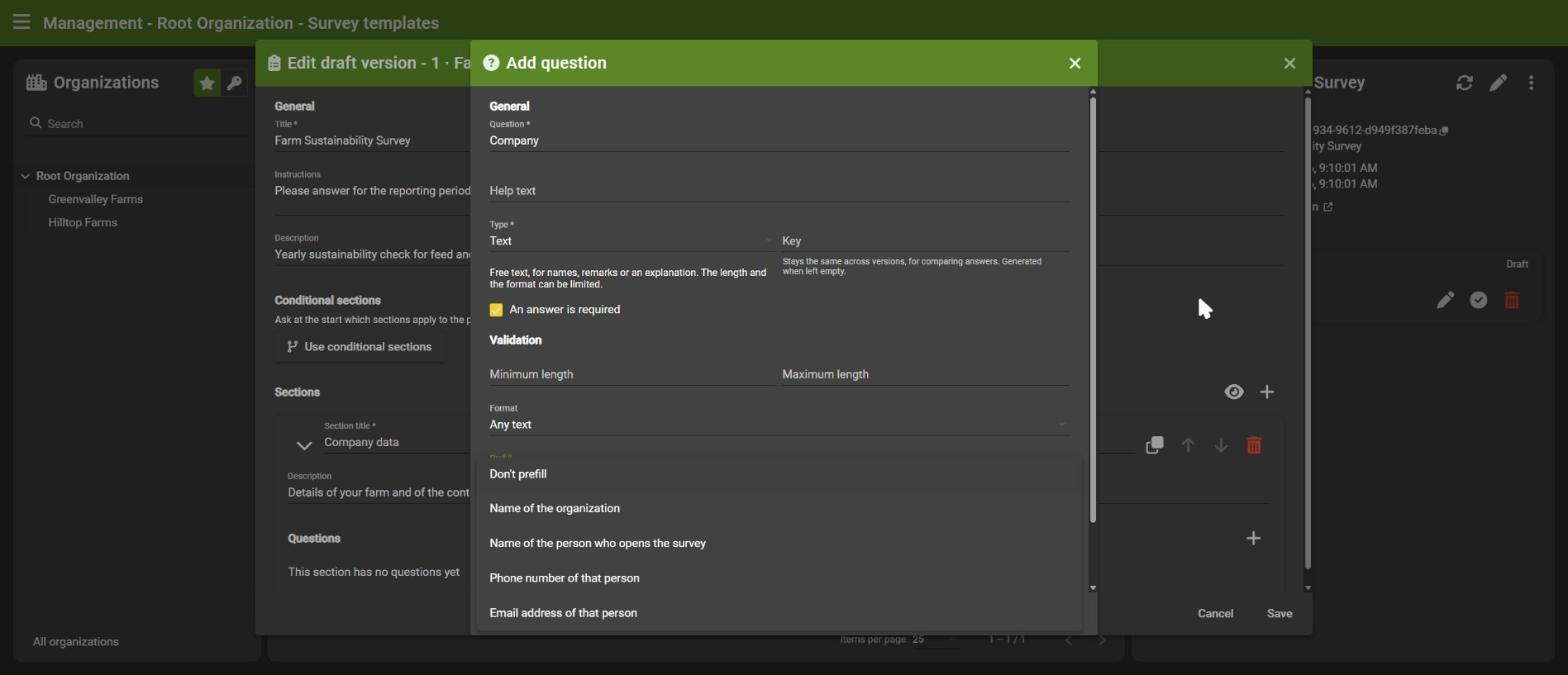
Text questions can be filled in automatically, so people do not have to type what we already know:
| Prefill | Filled in with |
|---|---|
| Name of the organization | The organization the survey was sent to |
| Name of the person who opens the survey | First and last name |
| Phone number of that person | Phone number of the account |
| Email address of that person | Email address of the account |
How it works:
- It happens once, when the first person of the organization (the responsible user or a user of that organization) opens the survey.
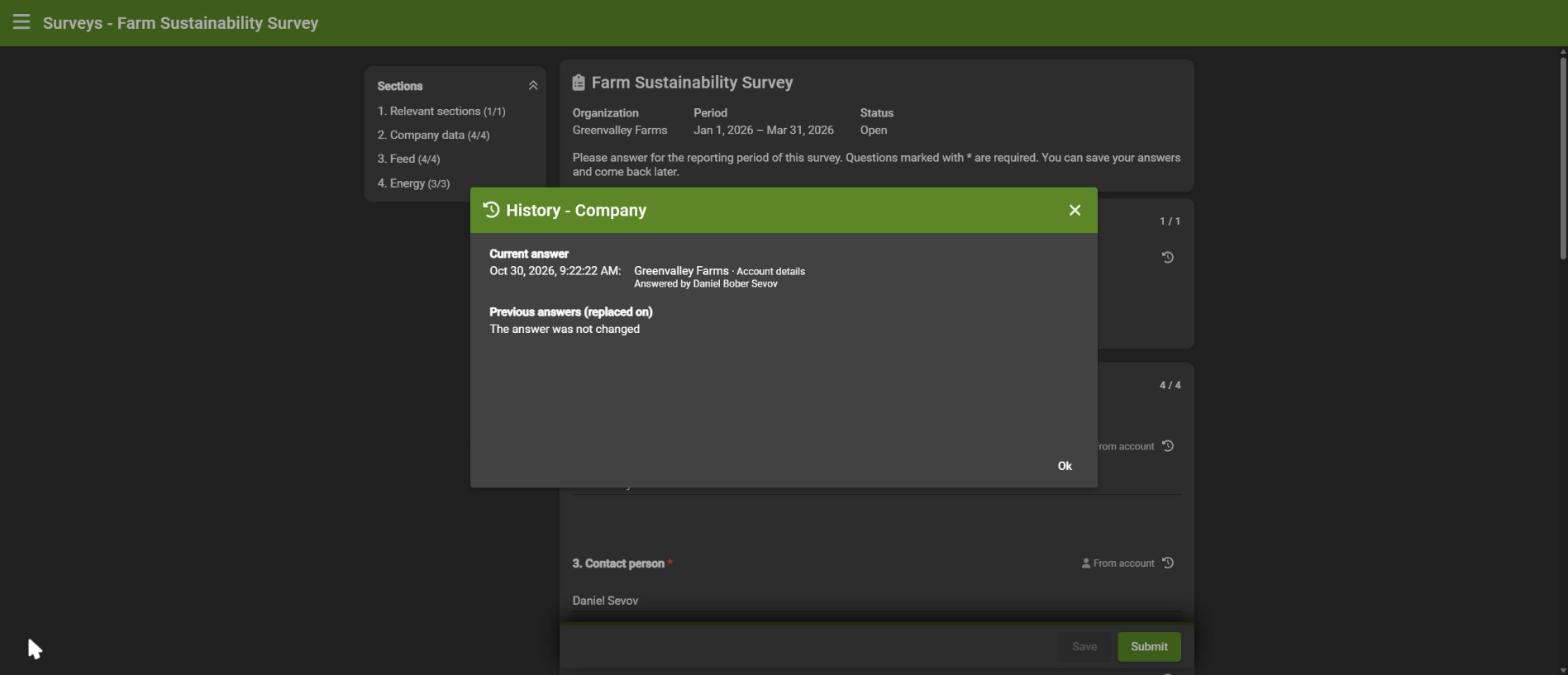
- The answers are marked From account and can always be changed. Every change is kept in the history.
- If a detail is unknown (for example no phone number), or does not fit the question's format, the question stays empty.
- Prefilled answers never overwrite an answer that is already there.
2.9 Conditional sections: show only what applies
Not every organization needs every section. With conditional sections you ask a question at the start of the survey, and only the sections that apply are shown.
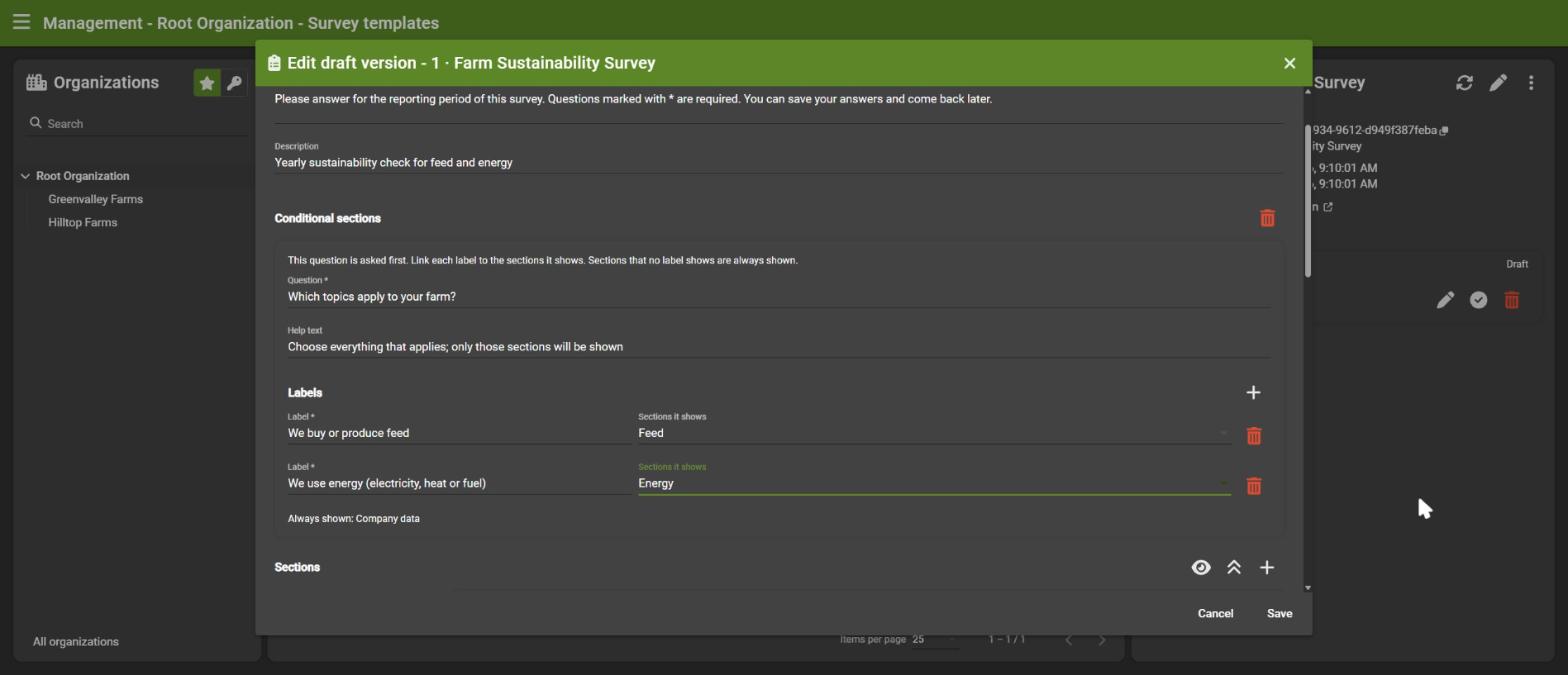
- In the editor, click Use conditional sections.
- Write the question (for example Which topics apply to your farm?).
- Add a label for every answer option, and choose which sections that label shows.
Good to know:
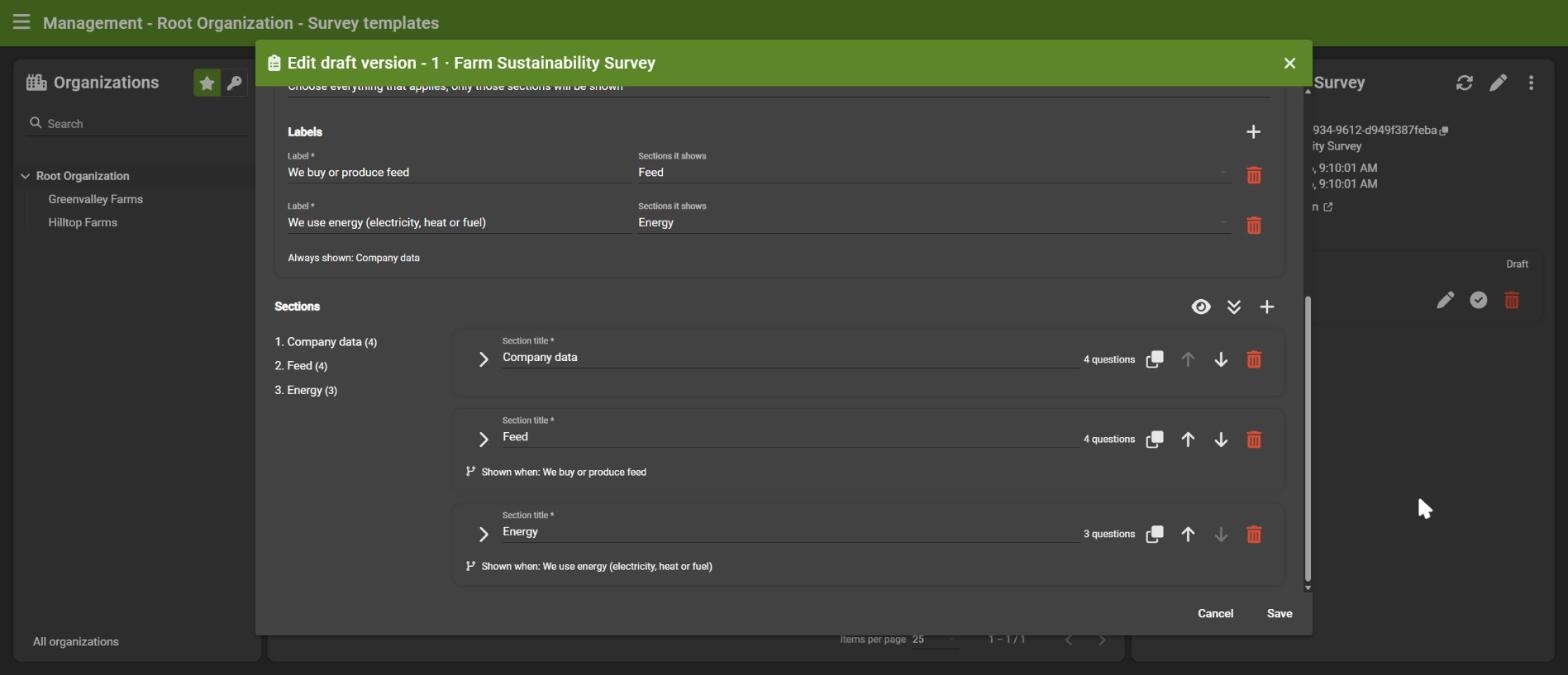
- Several sections can be linked to the same label, and a section can be linked to several labels. It is shown when any of its labels is chosen.
- Sections that are not linked to any label are always shown (for example Company data). The editor lists them.
- Every linked section shows Shown when: … in the editor.
- The question is required and is asked first.
- Sections that are not shown do not need to be answered. Answers already given in a section that is hidden later are kept, but are ignored when submitting and in the export.
2.10 Preview the whole survey
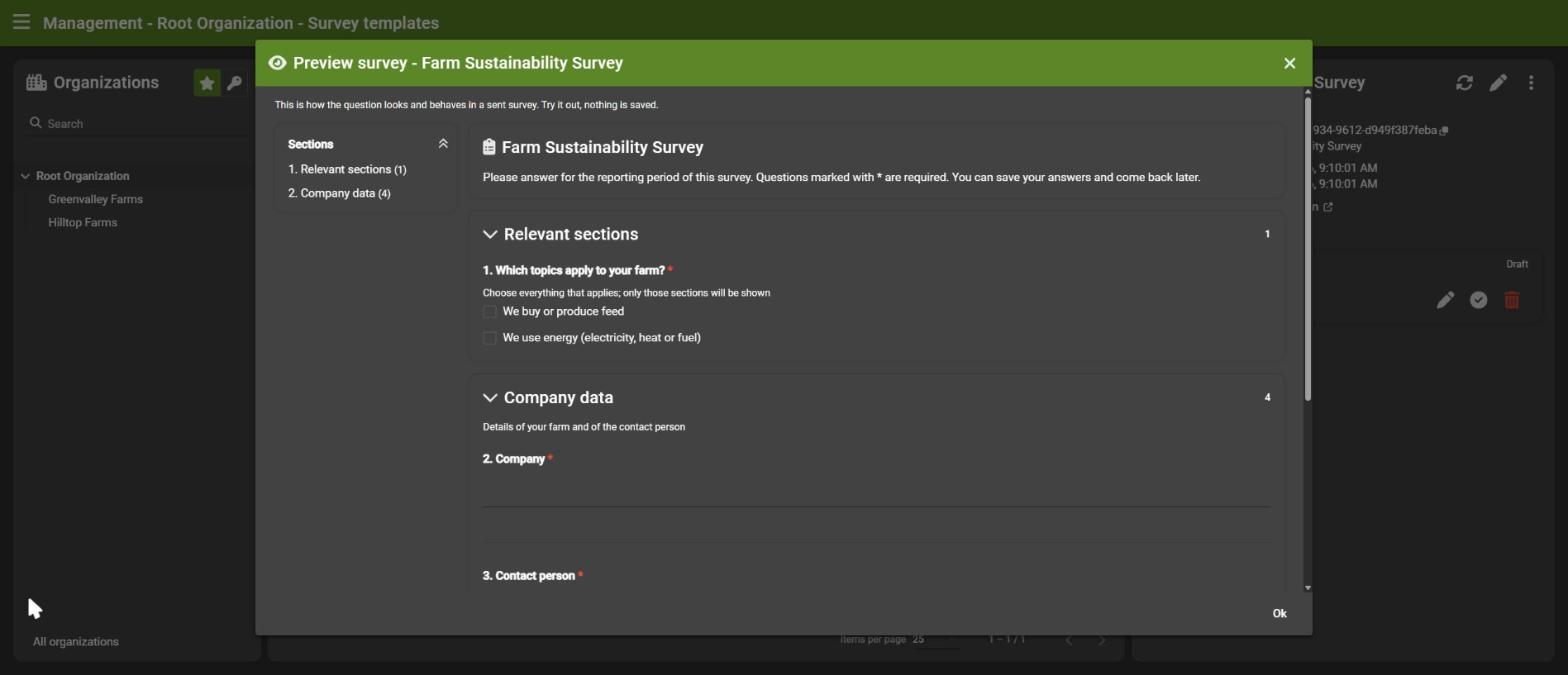
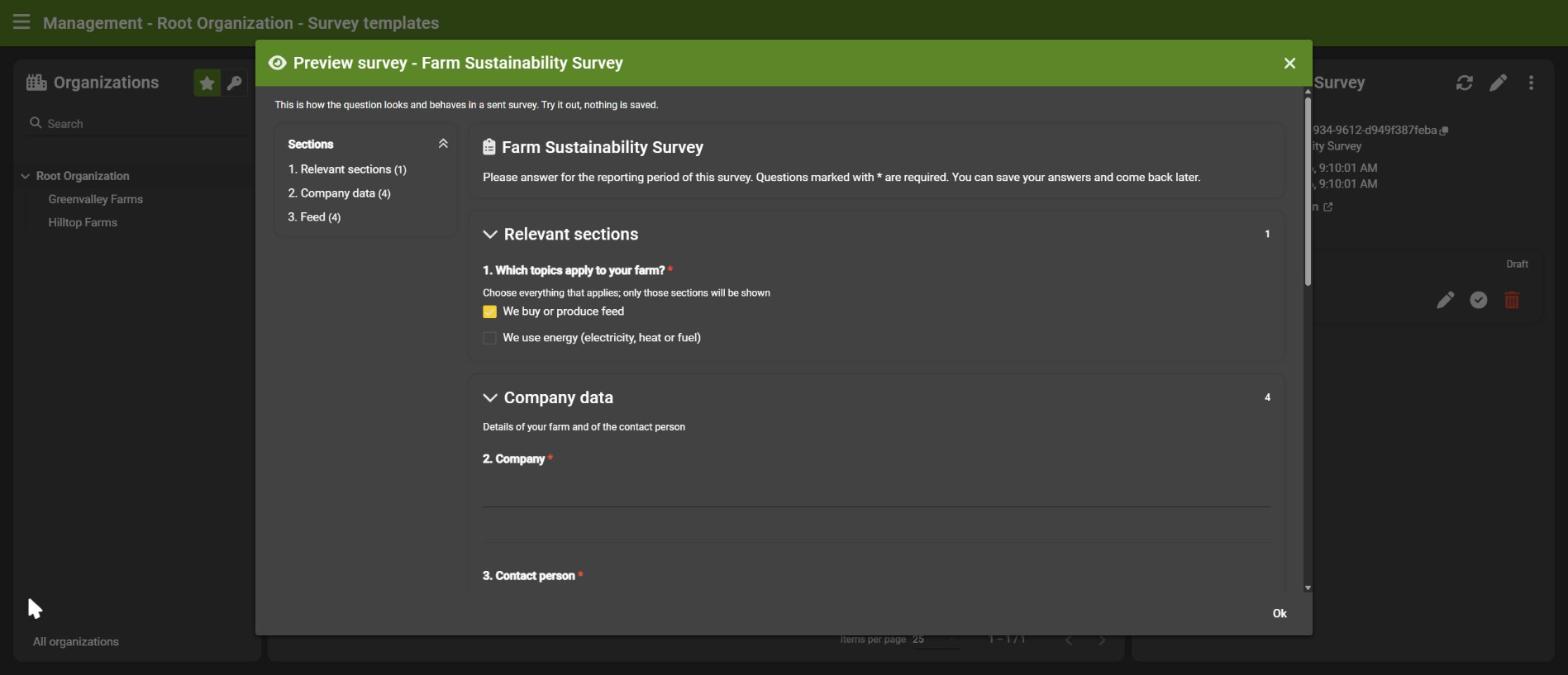
The eye icon next to Sections shows your draft as a real survey, with the same navigation, collapsing and input fields. You can fill it in to try it out, and conditional sections react to your answers. Nothing is saved.
2.11 Save and publish
Click Save to keep your changes. The draft is listed with its status.
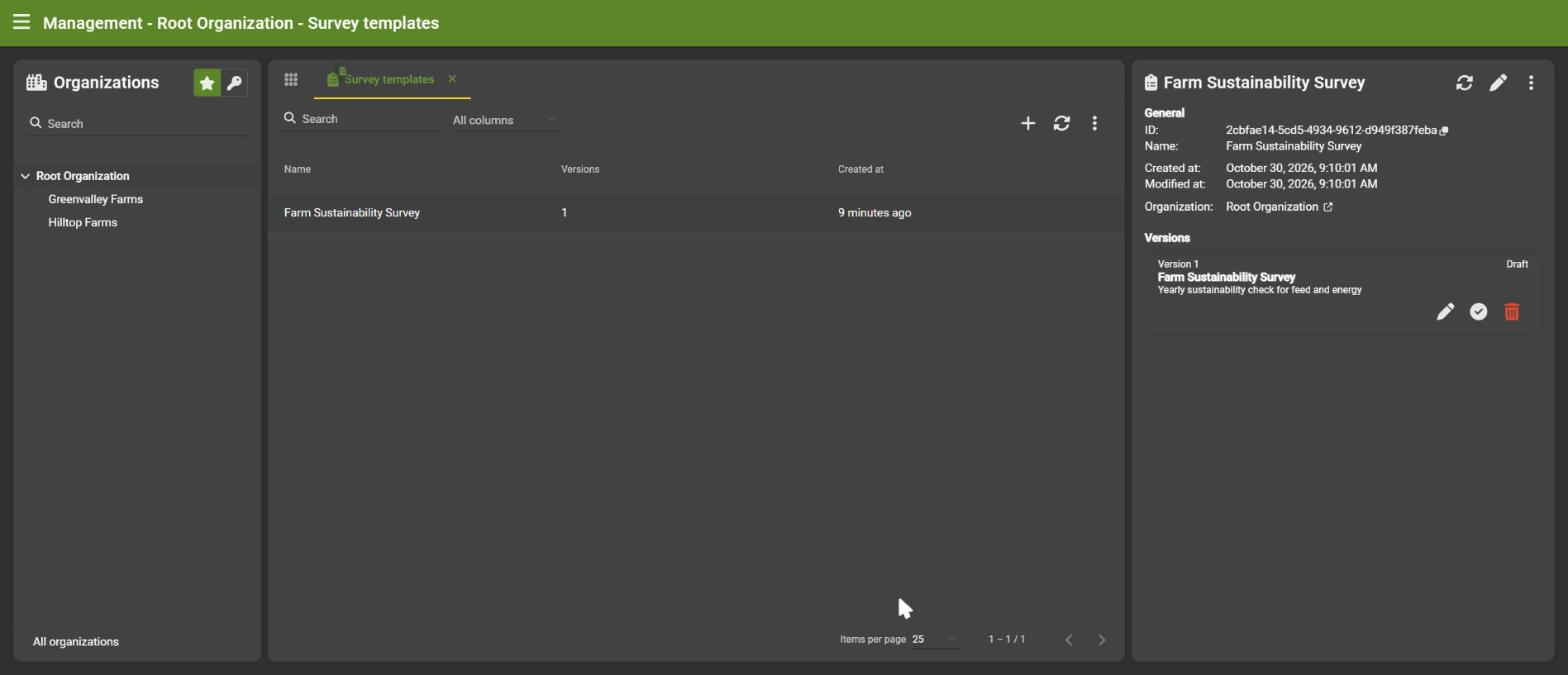
When the version is ready, click the ✓ icon to publish it. The service checks that every question is valid, that every section has at least one question and that conditional sections work.
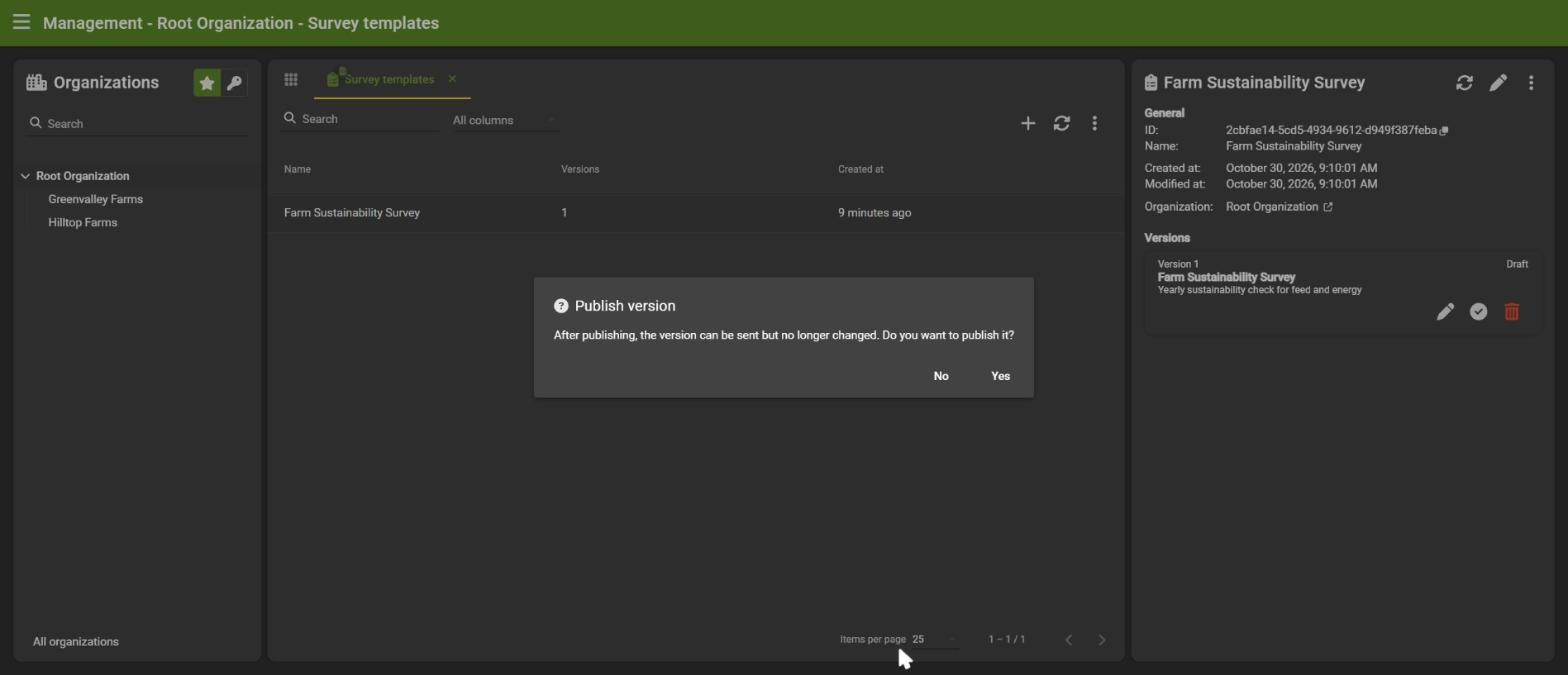
After publishing, the version can be sent but no longer changed.
3. Send a survey
Click the send icon (paper plane) of a published version.
- Choose the period the survey is about (From and Up to and including).
- Click + to select the organizations that must receive the survey.
- For each organization, choose the responsible user: the person who gets the invitation and fills in the survey. Only users with write access (or more) and the surveys feature are listed.
- Click Submit.
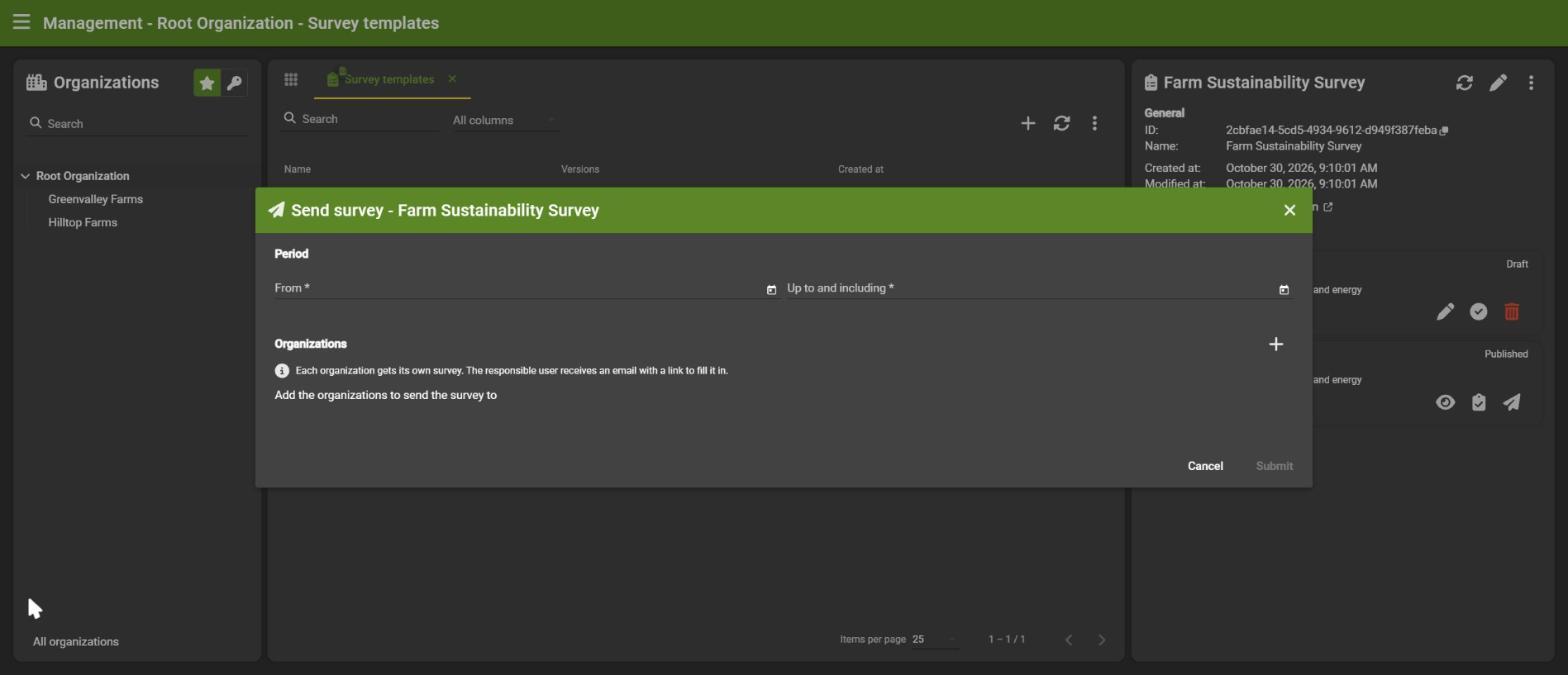
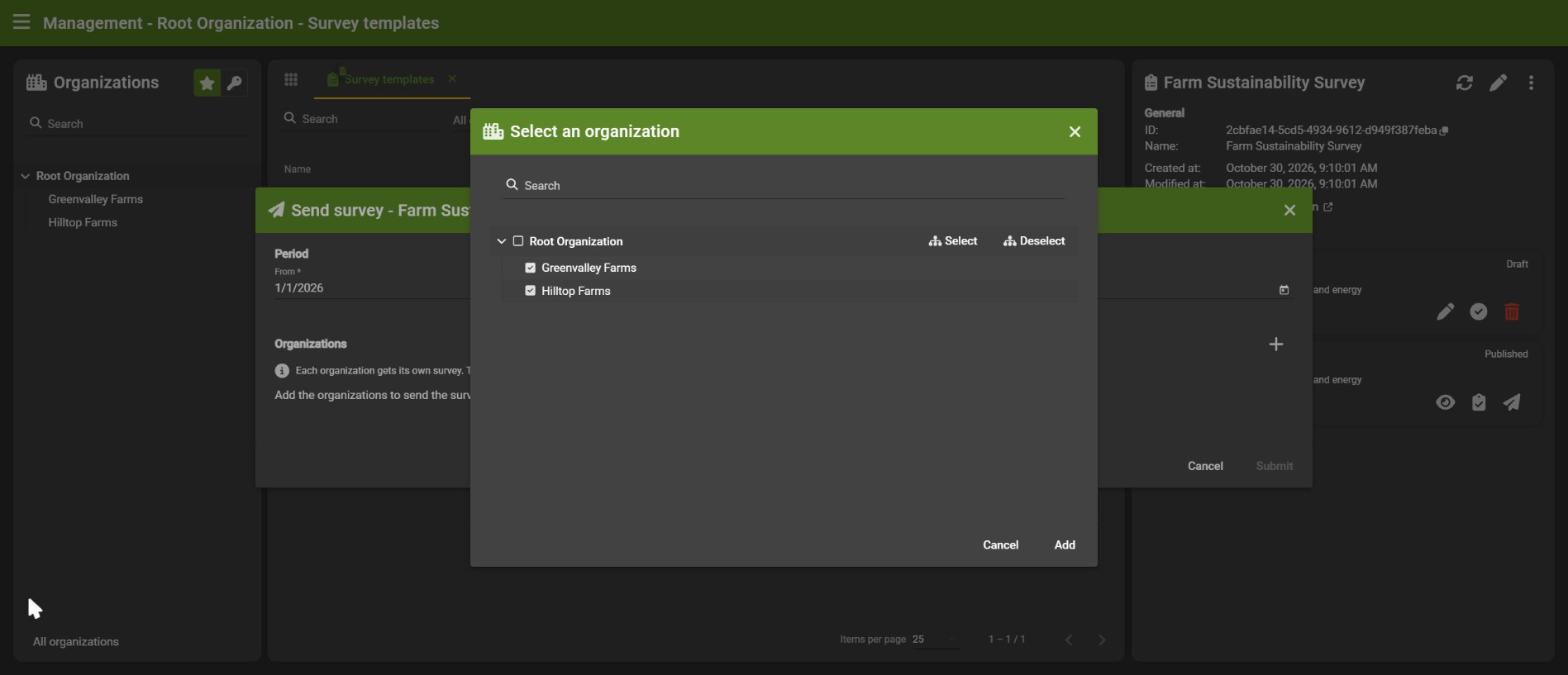
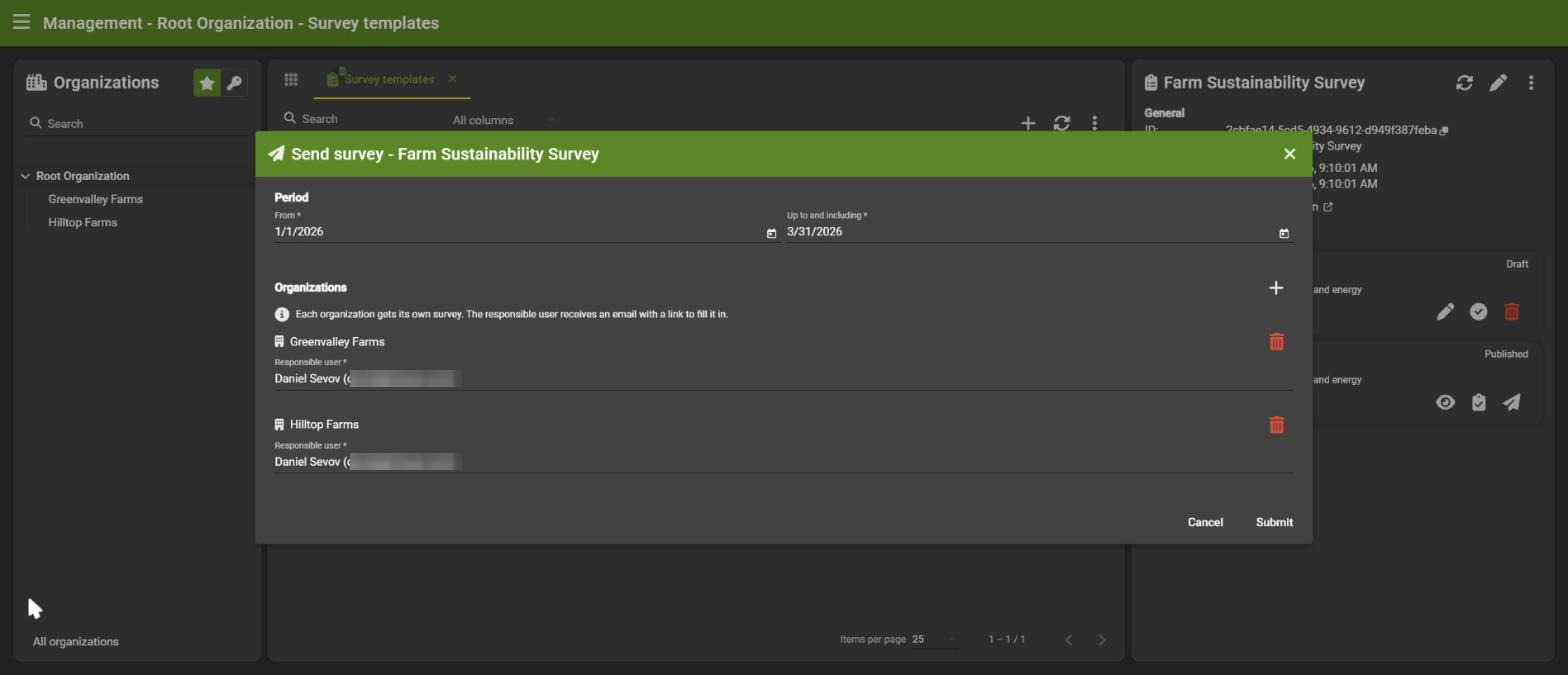
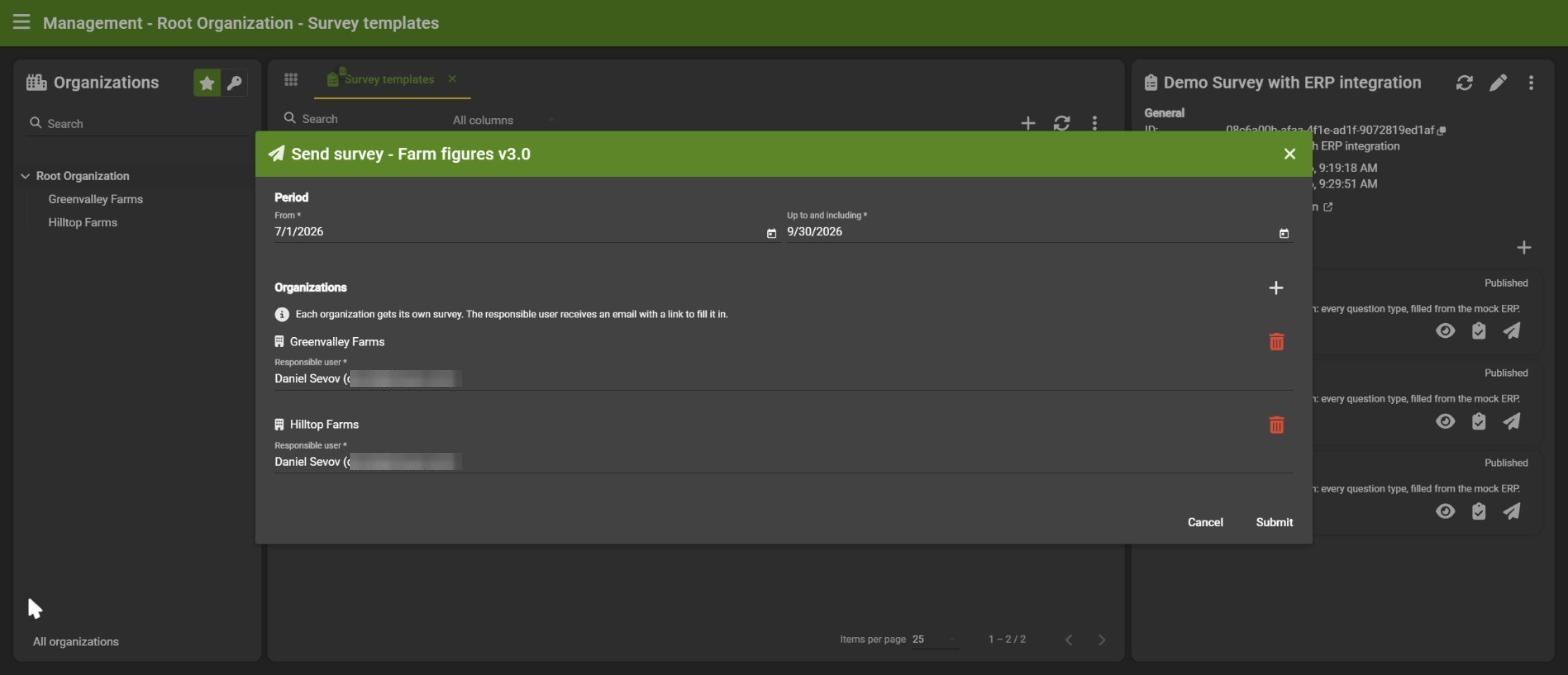
Every organization gets its own survey. The responsible user receives an email with a link to the survey. If an invitation did not arrive, you can send it again (see 4).
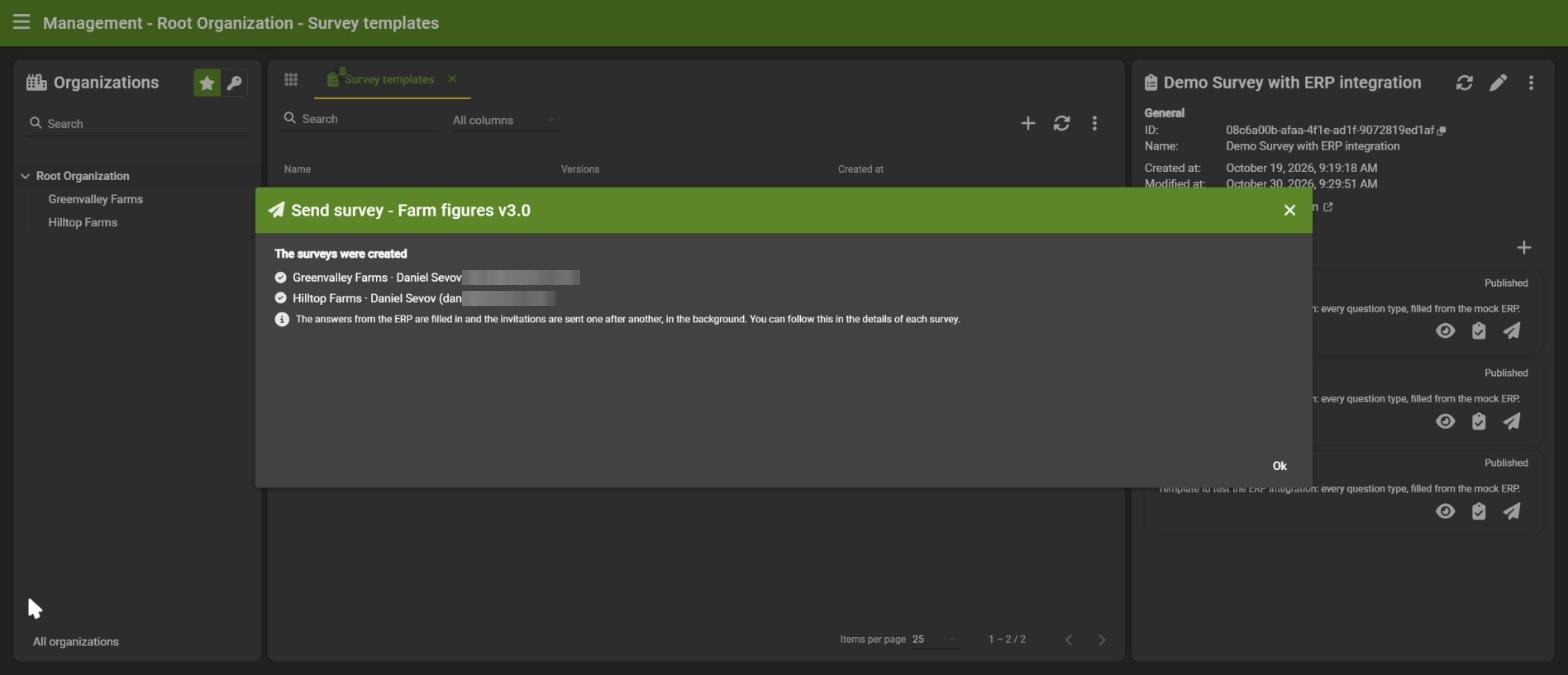
The surveys are created right away; everything that follows (ERP figures, invitation email) runs in the background, one survey after another.
4. Follow the surveys
Open Surveys and select an organization to see its surveys. The list shows the status (Open or Submitted), the period and when it was sent.
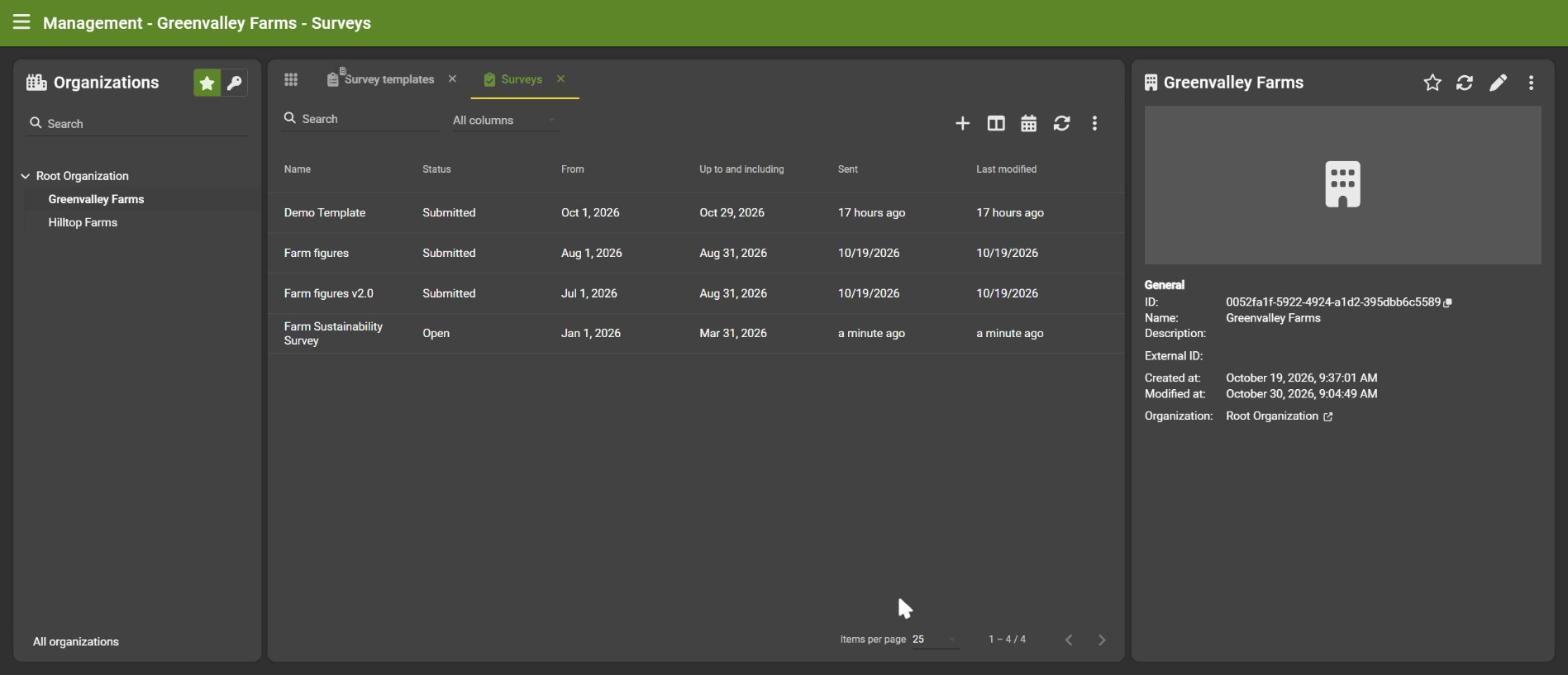
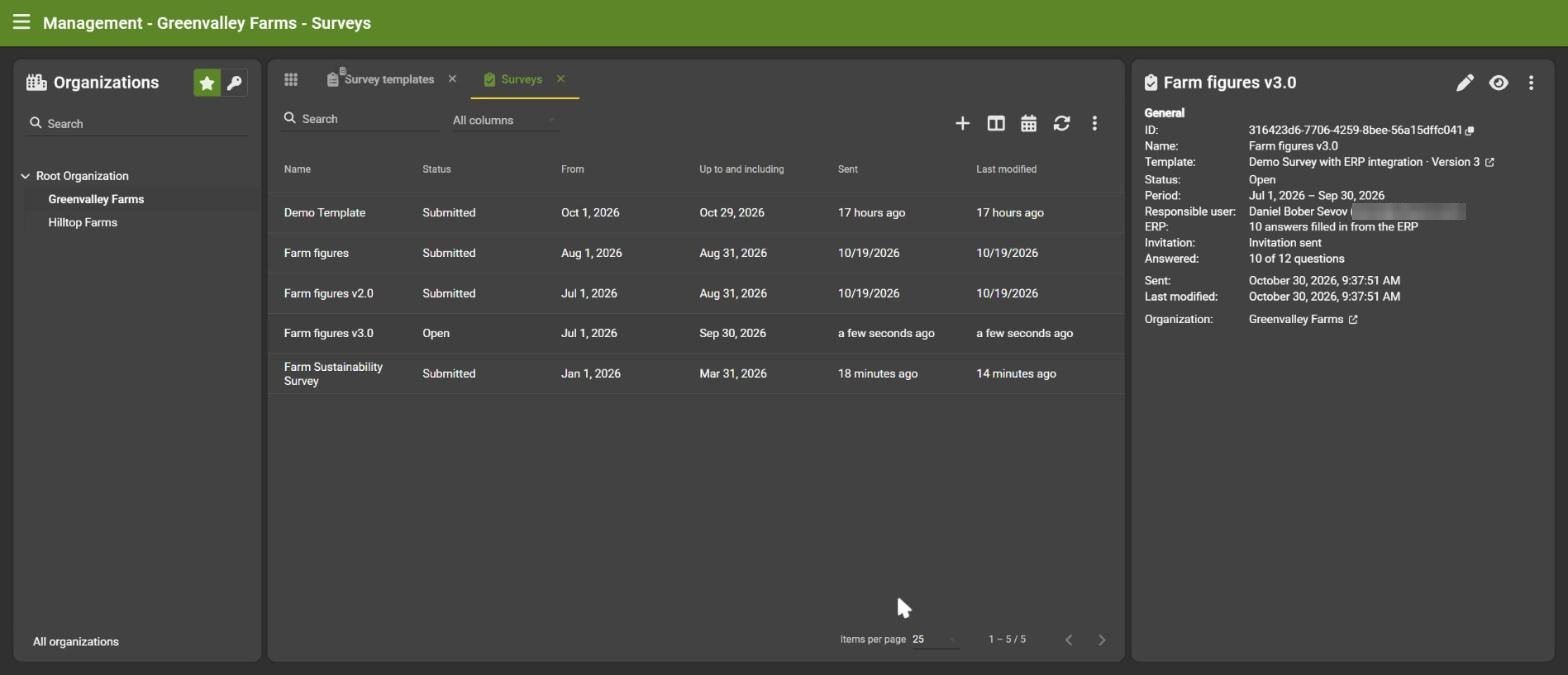
Select a survey for its details: template and version, period, responsible user, whether the invitation was sent, and how many questions have been answered.
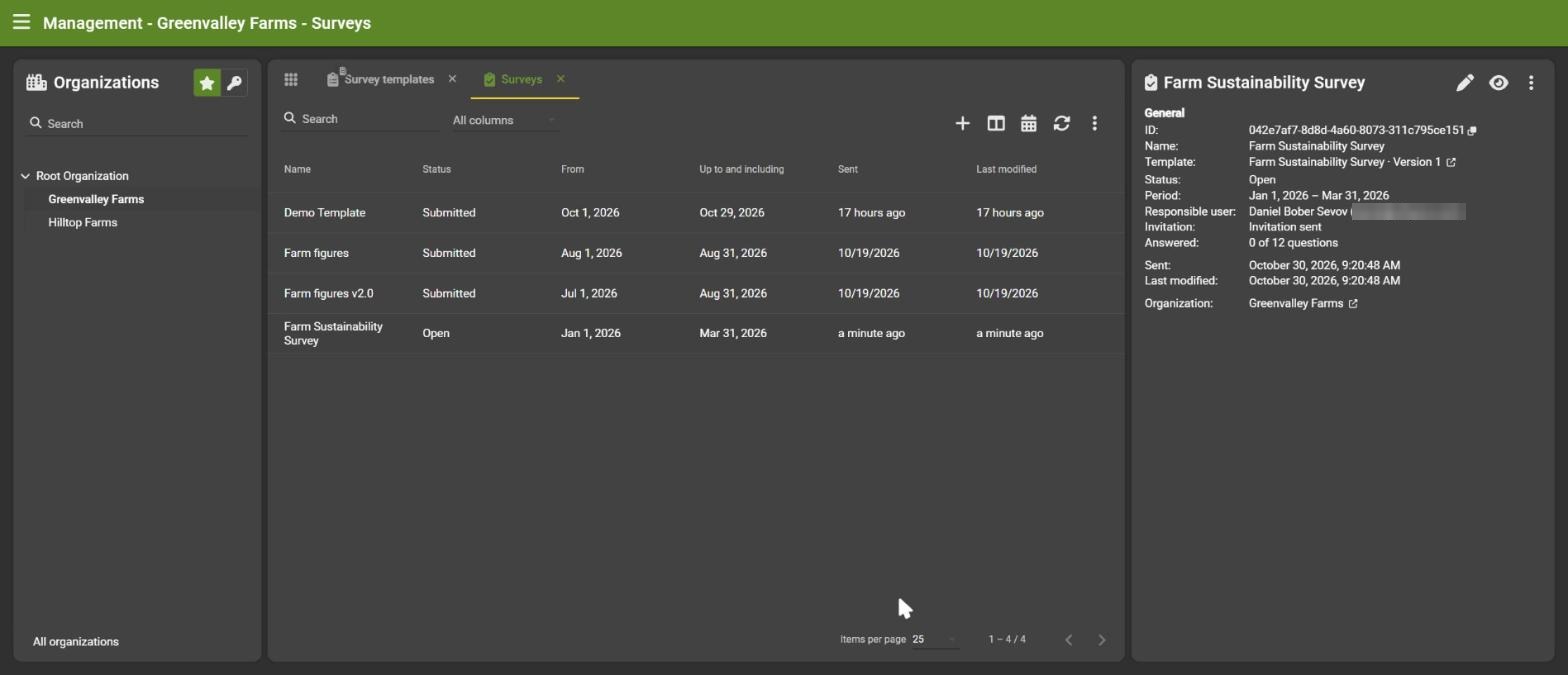
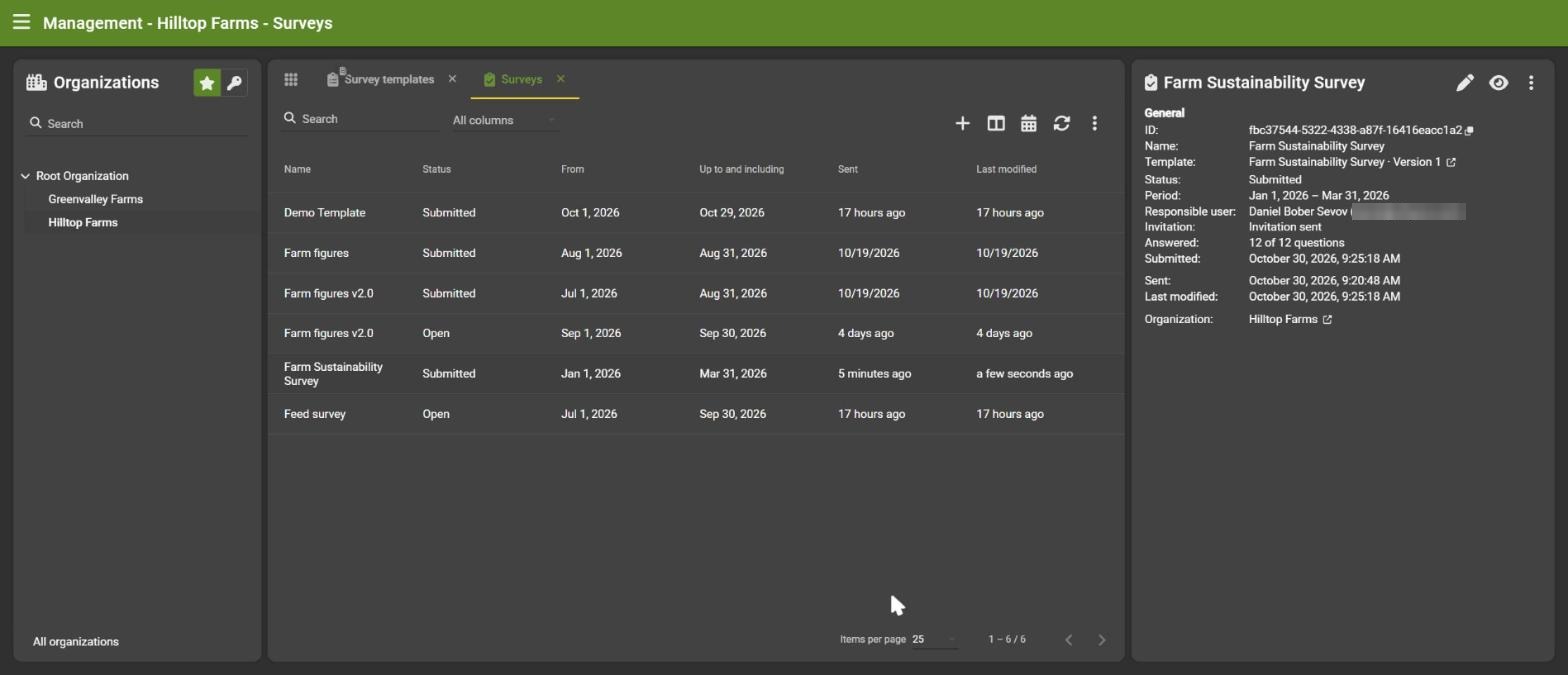
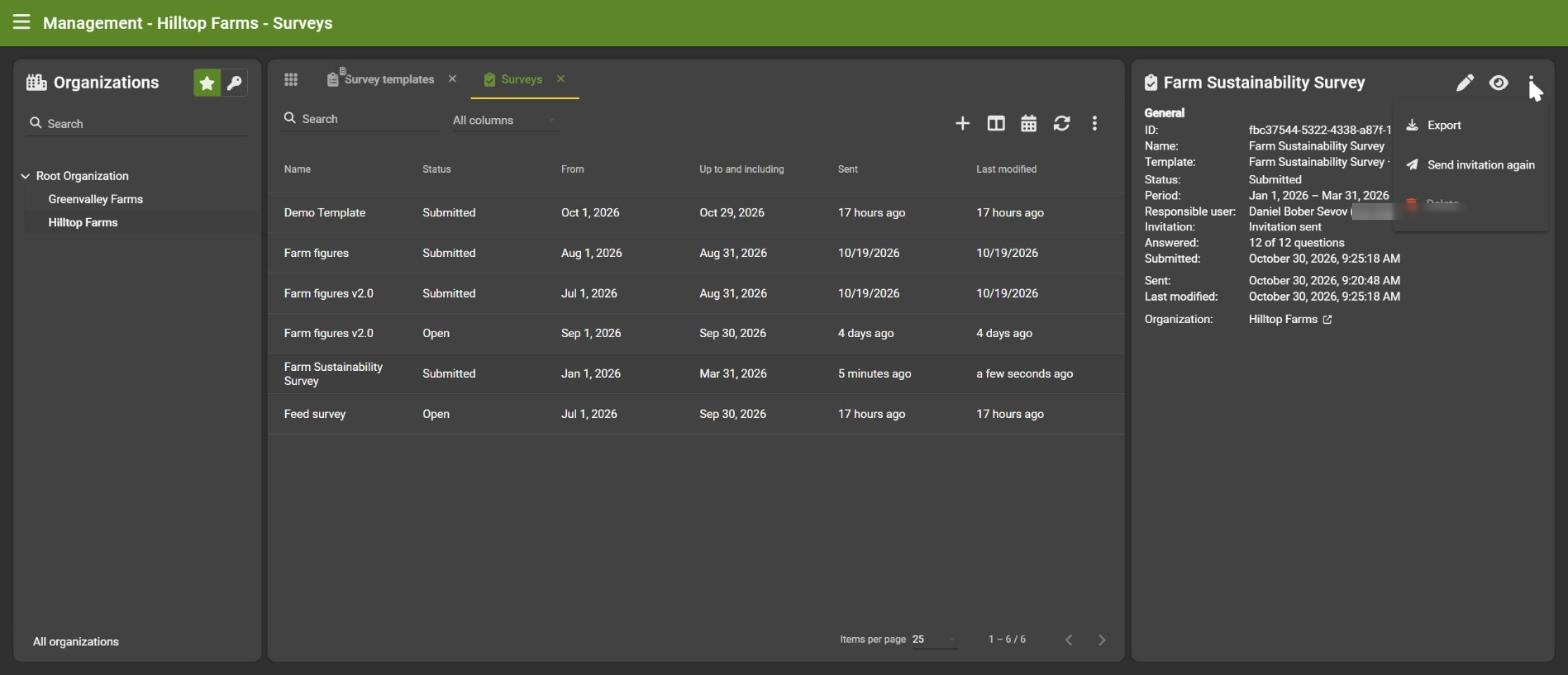
The eye icon opens the survey read-only. The menu (⋮) offers:
| Action | |
|---|---|
| Export | Download the answers (see 6) |
| Send invitation again | Mail the link to the responsible user again |
| Delete | Only possible while the survey is not submitted |
5. Fill in a survey
The responsible user opens the survey from the email.
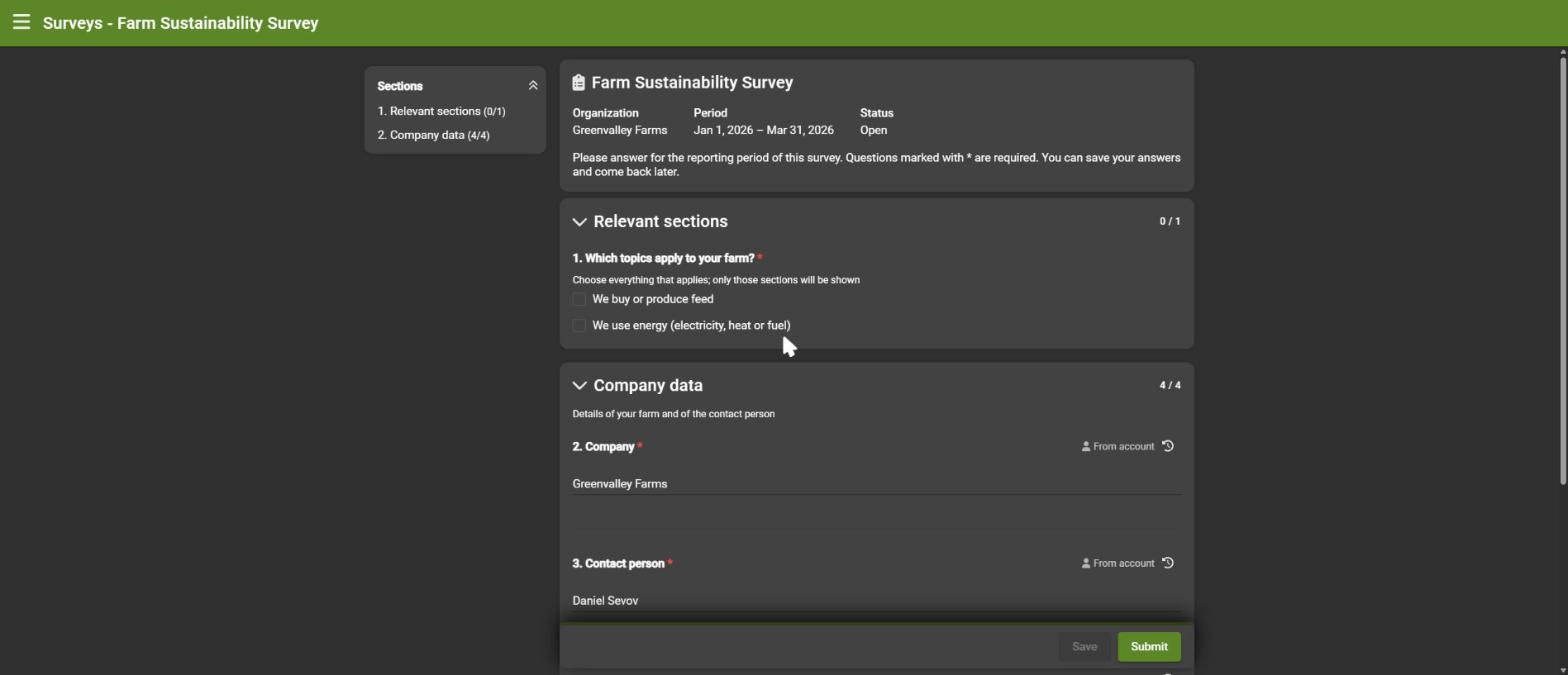
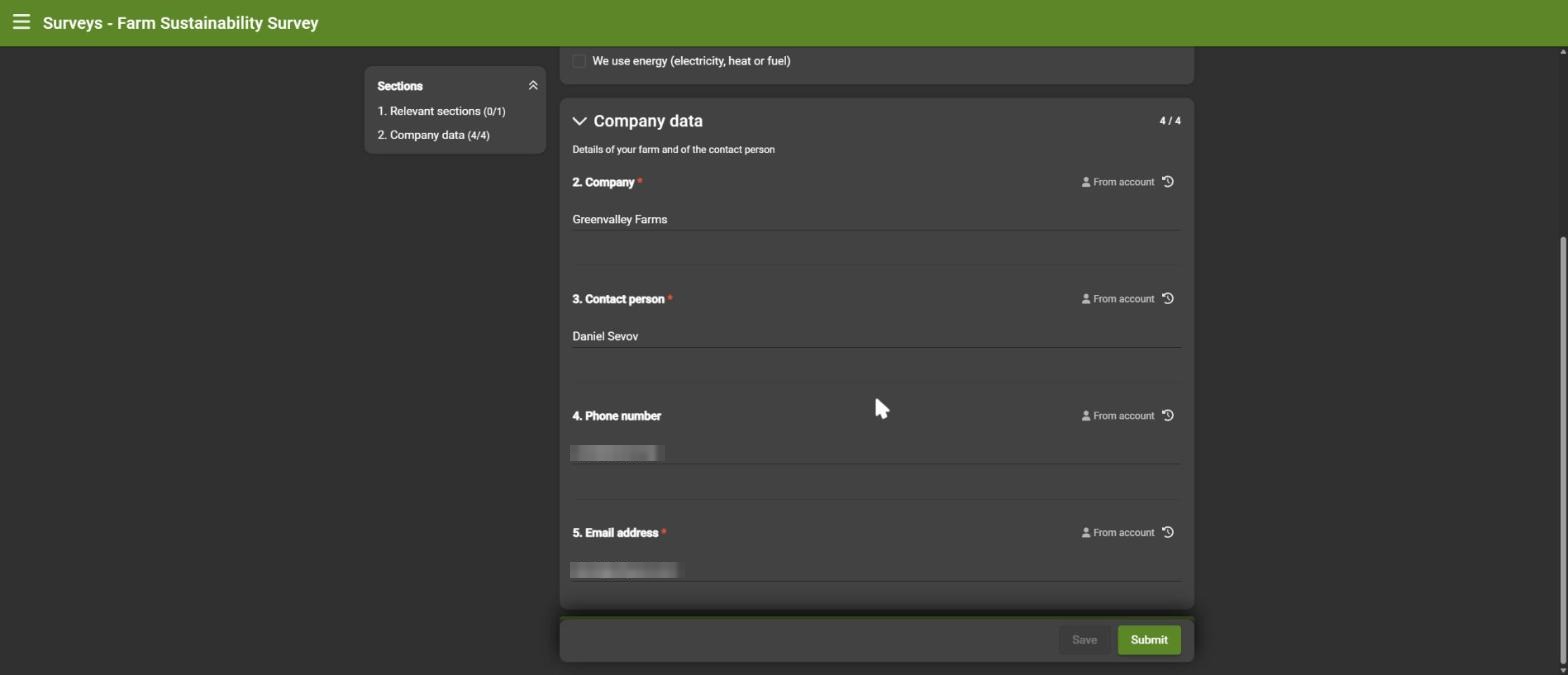
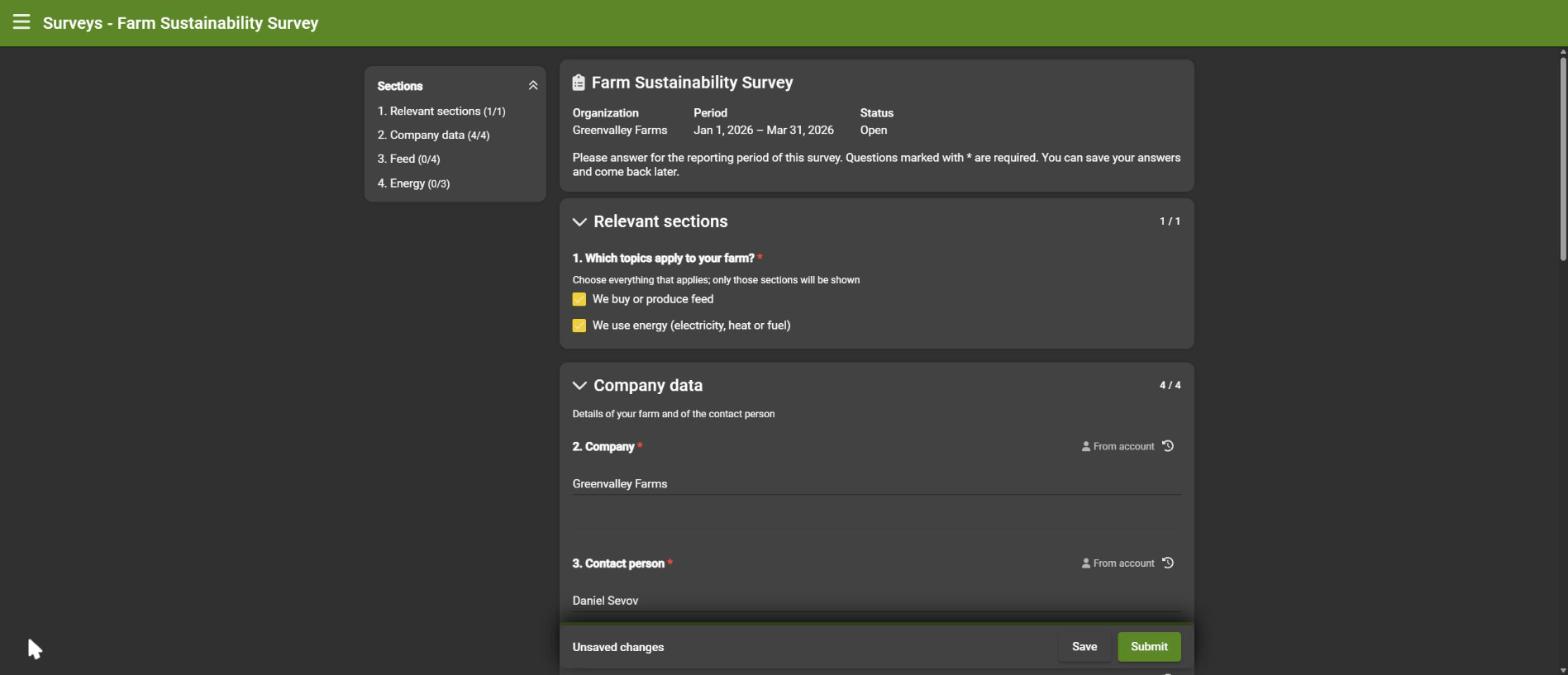
Answer the questions. Each type behaves as in the preview, including the ✕ to clear an answer.
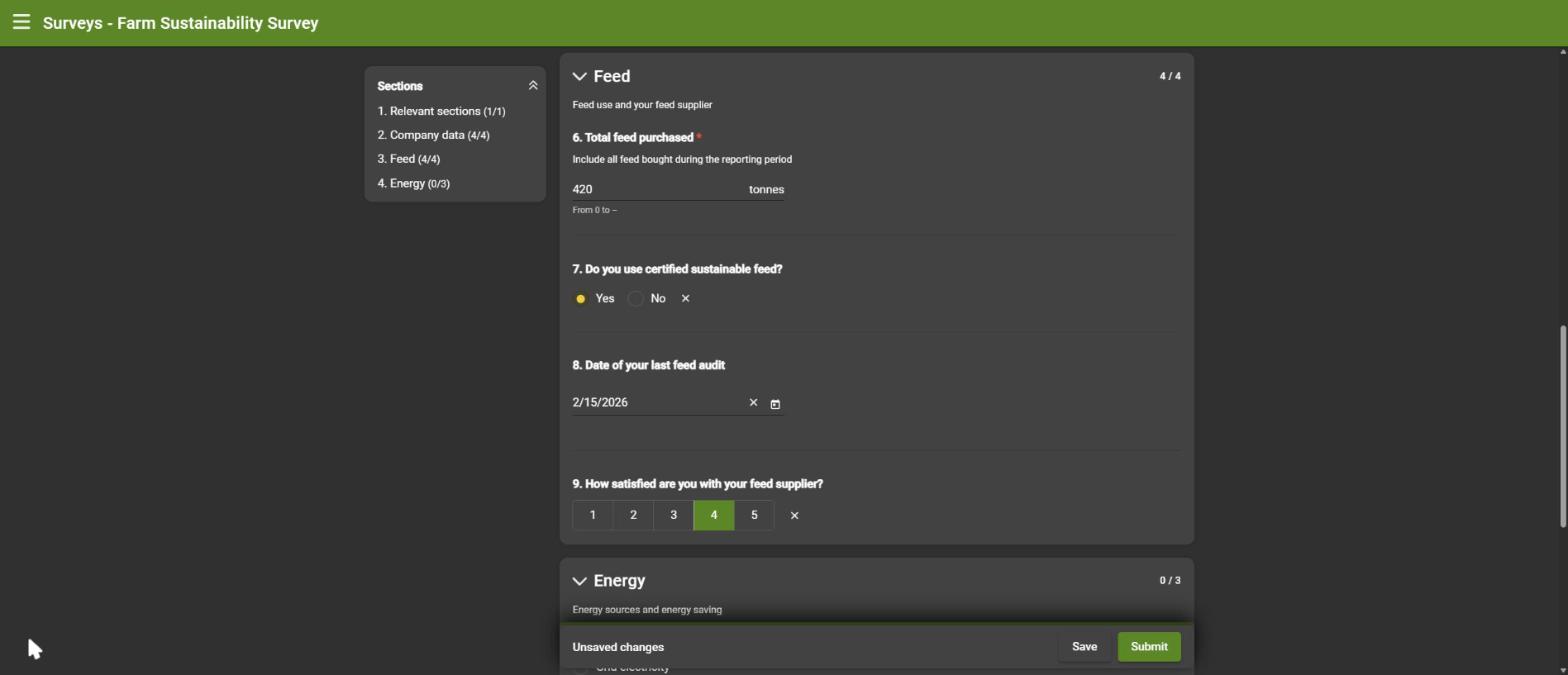
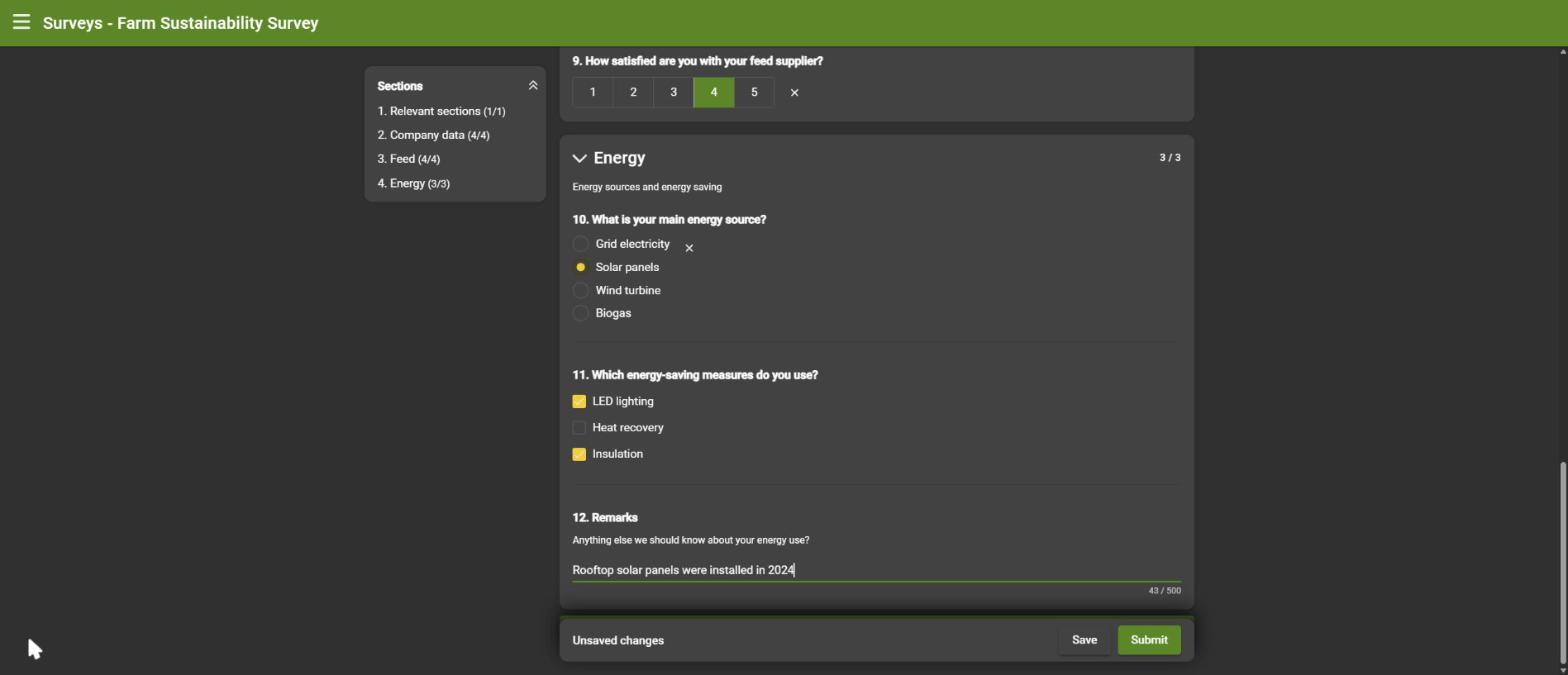
Save at any time and come back later: answers are only stored when you save, and the bar at the bottom tells you when there are unsaved changes.
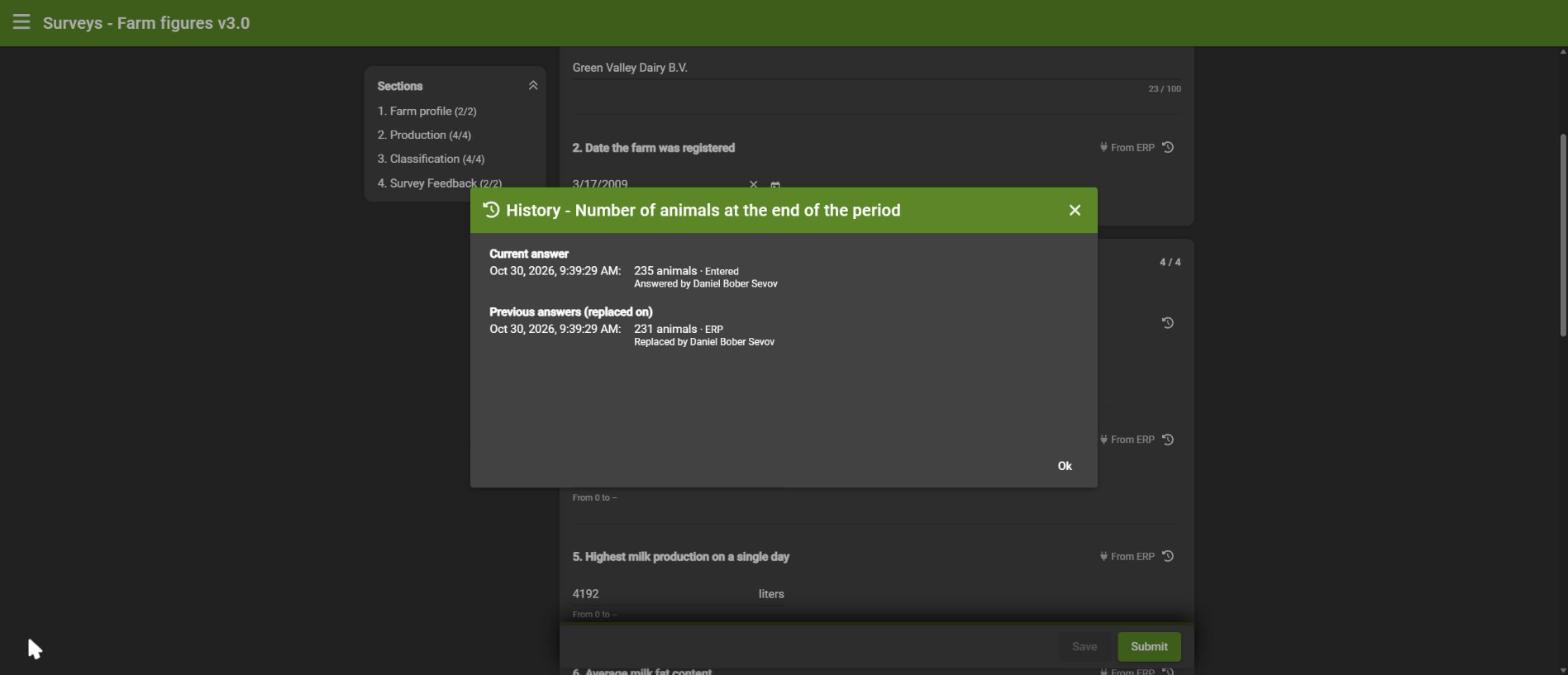
The history icon next to an answer shows where it came from (typed in, or from the account) and every previous value, with who changed it and when.
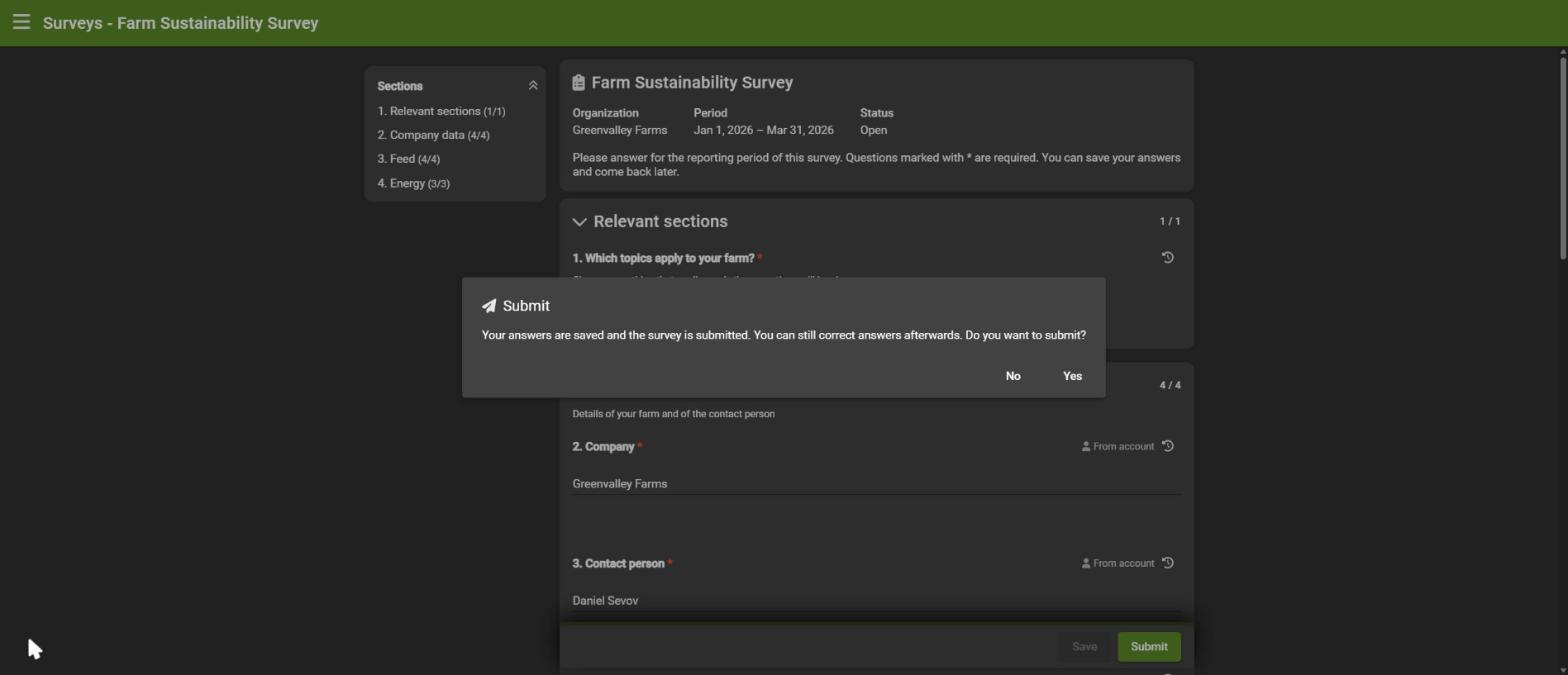
When everything is filled in, click Submit. Missing or invalid required answers are shown at their question.
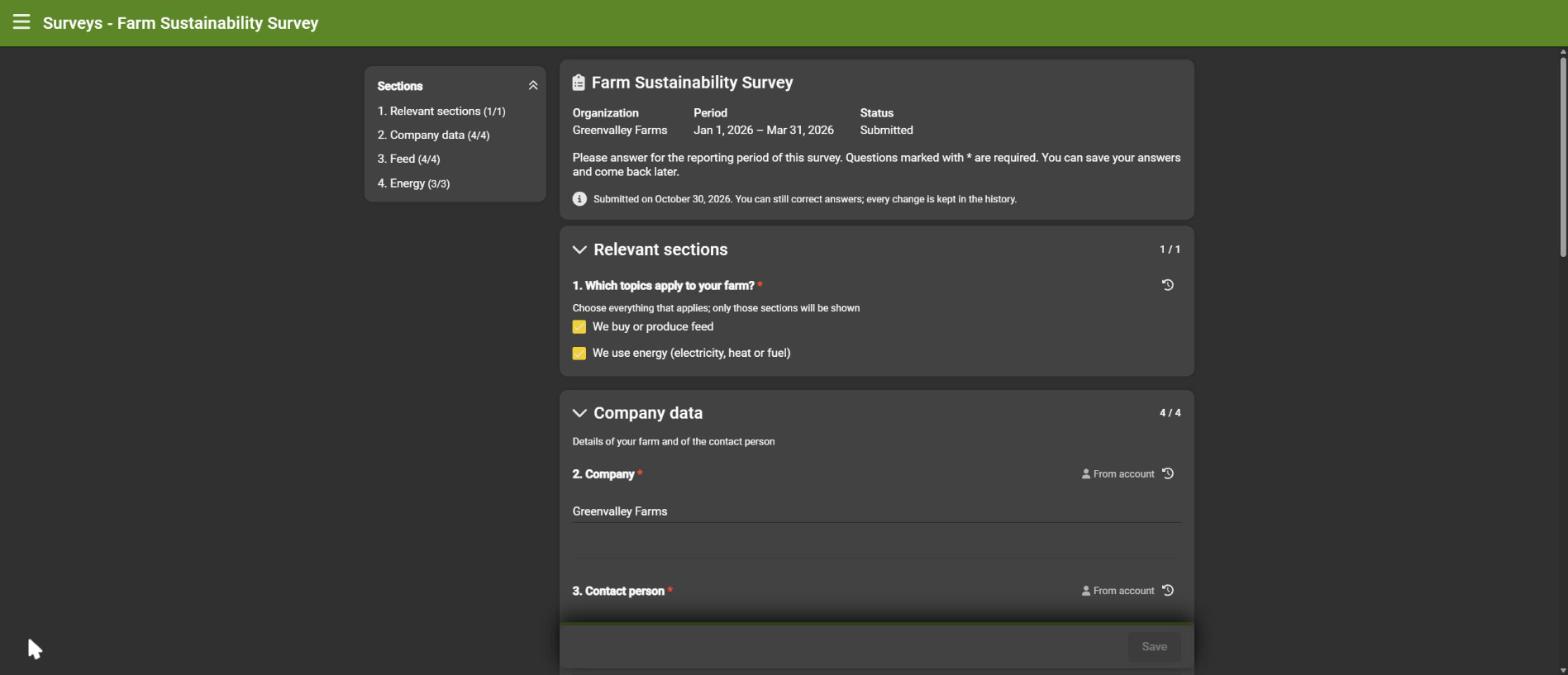
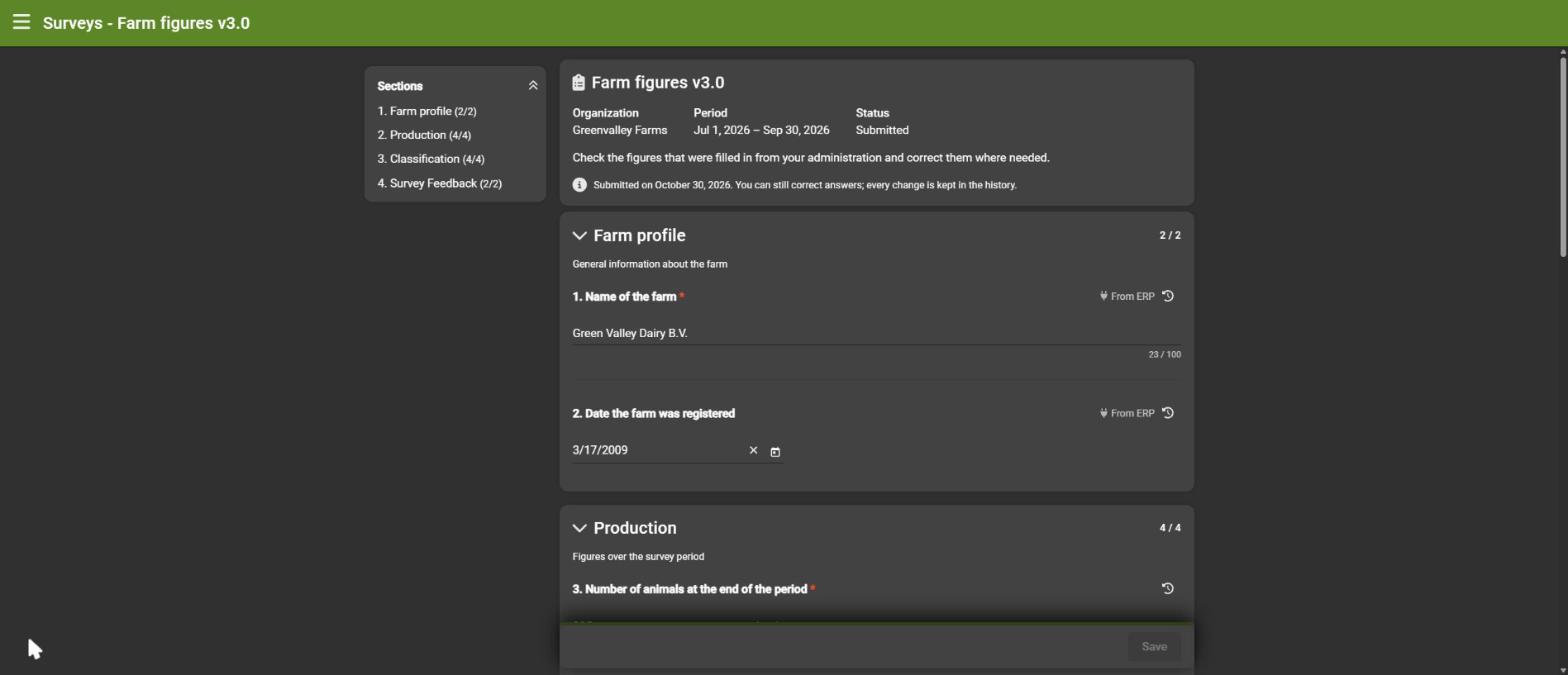
A submitted survey can still be corrected. Every change is kept in the history, and required answers cannot be emptied.
6. Export the answers
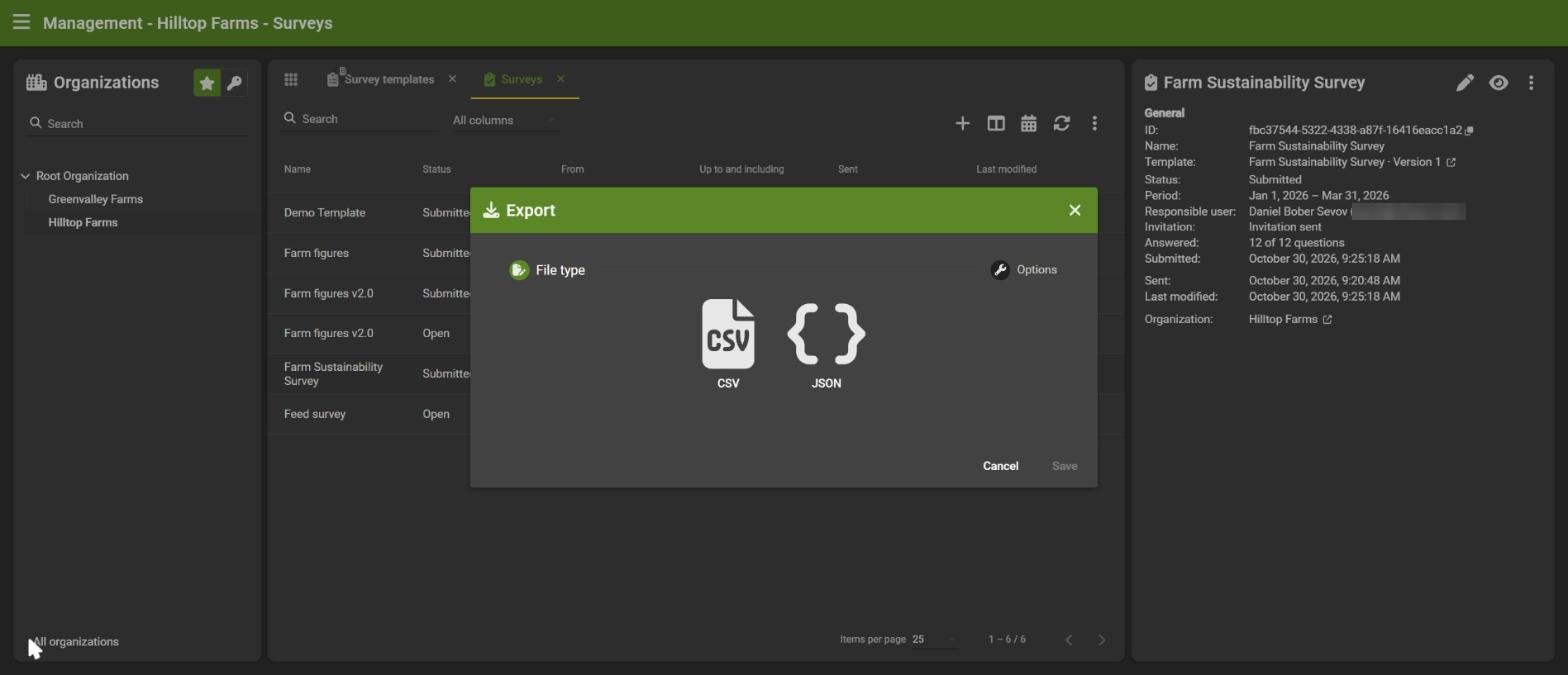
Choose Export in the menu of a survey, then a file type:
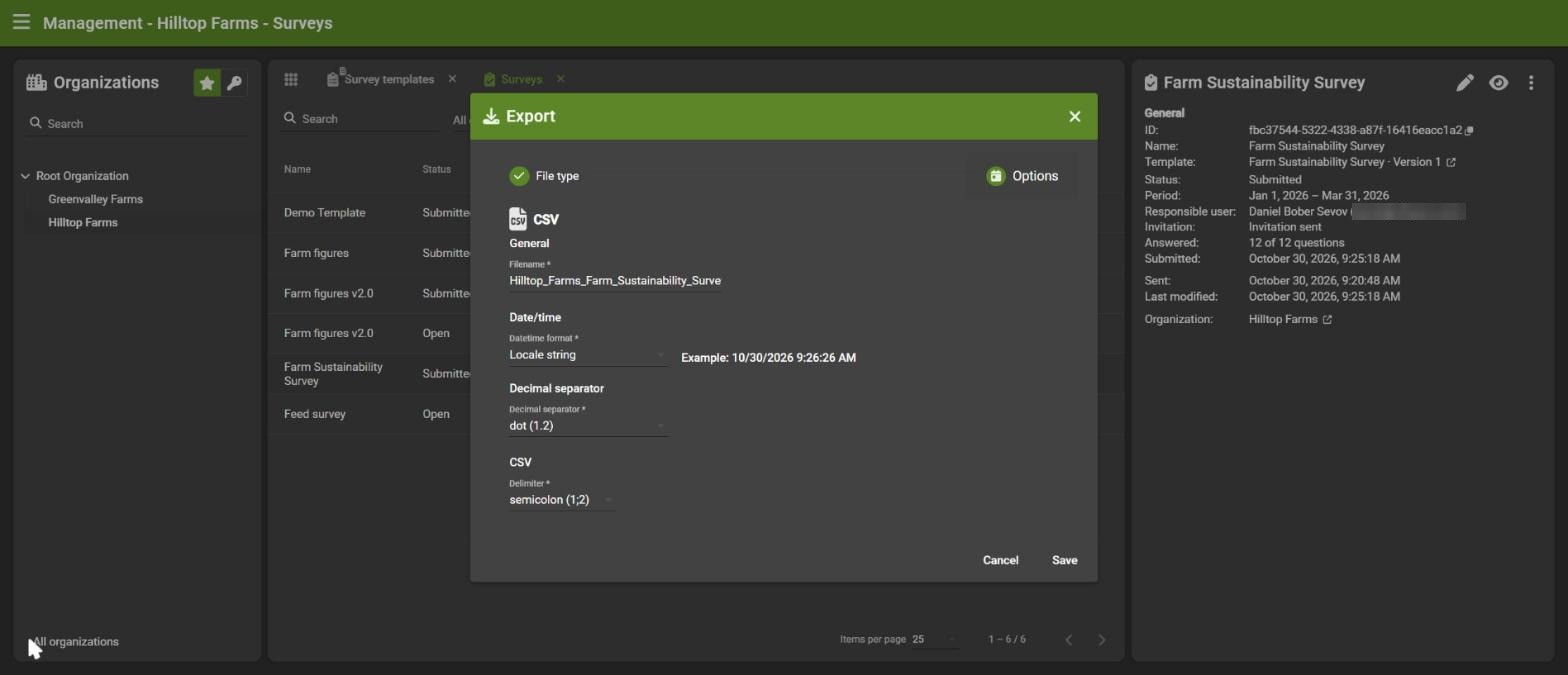
- CSV: one row per question (section, number, key, question, type, unit, required, answer, value, source and time of the answer), ready for Excel. You can set the file name, date format, decimal separator and delimiter.
- JSON: the same information, structured per section.
Sections that were not shown are not included.
7. Compare surveys
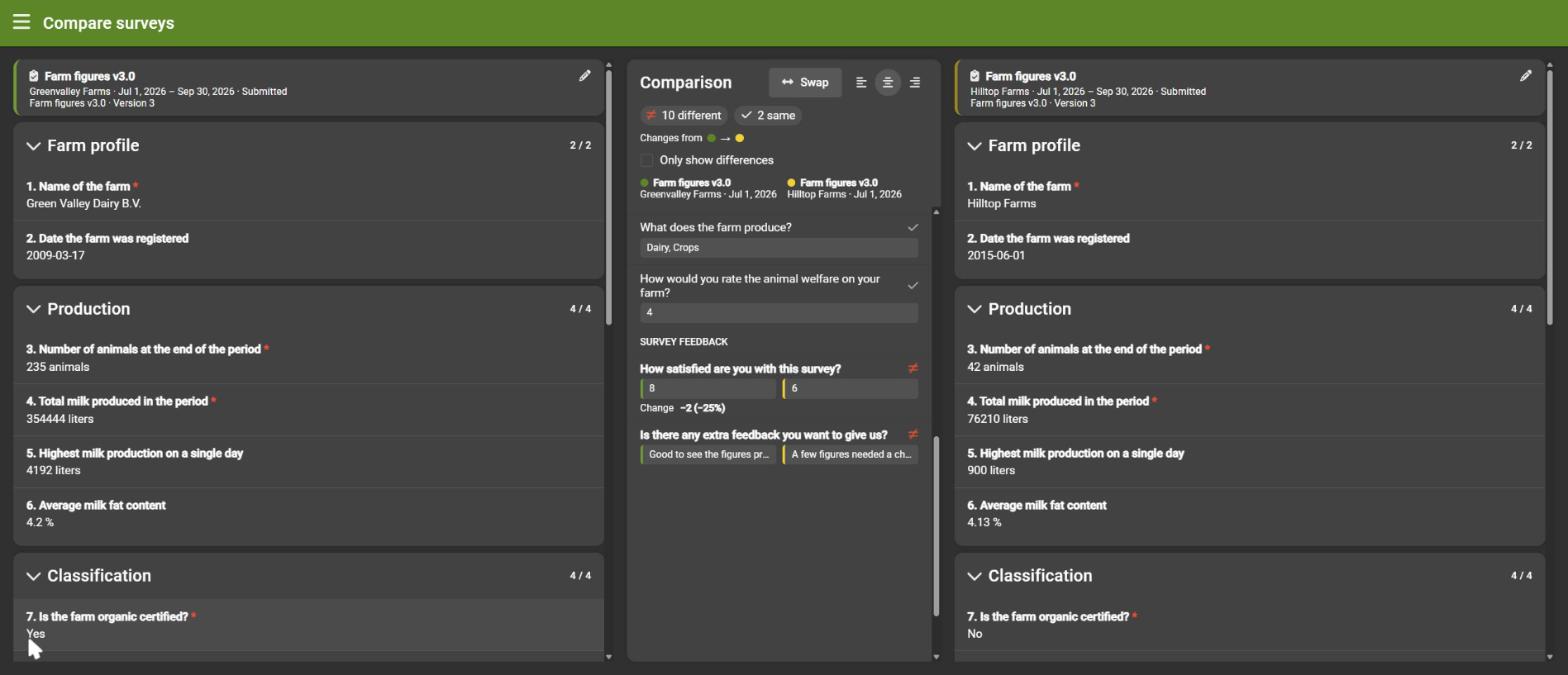
Compare two surveys, for example two organizations in the same period, or the same organization in two periods.
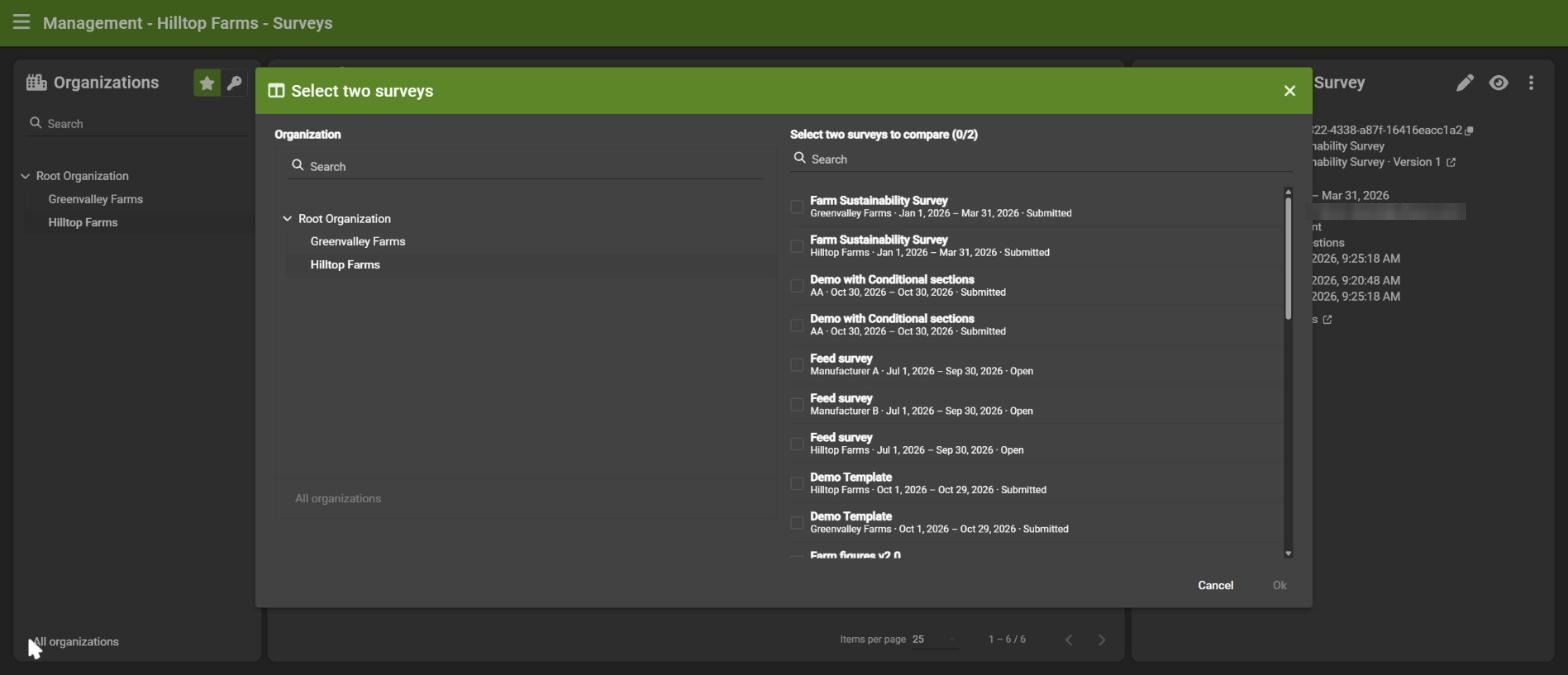
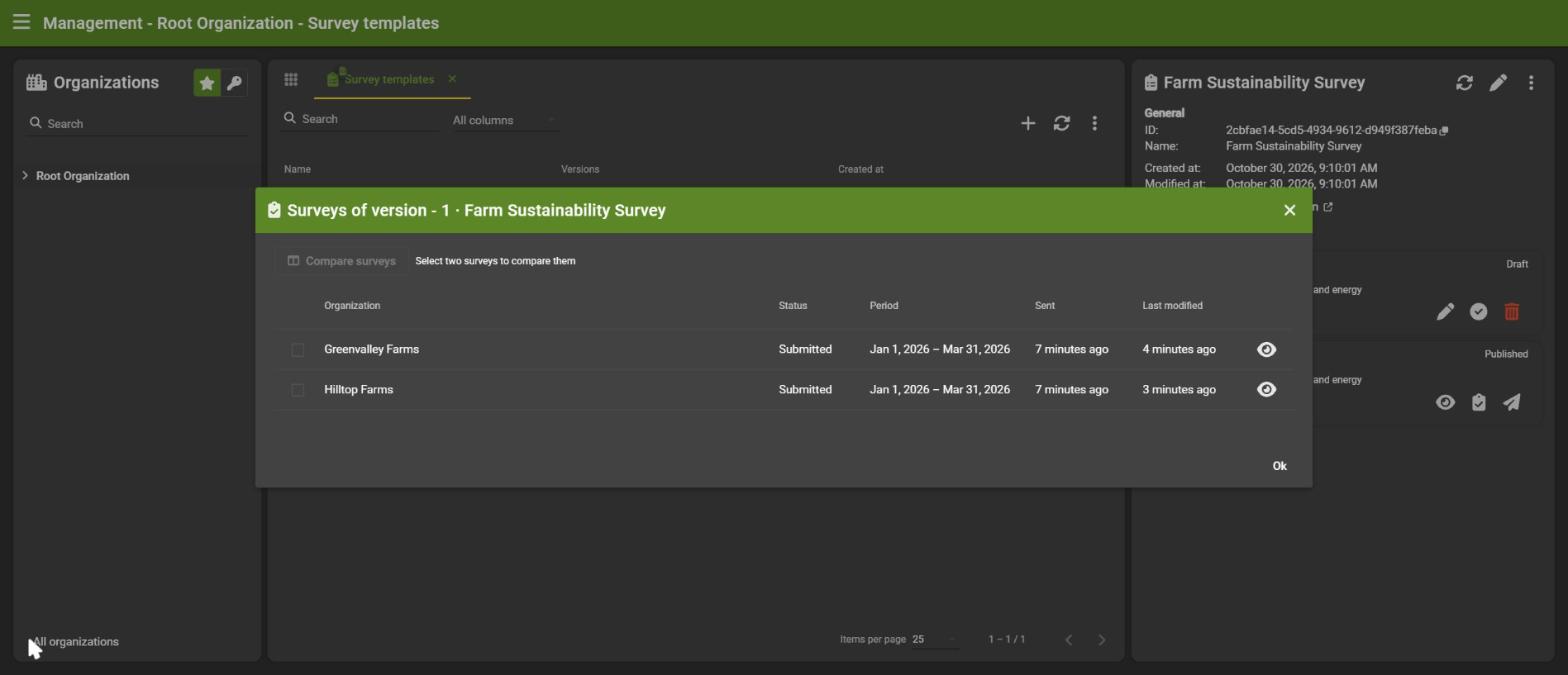
- Open the surveys table and click the compare icon (or select two surveys from a version, see below).
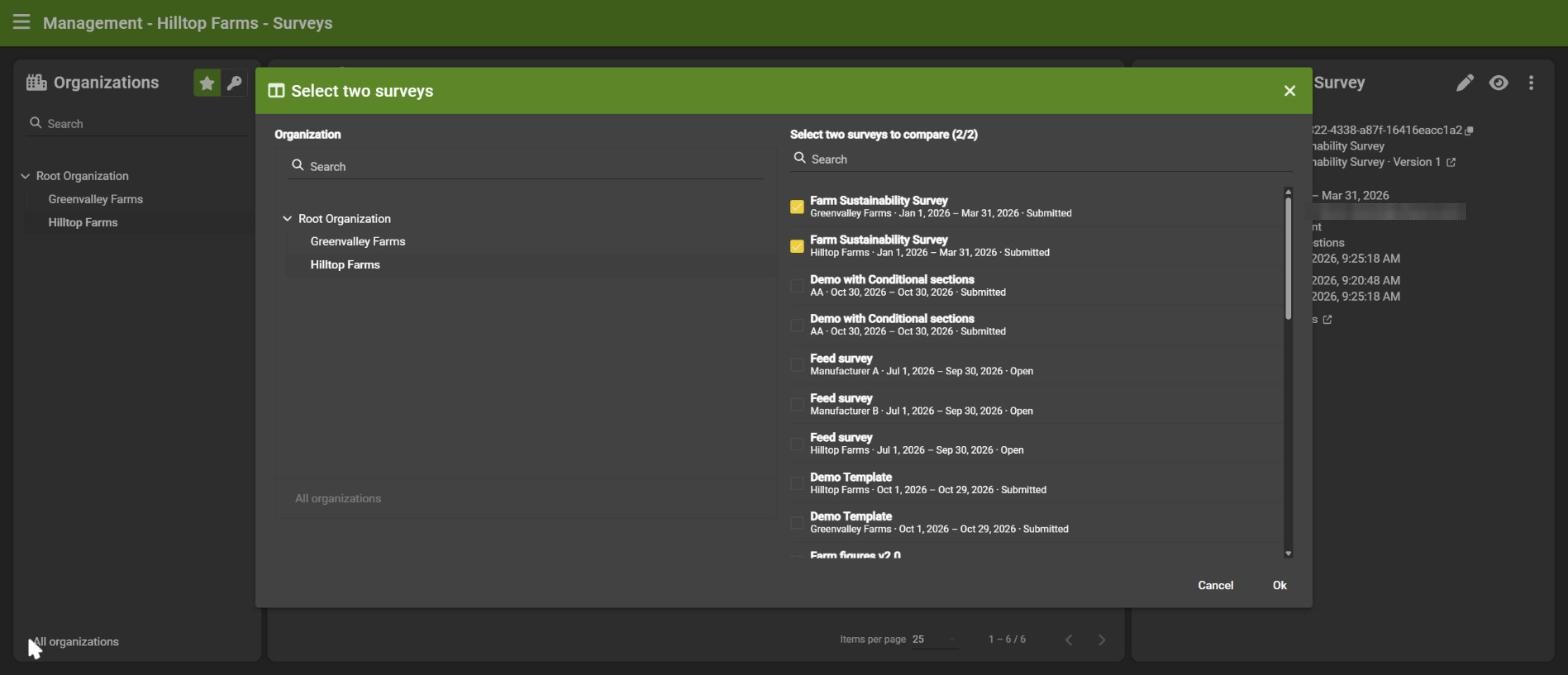
- Select two surveys and click Ok.
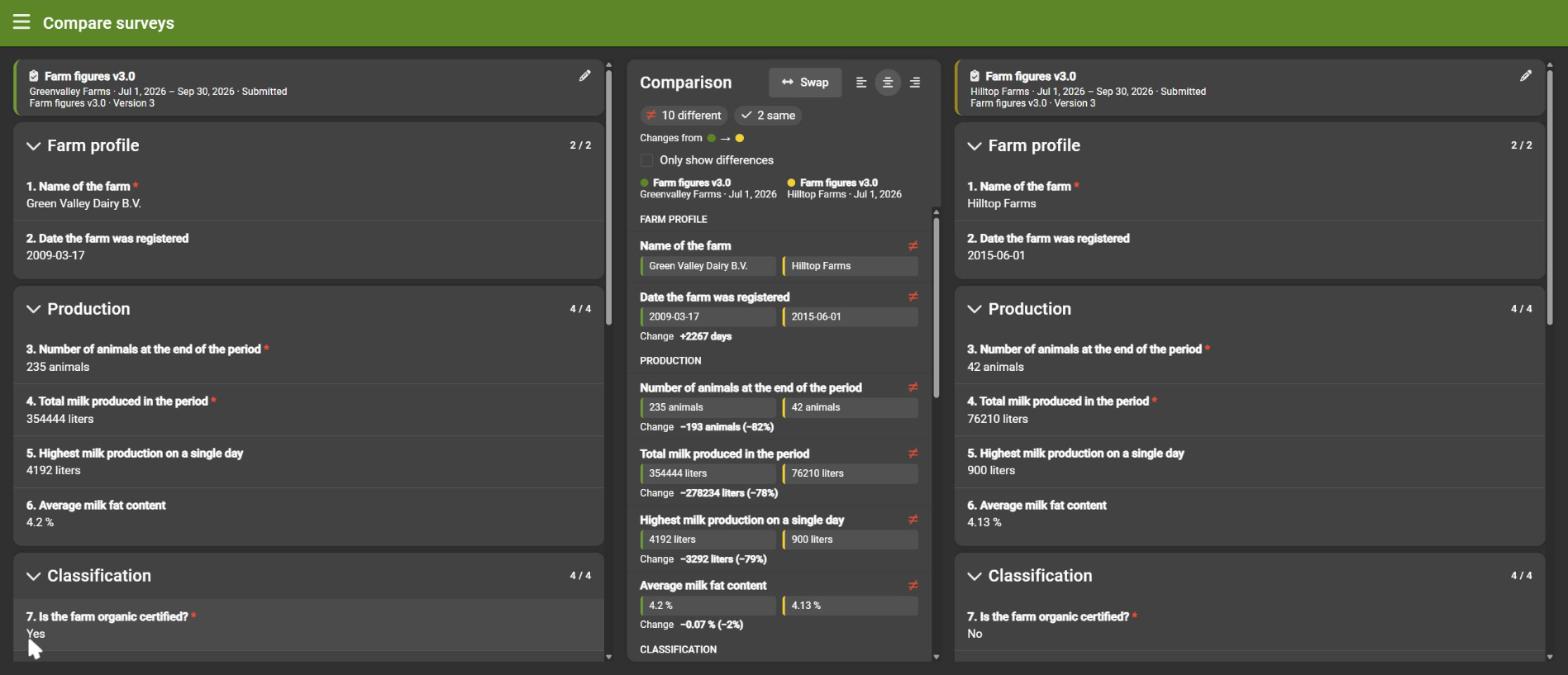
The comparison shows both surveys side by side, and in the middle:
- how many answers are different and how many are the same,
- every question with both answers, and the change for numbers (absolute and percentage), dates (days) and multiple choice (what was added or removed),
- Only show differences to focus on what changed,
- Swap to reverse the direction of the comparison.
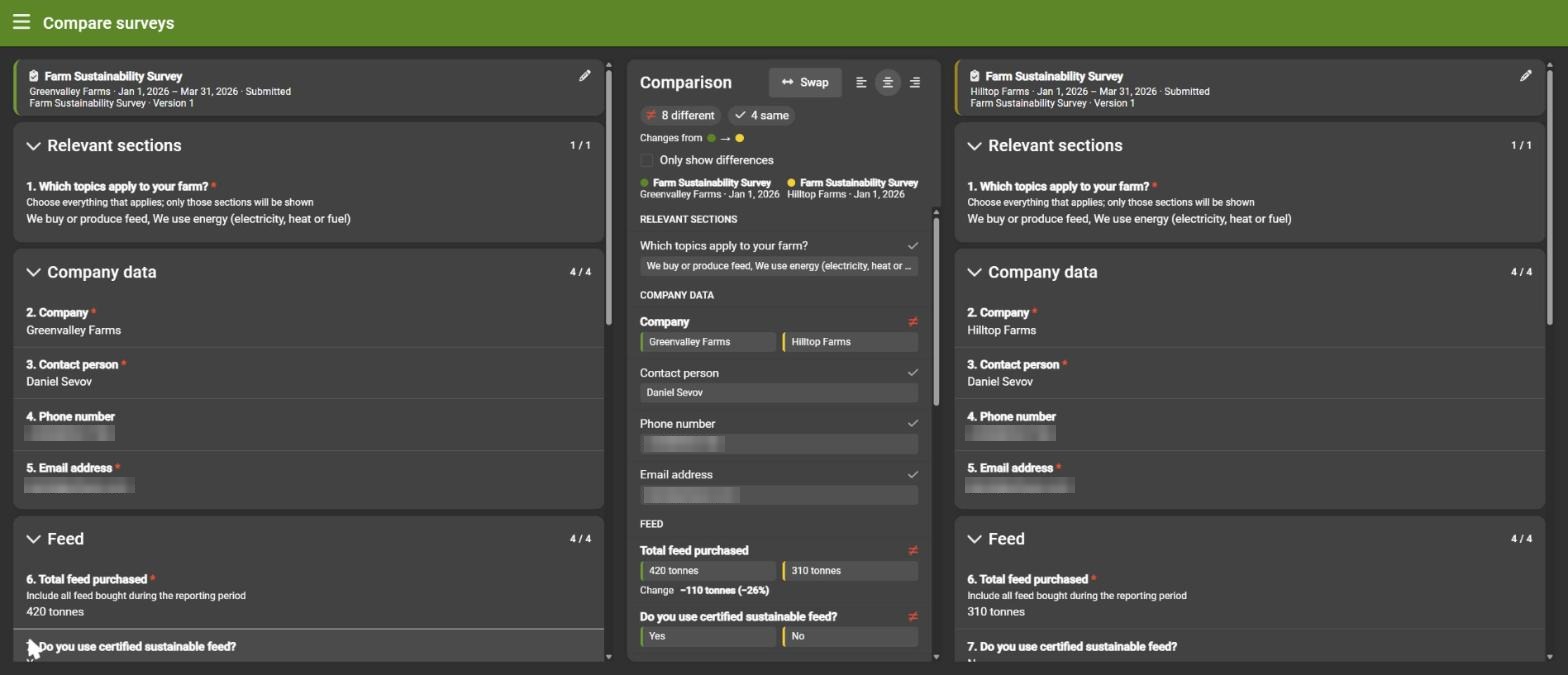
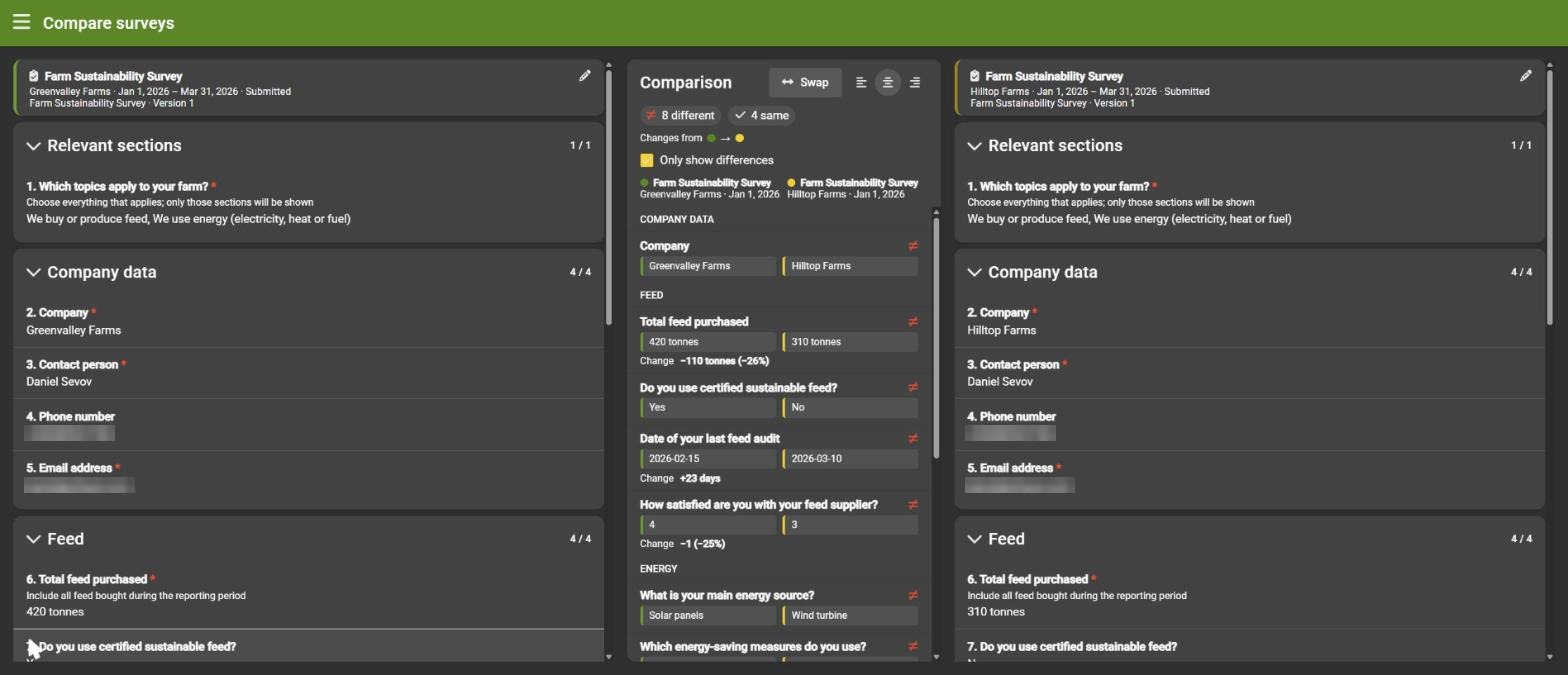
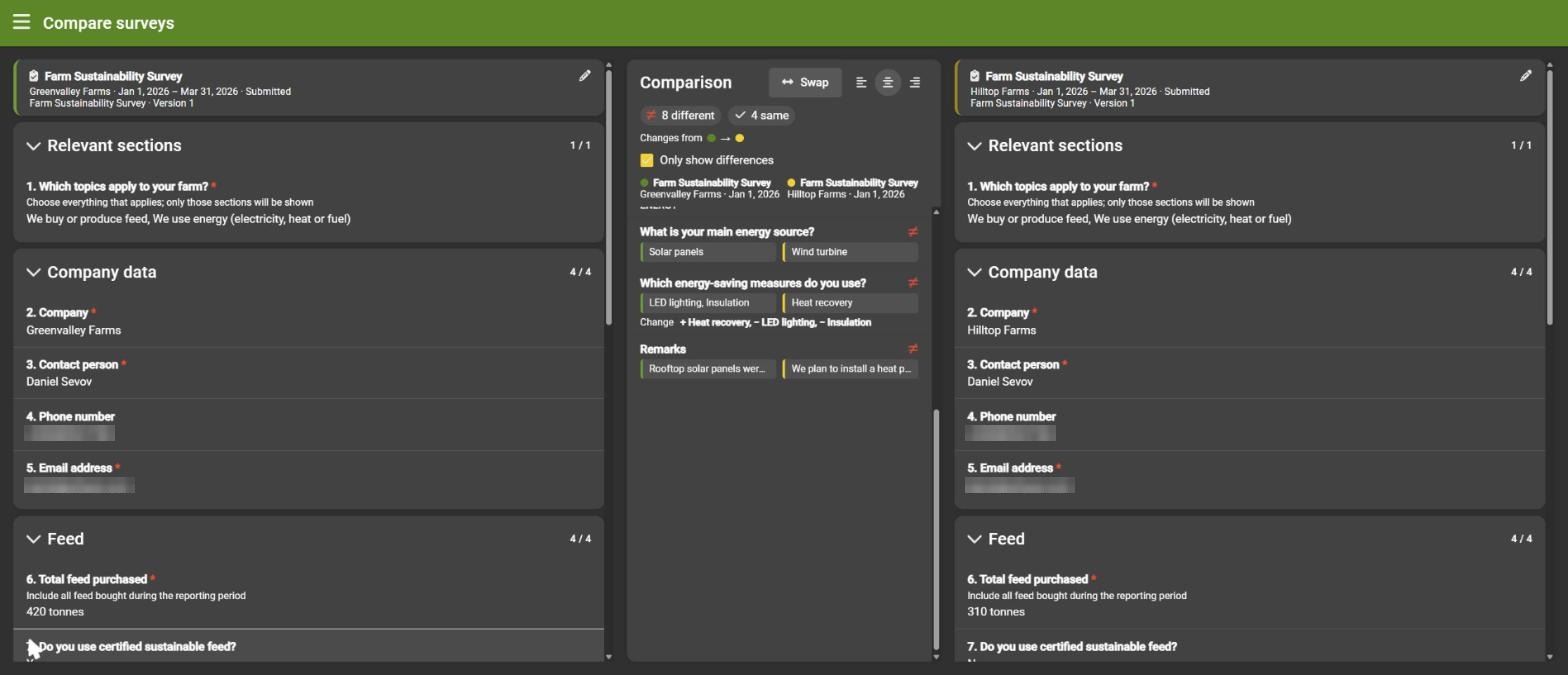
You can also start from a template: the surveys icon of a version lists every survey sent from it, with the option to select two of them and compare.
8. Fill in figures from your ERP
If your organization's ERP (or administration system) is connected, a survey can be filled in with your own figures the moment it is sent. The person answering then only has to check and correct instead of typing everything.
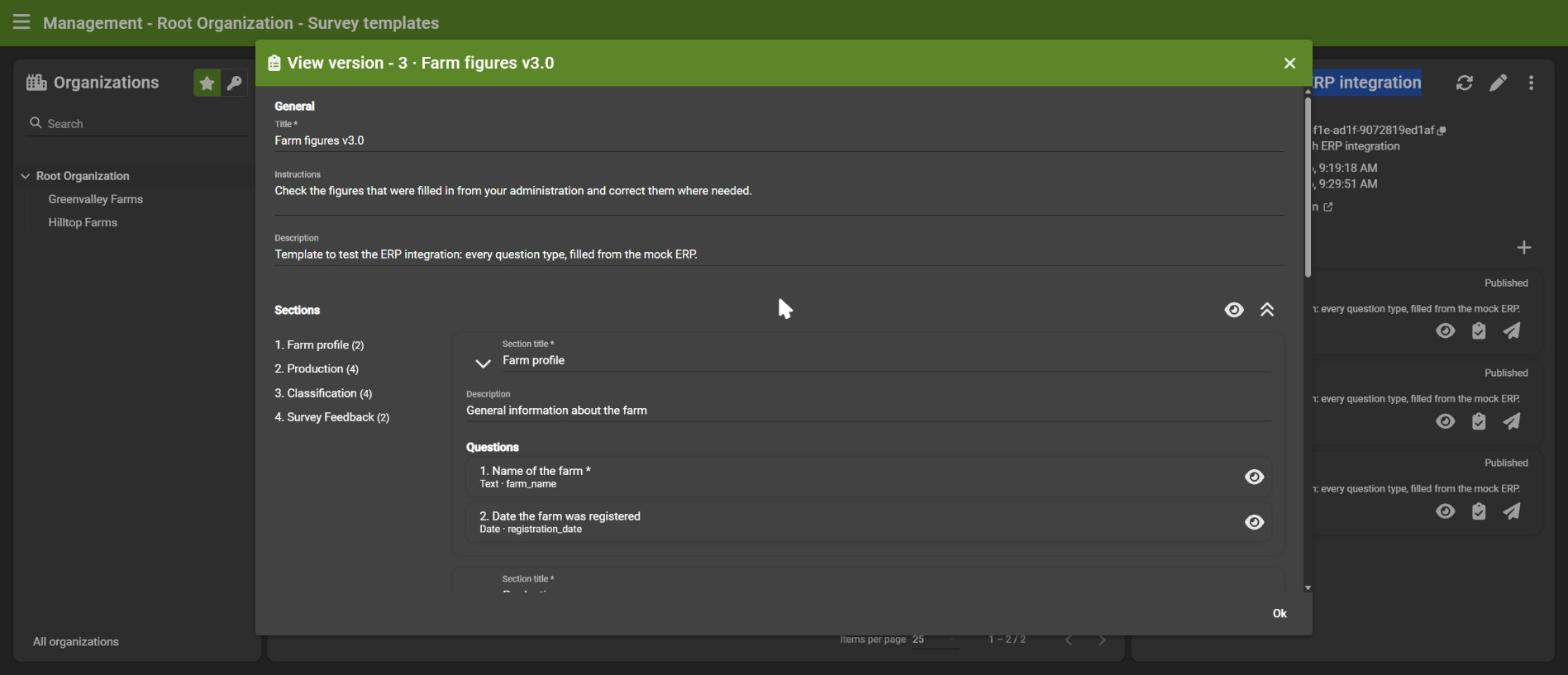
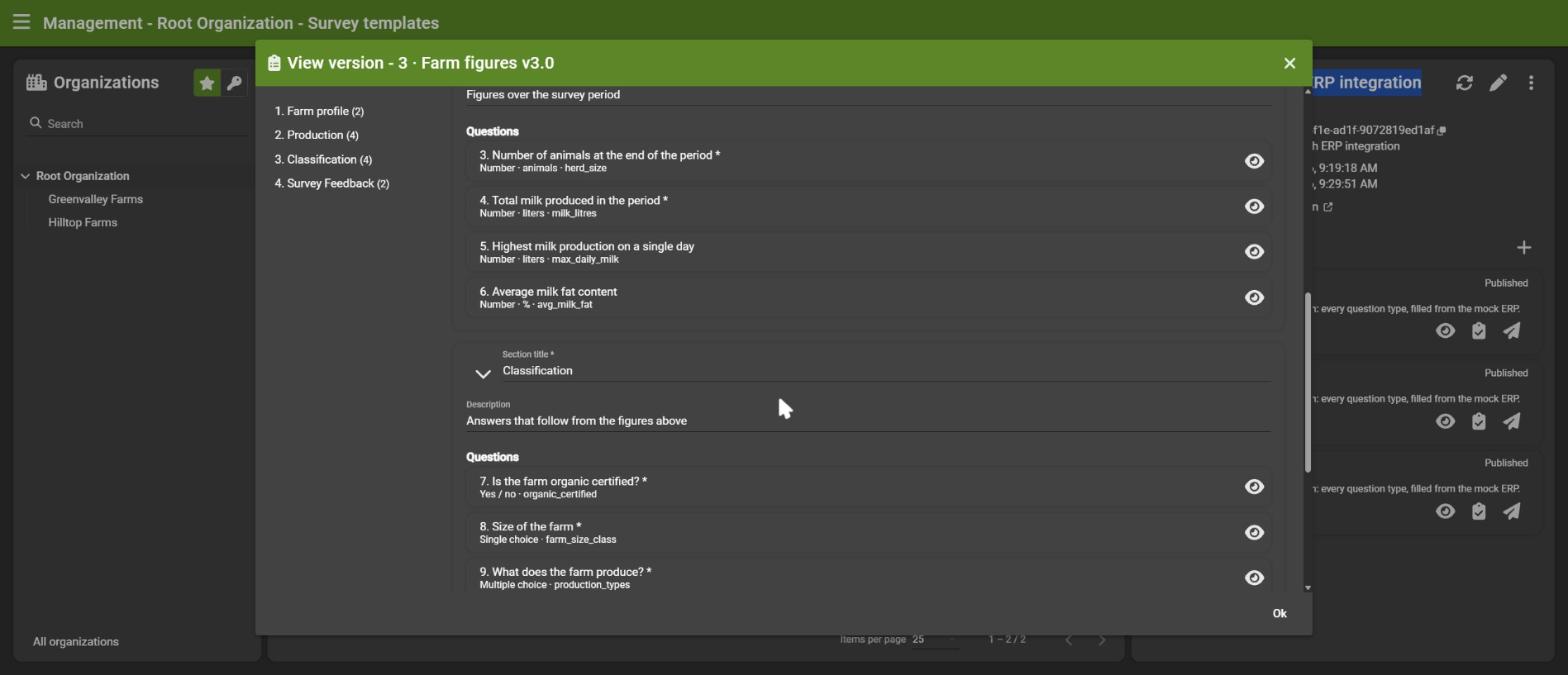
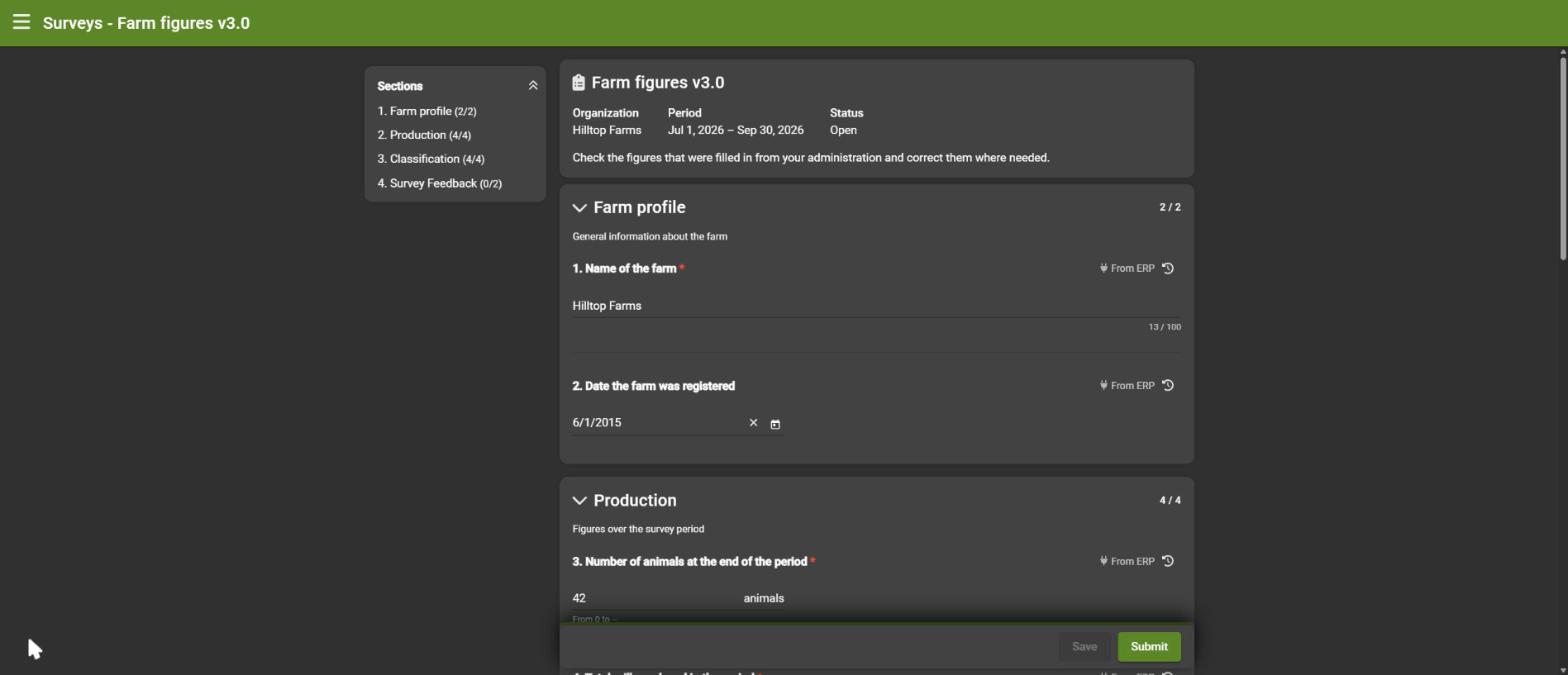
Example: the template Demo Survey with ERP integration (version Farm figures v3.0) asks for the number of animals, the milk production over the period, the organic certification and more. Most of its answers come from the ERP, only the feedback questions at the end are answered by hand.
8.1 How it works
- A published version is sent to one or more organizations as usual (see 3). Pick the period the figures are about, for example a quarter.
- For every organization, the survey is created right away. In the background, the system then reads that organization's ERP for the survey period, saves the answers and then sends the invitation email. So when the responsible user opens the survey, the figures are already there.
- Questions that are not linked to the ERP, such as free text or feedback, stay empty for the person answering.
What the ERP provides is set up per organization by the Whysor team: which ERP data answers which question, and how it is calculated over the survey period (for example the total, the average or the latest value). Every organization can use a different ERP with a different structure, while the survey stays the same. That is also why the question key matters: it is what links a question to the ERP data.
8.2 Check the result
Open the survey in Surveys. The details show how many answers were filled in from the ERP, and how many questions are answered in total.
8.3 Fill in and correct
The answers that came from the ERP are marked From ERP. They work like every other answer:
- Check the figures and change what is not correct. After a change, the mark disappears: it is now your answer.
- The history keeps the original ERP value, the new value, who changed it and when.
- Answer the questions that the ERP could not fill in, then save and submit as usual.
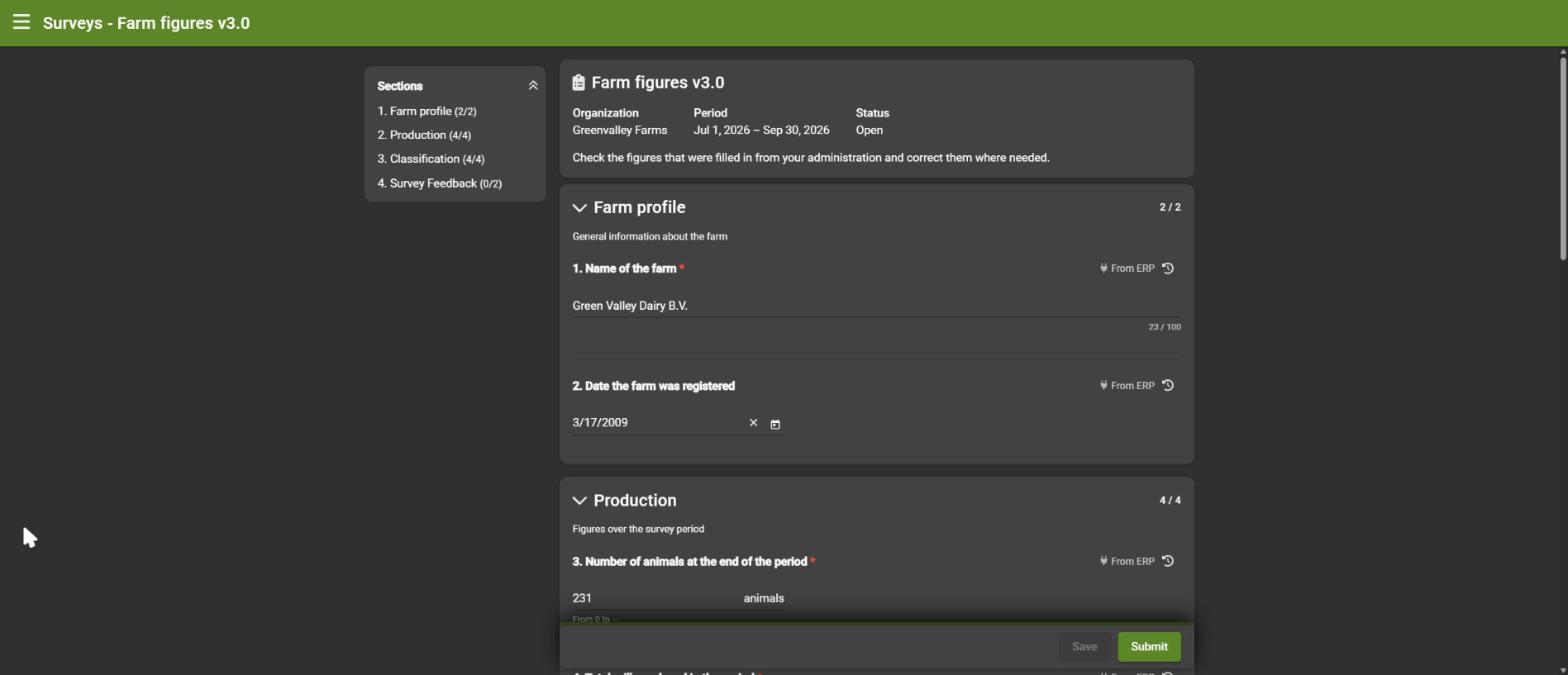
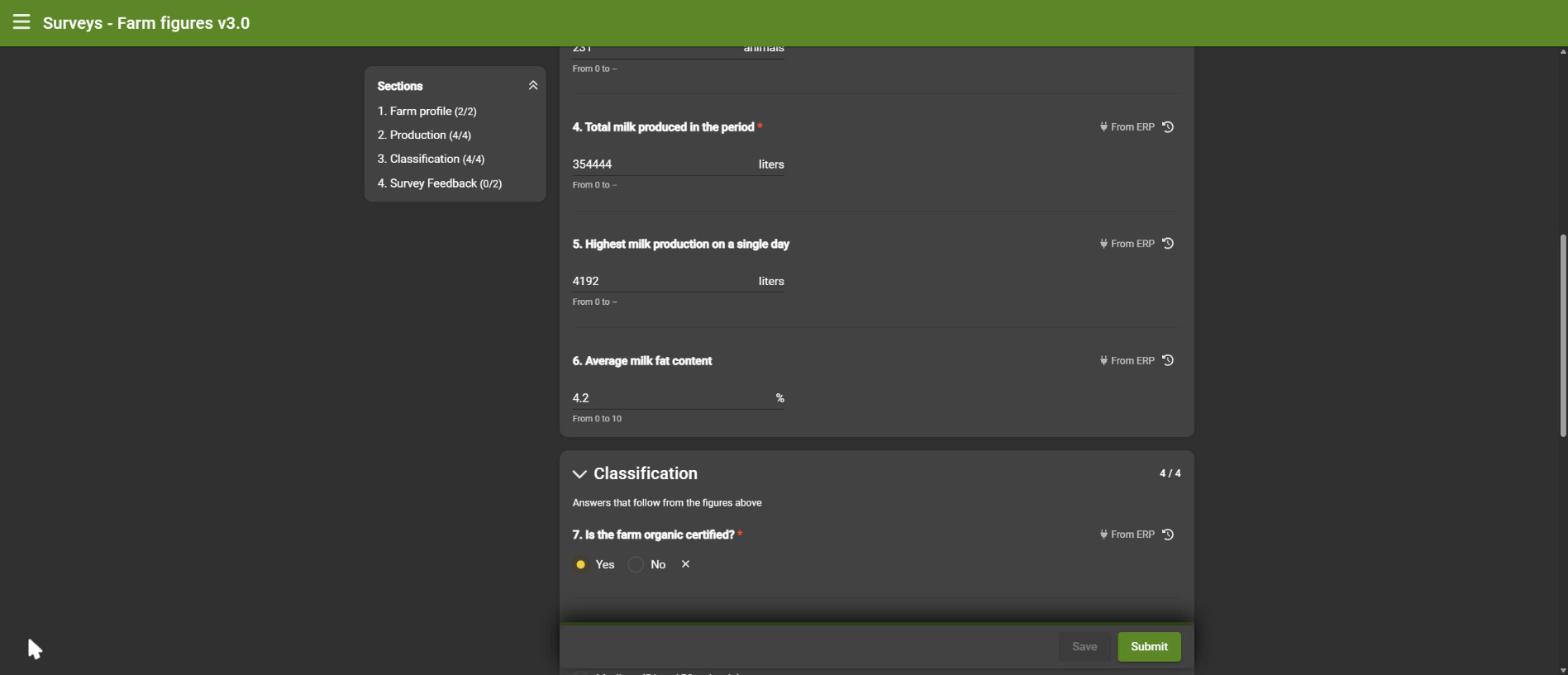
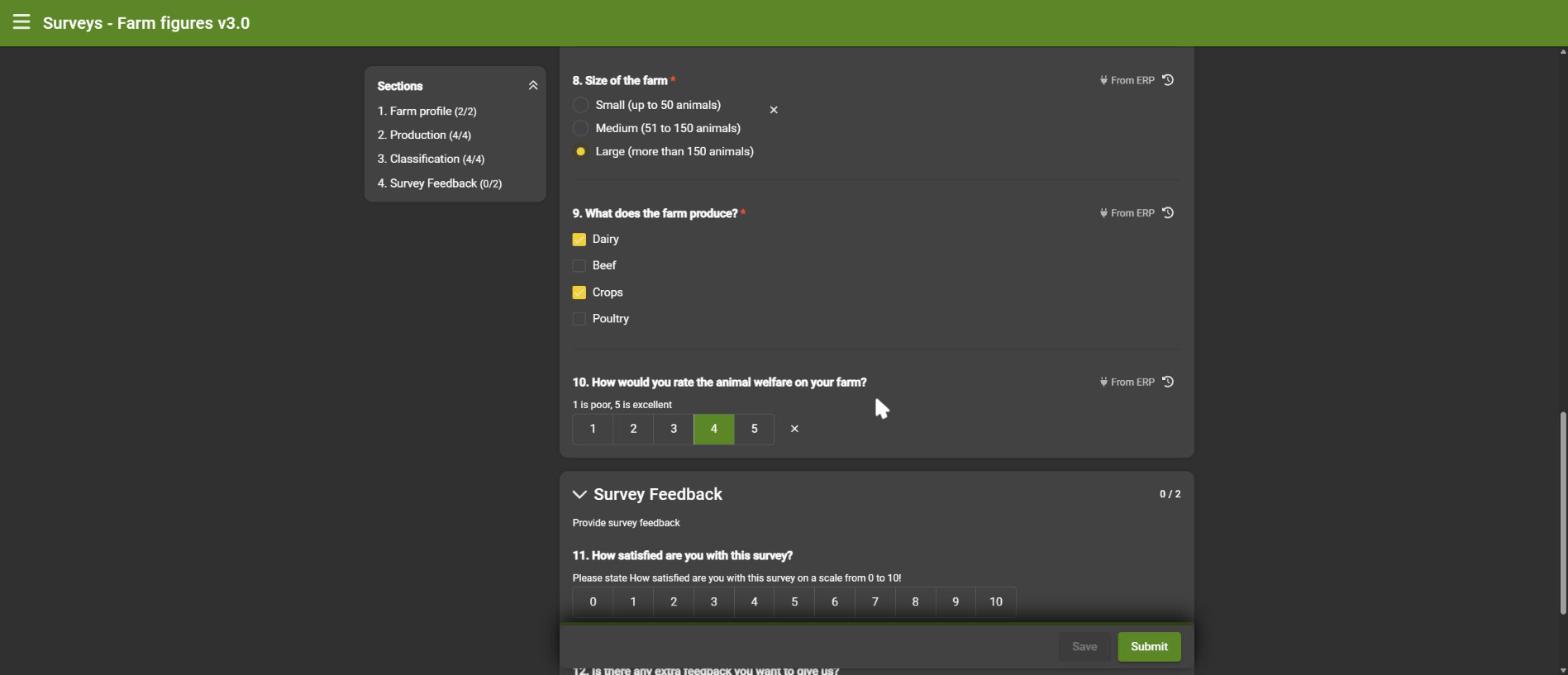
All question types can come from the ERP: text, numbers, dates, yes/no, single and multiple choice and ratings. A value that does not fit the question (for example an option that does not exist) is not filled in.
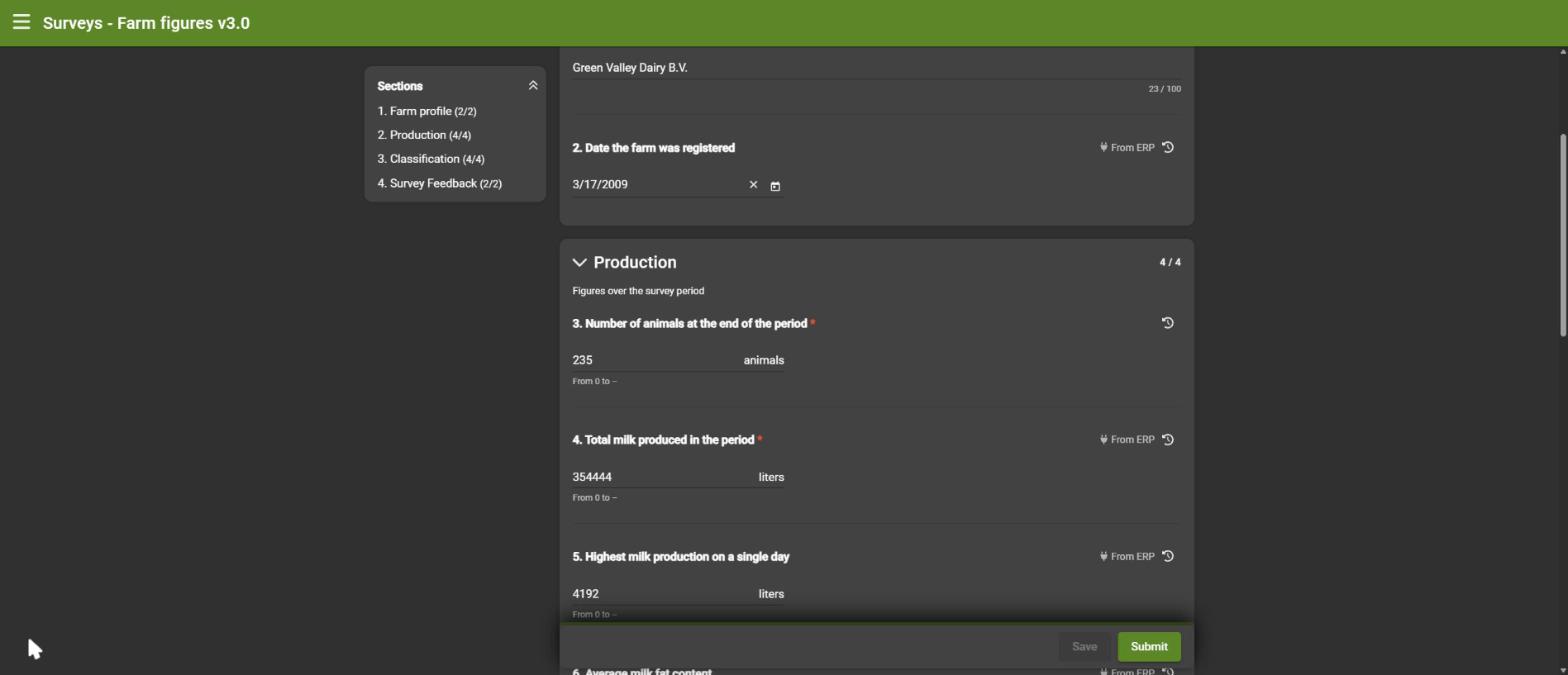
When the survey is submitted, it shows as submitted and can still be corrected afterwards.
8.4 Different farms, one survey
Each organization gets its own figures from its own ERP, with the same questions. Comparing them shows the differences at a glance, including the change as a number and a percentage.
8.5 When the ERP cannot be reached
The ERP is read once, when the survey is sent, and it gets a limited time to answer. If it cannot be reached, or does not answer in time:
- the survey is still created and the invitation is still sent,
- the survey details show a red "Some answers could not be filled in from the ERP". Hover over it to see which question failed and why,
- the person answering simply fills in the questions by hand.
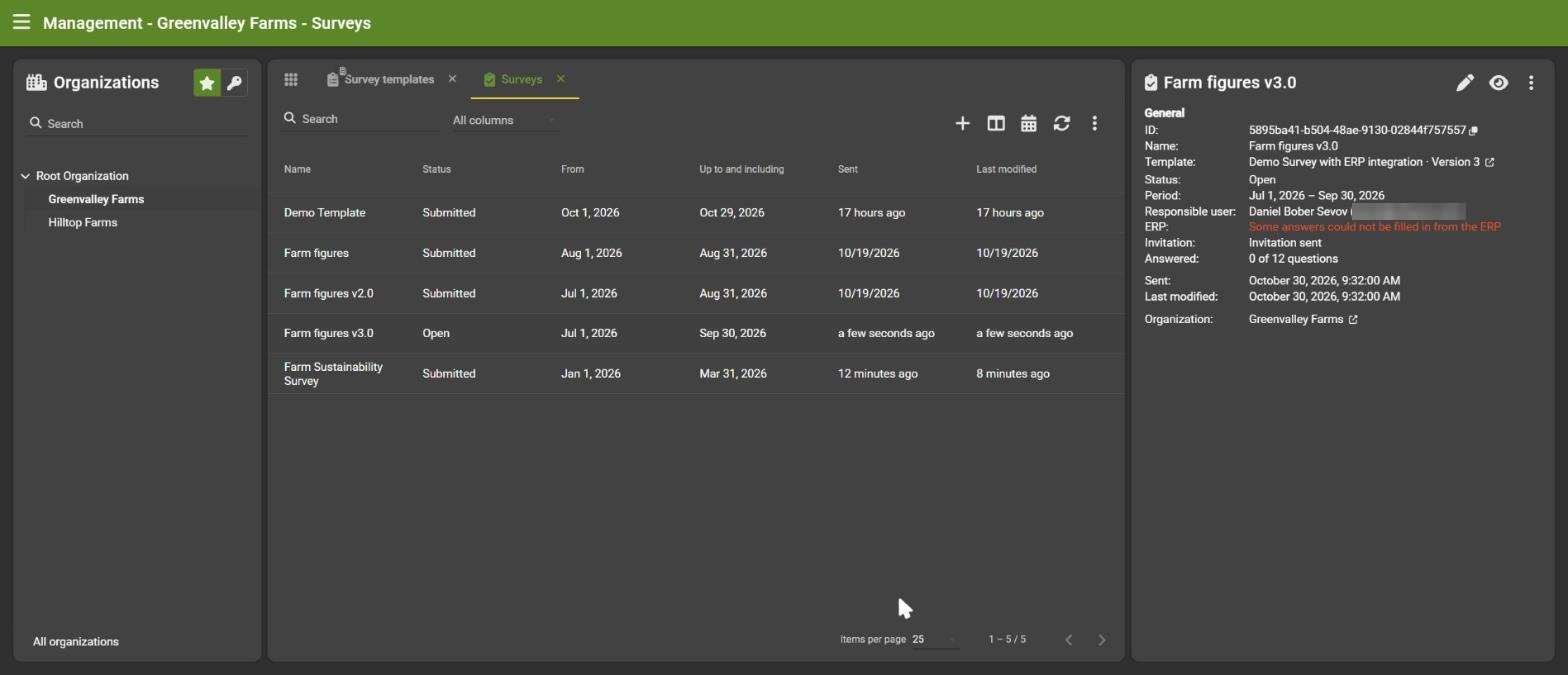
Once the ERP connection is working again, delete the survey (possible as long as it is not submitted) and send the version again: the figures are then filled in. Send invitation again only repeats the email, it does not read the ERP again.
Good to know: figures from the ERP and the details prefilled from the account (see 2.8) can be used in the same survey. An answer that is already there is never overwritten.
9. Quick tips
- Give questions a key that you will recognize: it connects the same question across versions.
- Use required sparingly; it is easier to complete a survey that only asks what is needed.
- Use prefill for company data, and conditional sections to keep the survey short.
- Always try the preview before you publish: a published version cannot be changed.
- Need to change a published template? Create a new version, the surveys that were already sent stay as they are.